# Onboarding
The Onboarding wizard appears after successfully logging into the application. First-time users or users upgrading to the latest version can follow this wizard to set up their preferences.
{% hint style="info" %}
If Administrators set the **ovaledge.onboarding.widget.enable** value as true, the onboarding widget is enabled for the users.
{% endhint %}
**Step#1: Personal Information and Notification Preferences**
This step allows reviewing and updating the personal information and notification preferences.
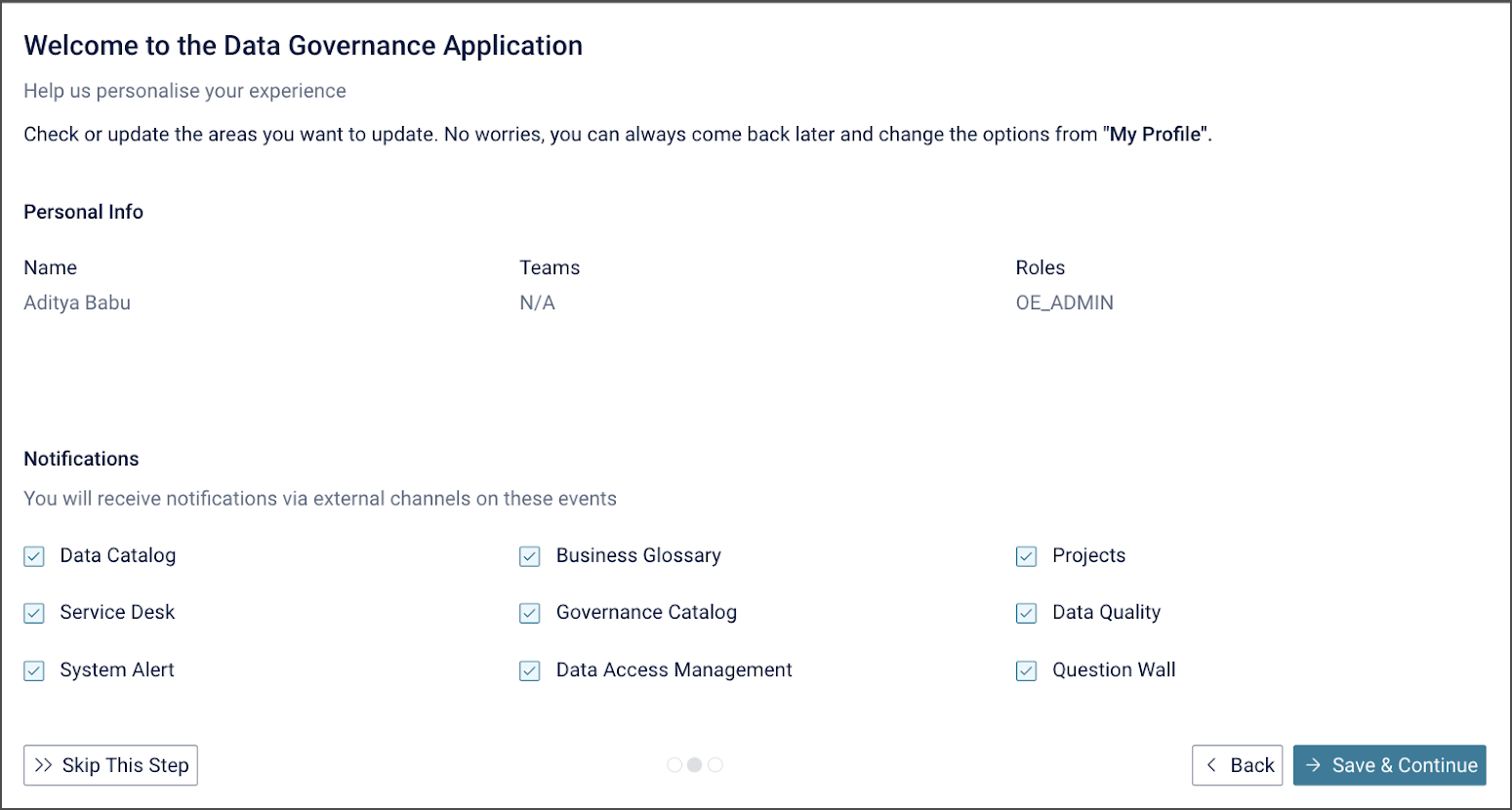 The personal information section allows reviewing the profile details, including usernames, teams, and assigned roles. This section also offers control over notification preferences.
Clicking on the "**Save & Continue**" applies the chosen notification preferences, while selecting "Skip this Step" retains the default settings.
**Step#2: Widget Selection**
In this step, we can Personalize the homepage by selecting the hide/show option beside each widget.
The personal information section allows reviewing the profile details, including usernames, teams, and assigned roles. This section also offers control over notification preferences.
Clicking on the "**Save & Continue**" applies the chosen notification preferences, while selecting "Skip this Step" retains the default settings.
**Step#2: Widget Selection**
In this step, we can Personalize the homepage by selecting the hide/show option beside each widget.
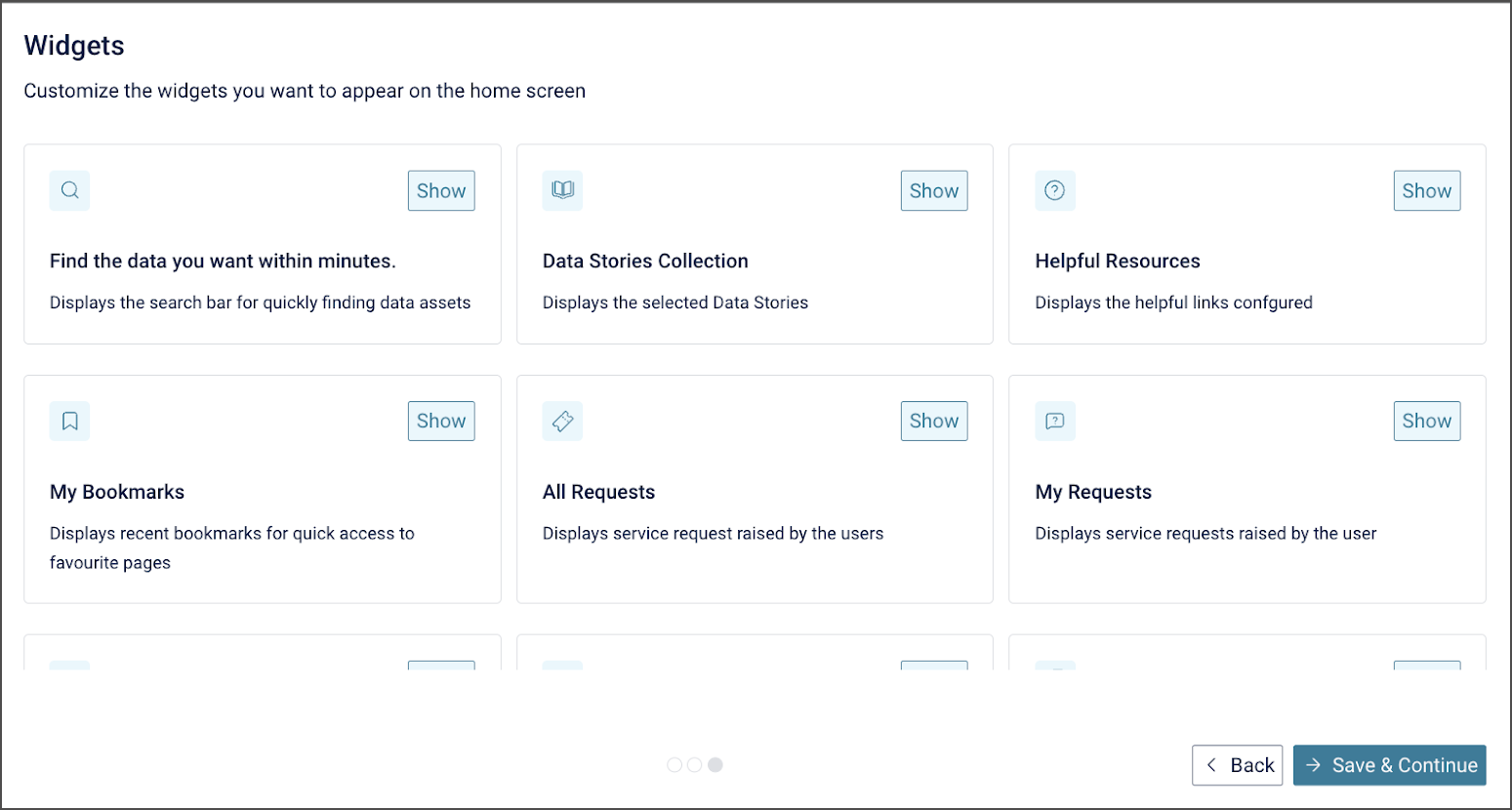 Click on the "Save & Continue," the widgets are saved and displayed on the Home Page.
***
Copyright © 2025, OvalEdge LLC, Peachtree Corners, GA USA
Click on the "Save & Continue," the widgets are saved and displayed on the Home Page.
***
Copyright © 2025, OvalEdge LLC, Peachtree Corners, GA USA