# SSAS Application Setup
This document outlines the step by step process to install the SSAS Application as a Windows service using NSSM (nssm.exe). This setup is applicable for both .NET 6 and .NET 8 versions.
The SSAS Application can be executed in two ways.
* Automatic execution by installing the application as a Windows Service using NSSM
* Manual execution by running the application using Command Prompt
## Download the SSAS Application Package
Download the SSAS project zip file from the approved SSAS application download location.
Download Details
| Item | Description |
| ------------ | ------------------------------------------ |
| Package Name | ssas\_app.zip |
| Source | SSAS Application Connector Builds Location |
{% hint style="info" %}
The SSAS application package is available in the Connector Builds repository. The zip file will be shared as part of the installation artifacts.
{% endhint %}
## Extract the SSAS Package
* Extract the downloaded zip file into a preferred directory.
* This extracted folder contains the SSAS Application project files required for configuration and execution.
## Configure the SSAS Application
### Update the SSAS Configuration File
Before running the SSAS Application, update the SSAS configuration file with the required server details.
#### Locate the Configuration Directory
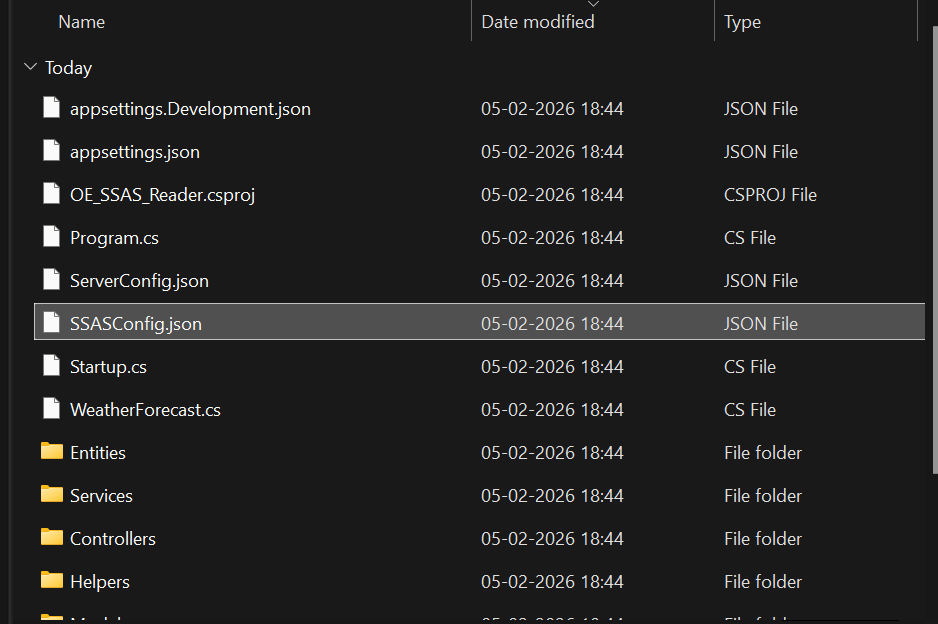
* Navigate to the SSASConfig.json directory inside the extracted SSAS application folder.
 #### Edit the Configuration File
* Open the configuration file for editing and update the required SSAS server connection details.
#### Provide SSAS Server Details
* Update the configuration file by entering the following information.
| Parameter | Description |
| ------------------------------------- | ----------------------------------------------------------- |
| SSAS Server Domain Name or IP Address | Domain name or IP address of the SSAS server to be accessed |
{% hint style="warning" %}
The SSAS server domain name or IP address must be correctly updated in the configuration file. Incorrect details may prevent the application from connecting to the SSAS server.
{% endhint %}
## Select the SSAS Execution Mode
### SSAS Application Startup Method
SSAS Application can be started manually or automatically based on the requirement.
| Startup Method | Description |
| -------------- | --------------------------------------------------------- |
| Automatic | Runs the SSAS Application as a Windows Service using NSSM |
| Manual | Runs the SSAS Application directly using .Net commands |
{% hint style="warning" %}
For automatic startup, proceed with next step (Locate the NSSM Executable) where the application is configured as a Windows Service.
{% endhint %}
## Running the SSAS Application Automatically
Configure the SSAS Application as a Windows Service
* Open Command Prompt
* Open Command Prompt on the Windows machine.
* Navigate to the Project Folder
* Navigate to the folder where the .NET SSAS project is available.
```
cd C:\ssas_app\v8.0\OE_SSAS_Reader
```
{% hint style="warning" %}
The folder path may vary depending on where the zip file was extracted.
{% endhint %}
## Build the SSAS Application
Execute the following commands in sequence to run the SSAS application manually.
* Build the Project
* Build the SSAS application using the following command.
```
dotnet build
```
This will generate the SSAS Application executable file OE\_SSAS\_Reader.exe under bin\Debug\net8.0
### Locate the NSSM Executable
* Navigate to the folder where nssm.exe is available under the extracted ssas\_app.zip directory.
* Path: \\NSSM\nssm.exe
* The nssm.exe executable is available within the extracted SSAS application package.
#### Edit the Configuration File
* Open the configuration file for editing and update the required SSAS server connection details.
#### Provide SSAS Server Details
* Update the configuration file by entering the following information.
| Parameter | Description |
| ------------------------------------- | ----------------------------------------------------------- |
| SSAS Server Domain Name or IP Address | Domain name or IP address of the SSAS server to be accessed |
{% hint style="warning" %}
The SSAS server domain name or IP address must be correctly updated in the configuration file. Incorrect details may prevent the application from connecting to the SSAS server.
{% endhint %}
## Select the SSAS Execution Mode
### SSAS Application Startup Method
SSAS Application can be started manually or automatically based on the requirement.
| Startup Method | Description |
| -------------- | --------------------------------------------------------- |
| Automatic | Runs the SSAS Application as a Windows Service using NSSM |
| Manual | Runs the SSAS Application directly using .Net commands |
{% hint style="warning" %}
For automatic startup, proceed with next step (Locate the NSSM Executable) where the application is configured as a Windows Service.
{% endhint %}
## Running the SSAS Application Automatically
Configure the SSAS Application as a Windows Service
* Open Command Prompt
* Open Command Prompt on the Windows machine.
* Navigate to the Project Folder
* Navigate to the folder where the .NET SSAS project is available.
```
cd C:\ssas_app\v8.0\OE_SSAS_Reader
```
{% hint style="warning" %}
The folder path may vary depending on where the zip file was extracted.
{% endhint %}
## Build the SSAS Application
Execute the following commands in sequence to run the SSAS application manually.
* Build the Project
* Build the SSAS application using the following command.
```
dotnet build
```
This will generate the SSAS Application executable file OE\_SSAS\_Reader.exe under bin\Debug\net8.0
### Locate the NSSM Executable
* Navigate to the folder where nssm.exe is available under the extracted ssas\_app.zip directory.
* Path: \\NSSM\nssm.exe
* The nssm.exe executable is available within the extracted SSAS application package.
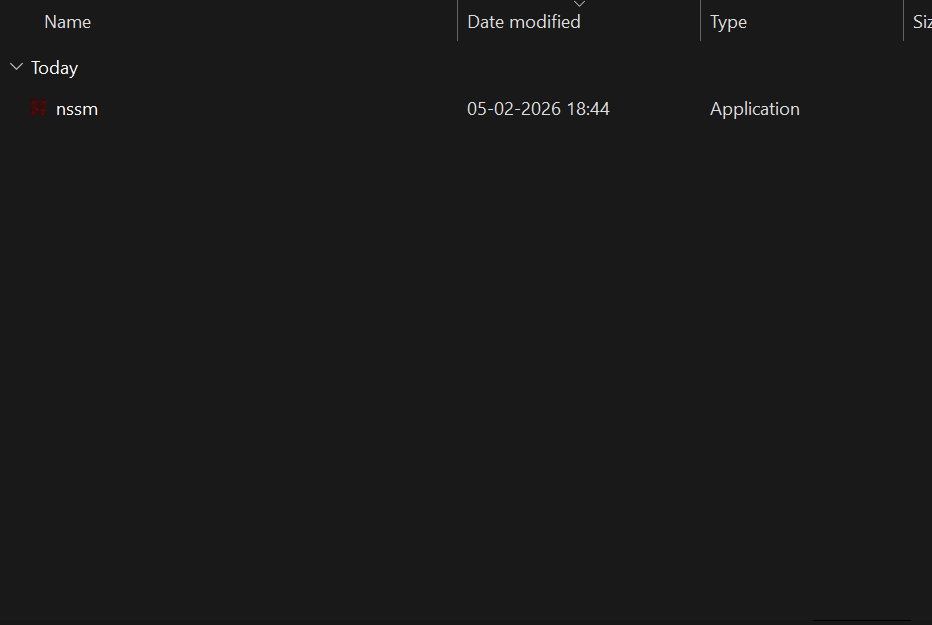 * This executable is used to install the SSAS application as a Windows service.
## Install the SSAS Application as a Windows Service
Install the SSAS Application as a Windows service using Command Prompt.
### Open Command Prompt in the NSSM Directory
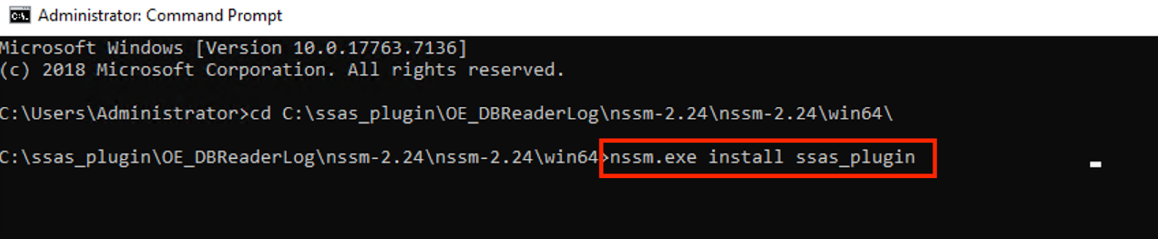
* Open Command Prompt and ensure the current path is set to the directory where nssm.exe is located.
### Execute the NSSM Install Command
* Run the following command to install the SSAS Application as a service.
```
nssm.exe install
```
* This executable is used to install the SSAS application as a Windows service.
## Install the SSAS Application as a Windows Service
Install the SSAS Application as a Windows service using Command Prompt.
### Open Command Prompt in the NSSM Directory
* Open Command Prompt and ensure the current path is set to the directory where nssm.exe is located.
### Execute the NSSM Install Command
* Run the following command to install the SSAS Application as a service.
```
nssm.exe install
```
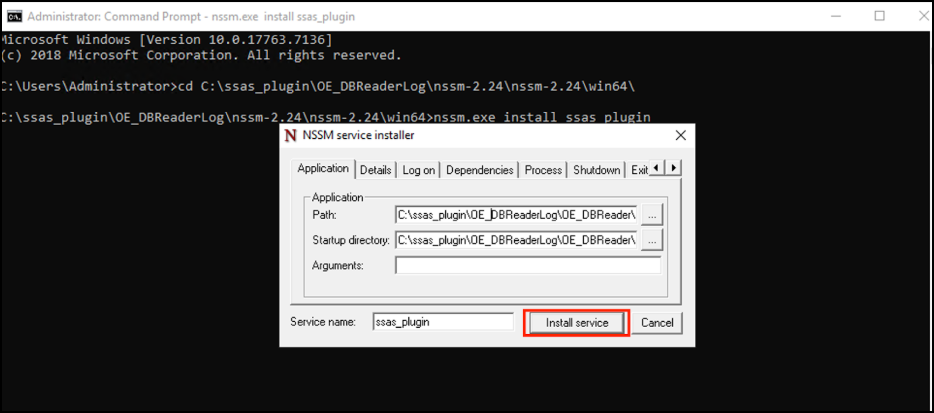
 ### Provide the Application Executable Path
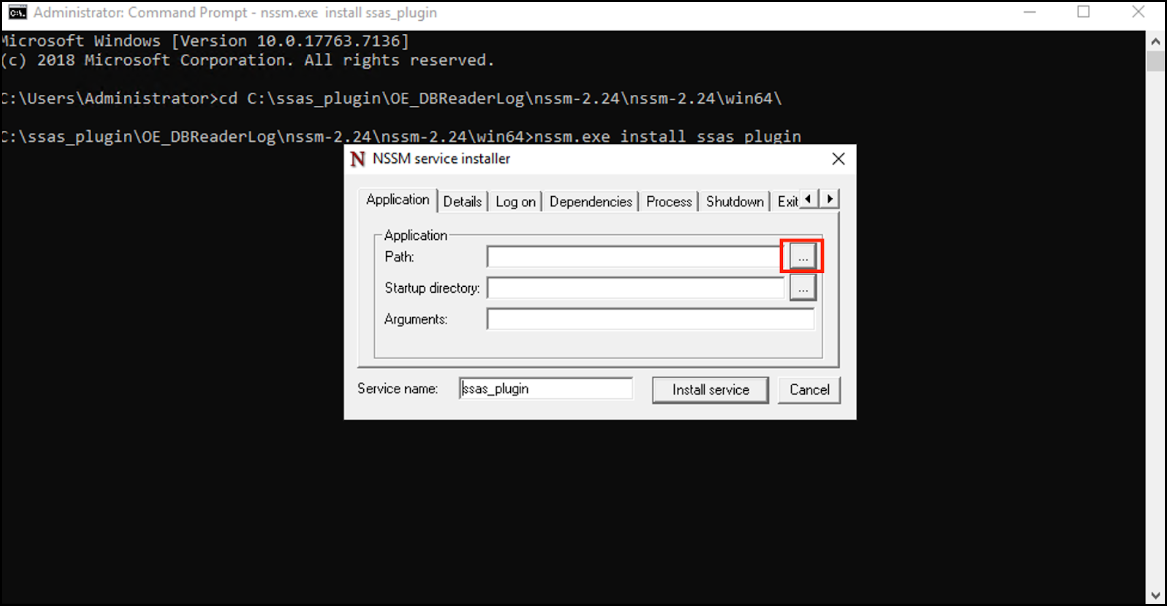
After running the command, a popup window is displayed.
* Click the three dot button (...)
* Browse and select the SSAS Application executable (.exe) file path
### Provide the Application Executable Path
After running the command, a popup window is displayed.
* Click the three dot button (...)
* Browse and select the SSAS Application executable (.exe) file path
 ### Install the Service
* After selecting the executable file, click Install Service to complete the service installation.
### Install the Service
* After selecting the executable file, click Install Service to complete the service installation.
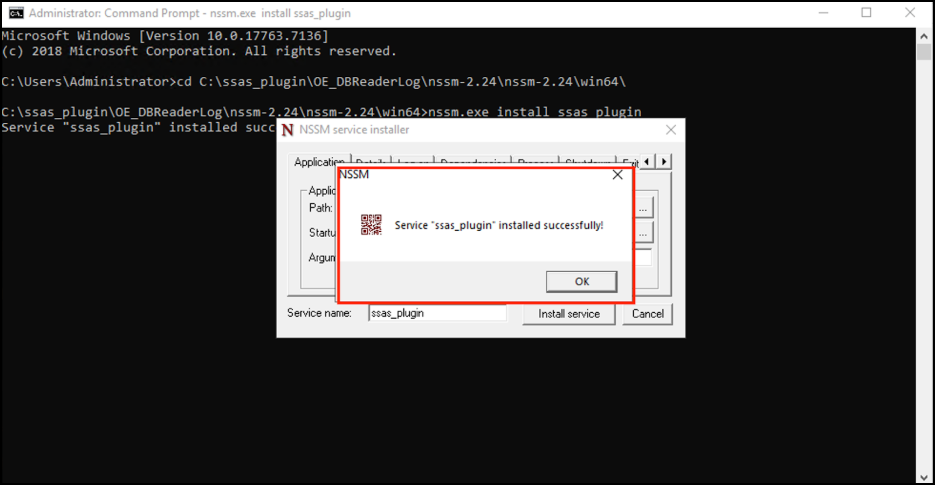
 ### Confirm the Installation
* A confirmation message is displayed indicating that the service was installed successfully.
### Confirm the Installation
* A confirmation message is displayed indicating that the service was installed successfully.
 {% hint style="warning" %}
The SSAS Application service name provided in the install command is used to identify the service in the Windows Services console.
{% endhint %}
## Starting the SSAS Windows Service
### Start the Installed SSAS Application Service
After the SSAS Application is installed as a Windows service, start the service from the Services console.
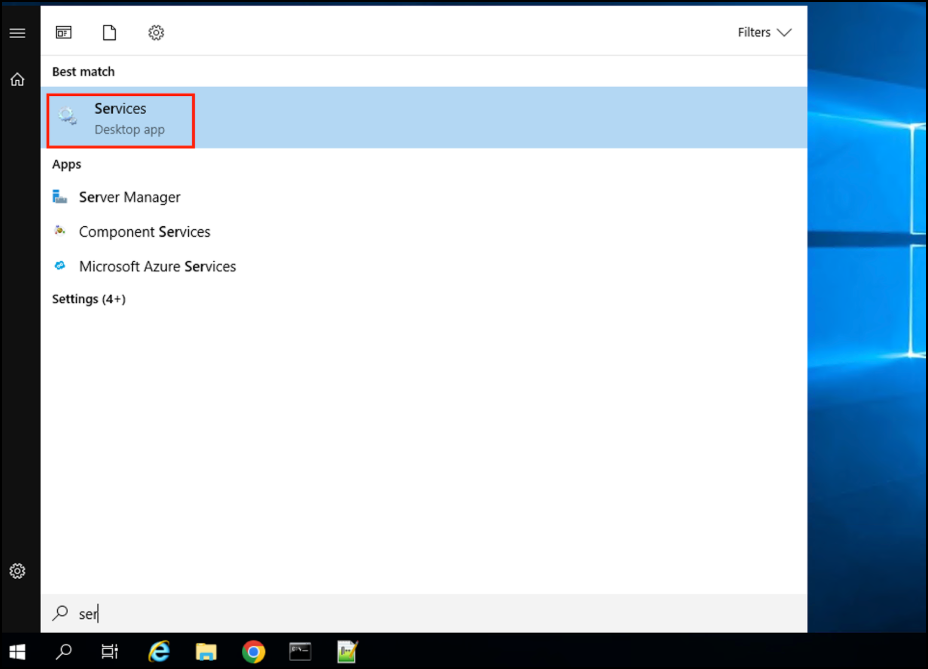
* Open the Services Console
* Open the Windows Services console using the following command.
```
services.msc
```
{% hint style="warning" %}
The SSAS Application service name provided in the install command is used to identify the service in the Windows Services console.
{% endhint %}
## Starting the SSAS Windows Service
### Start the Installed SSAS Application Service
After the SSAS Application is installed as a Windows service, start the service from the Services console.
* Open the Services Console
* Open the Windows Services console using the following command.
```
services.msc
```
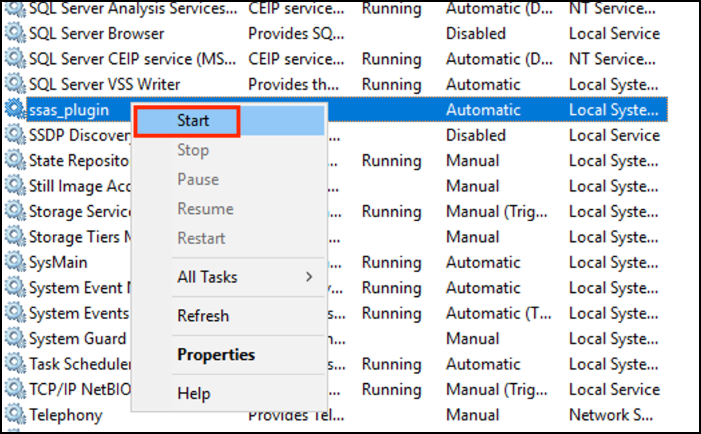
 * Locate the Installed Service
* Locate the SSAS Application service that was installed using NSSM.
* Start the Service
* Right click the service and select Start.
* Locate the Installed Service
* Locate the SSAS Application service that was installed using NSSM.
* Start the Service
* Right click the service and select Start.
 {% hint style="warning" %}
The SSAS application runs continuously when started as a Windows service.
{% endhint %}
## Running the SSAS Application Manually
### Execute the SSAS Application Using Command Prompt
Manual execution is supported for running the SSAS application without installing it as a Windows service.
* Open Command Prompt
* Open Command Prompt on the Windows machine.
* Navigate to the Project Folder
* Navigate to the folder where the .NET SSAS project is available.
```
cd C:\ssas_app\v8.0\OE_SSAS_Reader
```
{% hint style="warning" %}
The folder path may vary depending on where the zip file was extracted.
{% endhint %}
## Build, Publish, and Run the SSAS Application
Execute the following commands in sequence to run the SSAS application manually.
* Build the Project
* Build the SSAS application using the following command.
```
dotnet build
```
* Publish the Project
* After the build is completed, publish the SSAS application using the following command.
```
dotnet publish
```
* Run the Project
* After the publish is completed, run the SSAS application using the following command.
```
dotnet run
```
{% hint style="warning" %}
All commands must be executed in the SSAS project folder location.
{% endhint %}
## Accessing the SSAS Swagger UI
### Open Swagger UI for SSAS Application
After the SSAS application is started, access the Swagger documentation page using the following URL.
```
http://:5000/swagger/index.html
```
{% hint style="warning" %}
Swagger UI provides API documentation and allows validation of the SSAS Application availability.
{% endhint %}
***
Copyright © 2026, OvalEdge LLC, Peachtree Corners GA USA
{% hint style="warning" %}
The SSAS application runs continuously when started as a Windows service.
{% endhint %}
## Running the SSAS Application Manually
### Execute the SSAS Application Using Command Prompt
Manual execution is supported for running the SSAS application without installing it as a Windows service.
* Open Command Prompt
* Open Command Prompt on the Windows machine.
* Navigate to the Project Folder
* Navigate to the folder where the .NET SSAS project is available.
```
cd C:\ssas_app\v8.0\OE_SSAS_Reader
```
{% hint style="warning" %}
The folder path may vary depending on where the zip file was extracted.
{% endhint %}
## Build, Publish, and Run the SSAS Application
Execute the following commands in sequence to run the SSAS application manually.
* Build the Project
* Build the SSAS application using the following command.
```
dotnet build
```
* Publish the Project
* After the build is completed, publish the SSAS application using the following command.
```
dotnet publish
```
* Run the Project
* After the publish is completed, run the SSAS application using the following command.
```
dotnet run
```
{% hint style="warning" %}
All commands must be executed in the SSAS project folder location.
{% endhint %}
## Accessing the SSAS Swagger UI
### Open Swagger UI for SSAS Application
After the SSAS application is started, access the Swagger documentation page using the following URL.
```
http://:5000/swagger/index.html
```
{% hint style="warning" %}
Swagger UI provides API documentation and allows validation of the SSAS Application availability.
{% endhint %}
***
Copyright © 2026, OvalEdge LLC, Peachtree Corners GA USA