# Denodo

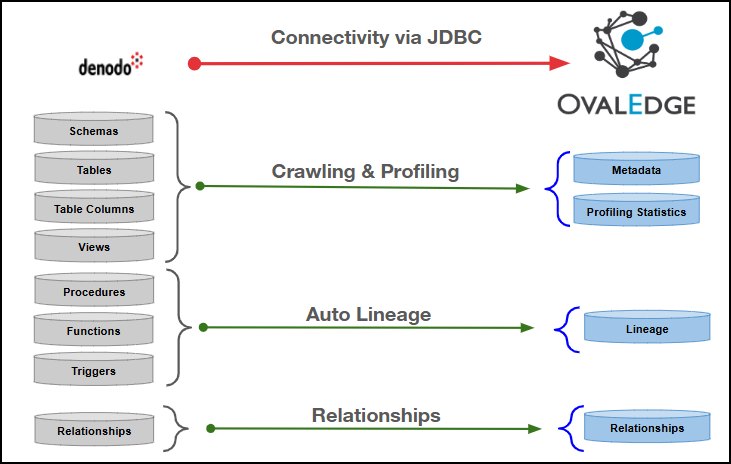
This article outlines the integration with the Denodo connector, enabling streamlined metadata management through crawling, profiling, data preview, data quality, querying, relationships, and lineage building (Auto & Manual), while ensuring secure authentication via Credential Manager.

<figure><img src="https://content.gitbook.com/content/ztcvwwOJCeaE1n6oHp4C/blobs/TW5LhbCaui74ijHiZsTH/unknown.png" alt=""><figcaption></figcaption></figure>

## Overview

### Connector Details

| Connector Category                                                         | RDBMS      |
| -------------------------------------------------------------------------- | ---------- |
| Connector Version                                                          | Release7.1 |
| Releases Supported (Available from)                                        | Release6.0 |
| <p>Connectivity</p><p>\[How the connection is established with Denodo]</p> | JDBC       |
| Verified Denodo Version                                                    | 8          |

{% hint style="info" %}
The Denodo connector validates with the listed “Verified Denodo Version” and supports other compatible Denodo versions. If there are any issues with validation or metadata crawling, please submit a support ticket for investigation and feedback.
{% endhint %}

### Connector Features

| Feature                                      | Availability |
| -------------------------------------------- | :----------: |
| Crawling                                     |       ✅      |
| Delta Crawling                               |      NA      |
| Profiling                                    |       ✅      |
| Query Sheet                                  |       ✅      |
| Data Preview                                 |       ✅      |
| Auto Lineage                                 |       ✅      |
| Manual Lineage                               |       ✅      |
| Secure Authentication via Credential Manager |       ✅      |
| Data Quality                                 |       ✅      |
| DAM (Data Access Management)                 |      NA      |
| Bridge                                       |       ✅      |

{% hint style="info" %}
'NA' indicates that the respective feature is 'Not Applicable.'
{% endhint %}

### Metadata Mapping

The following objects are crawled from the Denodo and mapped to the corresponding UI assets.

<table><thead><tr><th width="143.666748046875">Denodo Object</th><th width="161.6666259765625">Denodo Attribute</th><th width="173.6666259765625">OvalEdge Attribute</th><th width="175.3333740234375">OvalEdge Category</th><th width="145.3333740234375">OvalEdge Type</th></tr></thead><tbody><tr><td>Schema</td><td>Name</td><td>Schema</td><td>Schemas</td><td>Schema</td></tr><tr><td>Table</td><td>Table Name</td><td>Table</td><td>Tables</td><td>Table</td></tr><tr><td>Table</td><td>Table Type</td><td>Table</td><td>Tables</td><td>Table</td></tr><tr><td>Table</td><td>Table Comments</td><td>Source Description</td><td>Descriptions</td><td>Source Description</td></tr><tr><td>Columns</td><td>Column Name</td><td>Column</td><td>Table Columns</td><td>-</td></tr><tr><td>Columns</td><td>Data Type</td><td>Column Type</td><td>Table Columns</td><td>-</td></tr><tr><td>Columns</td><td>Description</td><td>Source Description</td><td>Table Columns</td><td>-</td></tr><tr><td>Columns</td><td>Ordinal Position</td><td>Column Position</td><td>Table Columns</td><td>-</td></tr><tr><td>Columns</td><td>Length</td><td>Data Type Size</td><td>Table Columns</td><td>-</td></tr><tr><td>Views</td><td>View Name</td><td>View</td><td>Tables</td><td>View</td></tr><tr><td>Views</td><td>Text</td><td>View Query</td><td>Views</td><td>View</td></tr><tr><td>Procedures</td><td>Routine_Name</td><td>Name</td><td>Procedures</td><td>-</td></tr><tr><td>Procedures</td><td>Description</td><td>Source Description</td><td>Descriptions</td><td>-</td></tr><tr><td>Procedures</td><td>Routine_Definition</td><td>Procedure</td><td>Procedures</td><td>-</td></tr><tr><td>Functions</td><td>Routine_Name</td><td>Name</td><td>Functions</td><td>-</td></tr><tr><td>Functions</td><td>Routine_Definition</td><td>Function</td><td>Functions</td><td>-</td></tr><tr><td>Functions</td><td>Description</td><td>Source Description</td><td>Descriptions</td><td>-</td></tr></tbody></table>

## Set up a Connection

### Prerequisites

The prerequisites to establish a connection:

### **Whitelisting Ports**

Whitelist the inbound port 9999 to allow OvalEdge to connect to the Denodo Server database.

{% hint style="warning" %}
Denodo uses port 9999 by default. When a different port is configured, specify the updated port number during connection setup, whitelist the port, and establish proper communication between the system and the Denodo Server.
{% endhint %}

### Service Account User Permissions

{% hint style="warning" %}
Use a dedicated service account to establish the connection to the data source, configured with the following minimum set of permissions.
{% endhint %}

{% hint style="info" %}
**👨‍💻 Who can provide these permissions?** The Denodo administrator grants these permissions, as standard accounts may not have the required access to assign them independently.
{% endhint %}

| Objects       | System Tables/Objects | Access Permission |
| ------------- | --------------------- | ----------------- |
| Schema        | List Databases        | Select            |
| Tables        | Get\_Views()          | Select            |
| Columns       | Get\_View\_Columns()  | Select            |
| Views         | Get\_Views()          | Select            |
| Relationships | Get\_Associations()   | References        |

### Connection Configuration Steps

{% hint style="warning" %}
Users must have the Connector Creator role to configure a new connection.
{% endhint %}

1. Log in to OvalEdge, go to Administration > Connectors, click + (**New Connector**), search for **Denodo**, and complete the required parameters.

{% hint style="info" %}
Fields marked with an asterisk (\*) are mandatory for establishing a connection.
{% endhint %}

<table><thead><tr><th width="220.666748046875">Field Name</th><th>Description</th></tr></thead><tbody><tr><td>Connector Type</td><td>By default, "Denodo" is displayed as the selected connector type.</td></tr><tr><td>SSL Enabled*</td><td>Set to True when the Denodo server is configured to accept SSL connections. Set it to False when the server does not use SSL.</td></tr><tr><td>Credential Manager*</td><td><p>Select the desired credentials manager from the drop-down list. Relevant parameters will be displayed based on the selection.</p><p>Supported Credential Managers:</p><ul><li>Database</li><li>HashiCorp</li><li>AWS Secrets Manager</li><li>Azure Key Vault</li></ul></td></tr><tr><td>License Add-On</td><td><p><br></p><ul><li>Select the Auto Lineage Add-On checkbox to automatically build data lineage.</li><li>Select the Data Quality Add-On checkbox to identify data quality issues using data quality rules and anomaly detection.</li></ul></td></tr><tr><td>Connector Name*</td><td><p>Enter a unique name for the Denodo connection              </p><p>(Example: "Denodo_Prod").</p></td></tr><tr><td>Connector Environment</td><td>Select the environment (Example: PROD, STG) configured for the connector.</td></tr><tr><td>Connector Description</td><td>Enter the description related to the connector.</td></tr><tr><td>Server*</td><td>Enter the server's IP address where Denodo is hosted.</td></tr><tr><td>Port*</td><td>Denodo uses port 9999 by default. The port number can be modified as needed.</td></tr><tr><td>Database*</td><td>Enter the name of the target Denodo database to establish the connection. </td></tr><tr><td>Driver*</td><td>By default, Denodo uses ‘com.denodo.vdp.jdbc.Driver.’ This field is not editable.</td></tr><tr><td>Username* </td><td>Enter the Username for the  Denodo server.</td></tr><tr><td>Password* </td><td>Enter the Password associated with the Denodo Username.</td></tr><tr><td>Connection String</td><td><p>Configure the connection string for the Denodo server:</p><ul><li>Automatic Mode: The system generates a connection string based on the provided credentials.</li><li>Manual Mode: Enter a valid connection string manually.</li></ul><p>Replace placeholders with actual server details:</p><ul><li>{server} refers to the Denodo host or IP address.</li><li>{sid} refers to the Denodo database (Virtual Database).</li></ul><p>Authentication Plugins:<br>jdbc:vdb://{server}:9999/{sid}?publishCatalogsAsSchemas=true&#x26;ssl=false</p><p>This is the default authentication string used for connecting to Denodo.</p></td></tr><tr><td>Plugin Server</td><td>Enter the server name when running as a plugin server.</td></tr><tr><td>Plugin Port</td><td>Enter the port number on which the plugin is running.</td></tr></tbody></table>

**Default Governance Roles**

<table data-header-hidden><thead><tr><th width="220.6666259765625"></th><th></th></tr></thead><tbody><tr><td>Default Governance Roles*</td><td>Select the appropriate users or teams for each governance role from the drop-down list. All users and teams configured in OvalEdge Security are displayed for selection.</td></tr></tbody></table>

**Admin Roles**

<table data-header-hidden><thead><tr><th width="220.6666259765625"></th><th></th></tr></thead><tbody><tr><td>Admin Roles*</td><td>Select one or more users from the dropdown list for Integration Admin and Security &#x26; Governance Admin. All users configured in OvalEdge Security are available for selection.</td></tr></tbody></table>

**No of Archive Objects**

<table data-header-hidden><thead><tr><th width="220.6666259765625"></th><th></th></tr></thead><tbody><tr><td>No Of Archive Objects*</td><td><p>This shows the number of recent metadata changes to a dataset at the source. By default, it is off. To enable it, toggle the Archive button and specify the number of objects to archive.</p><p>Example: Setting it to 4 retrieves the last four changes, displayed in the 'Version' column of the 'Metadata Changes' module.</p></td></tr></tbody></table>

**Bridge**

<table data-header-hidden><thead><tr><th width="220.666748046875"></th><th></th></tr></thead><tbody><tr><td>Select Bridge*</td><td><p>If applicable, select the bridge from the drop-down list.</p><p>The drop-down list displays all active bridges configured in OvalEdge. These bridges enable communication between data sources and OvalEdge without altering firewall rules.</p></td></tr></tbody></table>

2. After entering all connection details, the following actions can be performed:
   1. Click **Validate** to verify the connection.
   2. Click **Save** to store the connection for future use.
   3. Click **Save & Configure** to apply additional settings before saving.
3. The saved connection will appear on the Connectors home page.

## Manage Connector Operations

### Crawl/Profile

{% hint style="warning" %}
To perform crawl and profile operations, users must be assigned the Integration Admin role.
{% endhint %}

The **Crawl/Profile** button allows users to select one or more schemas for crawling and profiling.&#x20;

1. Navigate to the Connectors page and click **Crawl/Profile**.
2. Select the schemas to crawl.
3. The **Crawl** option is selected by default. Click the **Crawl & Profile** radio button to enable both operations.
4. Click **Run** to collect metadata from the connected source and load it into the **Data Catalog**.
5. After a successful crawl, the information appears in the **Data Catalog > Databases** tab.

The **Schedule** checkbox allows automated crawling and profiling at defined intervals, from a minute to a year.

1. Click the **Schedule** checkbox to enable the **Select Period** drop-down.
2. Select a time period for the operation from the drop-down menu.
3. Click **Schedule** to initiate metadata collection from the connected source.
4. The system will automatically execute the selected operation (**Crawl** or **Crawl & Profile**) at the scheduled time.

### Other Operations

The **Connectors page** in OvalEdge provides a centralized view of all configured connectors, including their health status.

**Managing connectors includes:**

* **Connectors Health**: Displays the current status of each connector, with a **green** icon for active connections and a **red** icon for inactive connections, helping monitor connectivity to data sources.
* **Viewing**: Click the **Eye** icon next to the connector name to view connector details, including Databases, Tables, Table Columns, and Codes.&#x20;

**Nine Dots Menu Options:**

To view, edit, validate, configure, build lineage, or delete connectors, click on the Nine Dots menu.

* **Edit Connector**: Update and revalidate the data source.
* **Validate Connector**: Check the integrity of the connection.
* **Settings**: Modify connector settings.
  * **Crawler**: Configure data extraction.
  * **Profiler**: Customize data profiling rules and methods.
  * **Access Instructions**: Add notes on how data can be accessed.
  * **Business Glossary Settings**: Manage term associations at the connector level.
  * **Anomaly Detection Settings**: Configure anomaly detection preferences at the connector level.
  * **Connection Pooling**: Allows configuring parameters such as maximum pool size, idle time, and timeouts directly within the application.
  * **Others**: Configure notification recipients for metadata changes.
* **Build Lineage**: Automatically build data lineage using source code parsing.
* **Delete Connector**: Remove a connector with confirmation.

### Connectivity Troubleshooting

If incorrect parameters are entered, error messages may appear. Ensure all inputs are accurate to resolve these issues. If issues persist, contact the assigned support team.

<table><thead><tr><th width="87.6666259765625">S.No.</th><th width="211.333251953125">Error Message(s)</th><th>Error Description &#x26; Resolution</th></tr></thead><tbody><tr><td>1</td><td>"Authentication failed"</td><td><p>Error Description: Indicates that the system could not verify the provided credentials during the authentication process.</p><p>Resolution: Re-enter valid credentials or update incorrect login details, and ensure the account is active and authorized.</p></td></tr><tr><td>2</td><td>"Communications link failure" or "Connection refused"</td><td><p>Error Description: Occurs when the client cannot establish a network connection with the database server. This happens due to network interruptions, incorrect host/port settings, or the server not accepting connections.</p><p>Resolution: Verify network connectivity, server availability, and the correctness of host and port details.<br>Ensure the database service is running and not blocked by firewall rules or connection limits.</p></td></tr><tr><td>3</td><td>"Invalid number format for port number"</td><td><p>Error Description: Occurs when the provided port value contains non-numeric characters or falls outside the valid numeric range. The system cannot interpret the port as a valid integer.</p><p>Resolution: Enter a numeric port value within the supported range (typically 1–65535). Verify and correct any accidental characters or formatting issues in the port field.</p></td></tr><tr><td>4</td><td>"Database does not exist"</td><td><p>Error Description: The system cannot locate the specified database because the name is incorrect, missing, or not yet created.</p><p>Resolution: Verify the database name in the configuration and create the database if it does not already exist.</p></td></tr><tr><td>5</td><td>"Failed to retrieve DataSource from DataSourceProvider"</td><td><p>Error Description: The system could not load the required DataSource because the DataSourceProvider returned an invalid configuration or connection object.</p><p>Resolution: Verify the DataSourceProvider configuration, ensure the DataSource is correctly defined, and re-establish the connection to restore access.</p></td></tr></tbody></table>

### FAQs

<details>

<summary><strong>What's the difference between a database and a schema in Denodo?</strong></summary>

In Denodo, databases serve as top-level containers that organize views and other associated objects. The connection follows the format: jdbc:vdb://\<server>:\<port>/{database}?publishCatalogsAsSchemas=true\&ssl={sslenable}, where the database name is provided in the SID field. Each database can include views (logical tables), stored procedures, and other resources. To list available databases, use the command LIST DATABASES;. Denodo primarily relies on views as its core data objects rather than traditional physical tables.

</details>

<details>

<summary>Why does my connection string keep changing?</summary>

The system automatically generates the connection string based on the provided inputs. Ensure that the Server, Port, Database (SID), and SSL Enabled fields are correctly configured, as the connection string is formatted in the pattern:jdbc:vdb://\<server>:\<port>/{sid}?publishCatalogsAsSchemas=true\&ssl={sslenable}. If manual edits are made, confirm that the string follows the expected structure. After modifying any field, review the connection string to ensure it is accurate before saving. The publishCatalogsAsSchemas parameter is included by default.

</details>

<details>

<summary>Why can't I see any databases when trying to crawl? </summary>

This issue is related to insufficient permissions. Verify that the user has the required privileges to list databases, as the system executes the LIST DATABASES; command. Review Denodo error logs for any permission-related messages and confirm that the user can run LIST DATABASES; directly in Denodo. Additionally, ensure that the Denodo server is accessible and operational, and that the connection is successfully established.

</details>

<details>

<summary>Why are only some databases visible while others do not appear?</summary>

The system retrieves available databases using the LIST DATABASES command, which returns only the databases the user is permitted to access. Missing databases may indicate that the connected user lacks the necessary privileges or that Denodo security policies restrict specific databases. Access may be limited to databases the user owns or to which the user has been explicitly granted permissions. Confirm with the Denodo administrator that the required privileges are assigned, and use LIST DATABASES; to verify which databases the user can access.

</details>

<details>

<summary>What permissions are needed to view database objects when views appear in one database but not in others?</summary>

To view the list of views in a Denodo database, the user must have database access privileges and SELECT privileges on the views. Viewing view metadata also requires access to the GET\_VIEWS() function. The system retrieves view information using the query: SELECT name, description FROM GET\_VIEWS() WHERE input\_database\_name = ?. You can verify access by running:\
SELECT name FROM GET\_VIEWS() WHERE input\_database\_name = '\<database\_name>';\
Ensure that the required privileges are granted on the target Denodo database.

</details>

<details>

<summary>Why do connection pool errors occur?</summary>

Connection pool issues may arise when the number of concurrent connections exceeds configured limits, when connections are not properly closed, or when network timeouts leave stale connections in the pool. The system uses a BasicDataSource connection pool for Denodo, so review the pool configuration to ensure appropriate sizing. Monitor active connections to identify potential leaks and adjust pool settings as needed. Restarting the application can help clear stale connections. Additionally, verify that the pool size does not exceed the connection limits enforced by the Denodo server.

</details>

<details>

<summary>How can the configuration be switched from using direct database credentials to using the credential manager?</summary>

To use the credential manager, select the appropriate type from the dropdown (e.g., AWS Secrets Manager or HashiCorp Vault), then provide the secret name or path where the credentials are stored. The system retrieves the username, password, and connection details directly from the configured credential manager. Ensure the credential manager is configured correctly and accessible. After switching to credential-based authentication, test the connection to confirm successful credential retrieval.

</details>

***

Copyright © 2025, OvalEdge LLC, Peachtree Corners, GA, USA.
