# AWS Secrets Manager

Log in to the AWS Console and create an IAM Role as per the screen below\.Amazon Web Services (AWS) Secret Manager helps you to securely store and manage passwords, database strings, and API keys. Secrets can be stored, managed, and retrieved conveniently and securely through a central repository.

For more information, please refer to [AWS Secret Manager](https://docs.aws.amazon.com/secretsmanager/latest/userguide/intro.html)&#x20;

## Overview

### Connector Features

| Feature                               | Availability  |
| ------------------------------------- | ------------- |
| Crawling of Metadata Objects          | Not Supported |
| Profiling                             | Not Supported |
| Query Sheet                           | Not Supported |
| Data Preview                          | Not Supported |
| Lineage                               | Not Supported |
| Authentication via Credential Manager | Supported     |
| Data Quality                          | Not Supported |
| DAM (Data Access Management)          | Not Supported |
| Bridge                                | Supported     |

## Set up a Connection

### Prerequisites

AWS Secrets Manager supports two types of Authentication.

#### **IAM User Authentication**

Using IAM User Authentication, you can generate an Access Key, Secret Key, Secret Manager, and Secrets Manager Region.

1. Log in to the **AWS Console.**
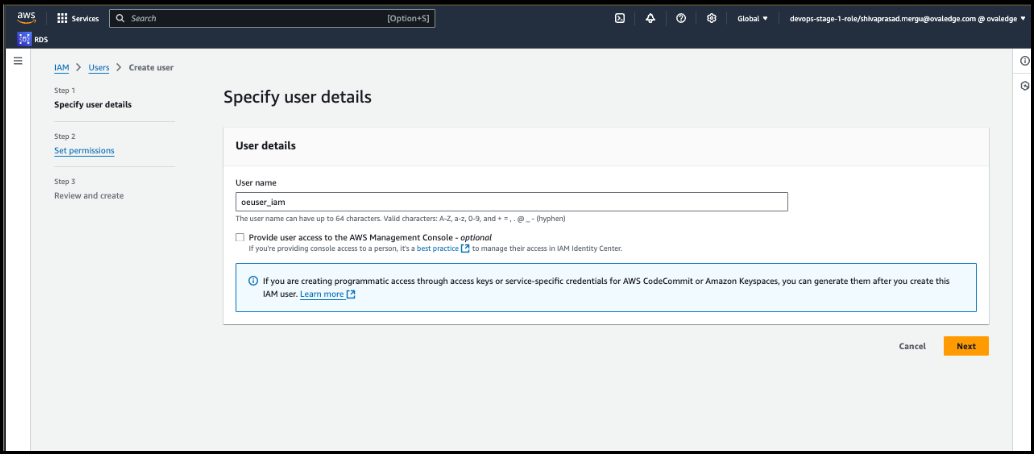
2. In the **Specify user details** page, enter ‘User name,’ then click **Next**.

   <div align="left"><figure><img src="https://content.gitbook.com/content/ztcvwwOJCeaE1n6oHp4C/blobs/NUnW5JPMgHIhXnXrzDg9/image.png" alt=""><figcaption></figcaption></figure></div>
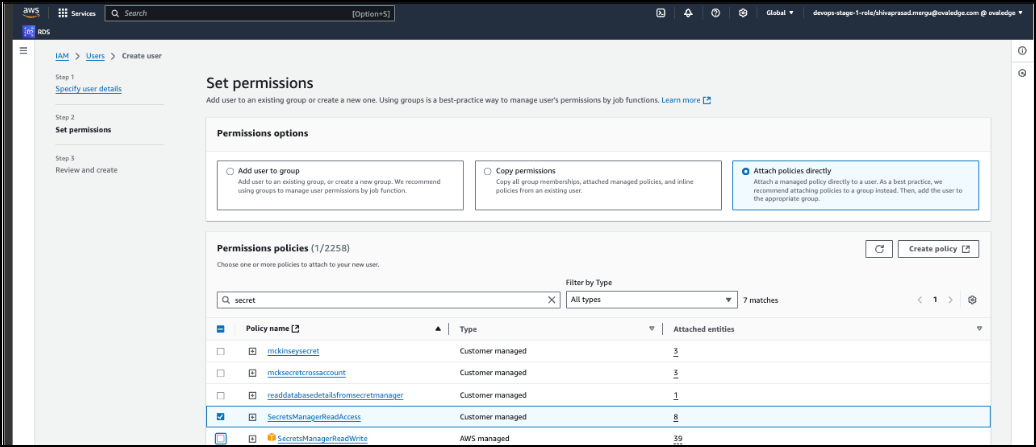
3. In the **Set permissions** page, select the ‘**Attach policies directly**’ button and select the **SecretsManagerReadAccess.**

   <figure><img src="https://content.gitbook.com/content/ztcvwwOJCeaE1n6oHp4C/blobs/gIuTwKrXFRWZguI3IU46/image.png" alt=""><figcaption></figcaption></figure>
4. Click **Next**.
5. Click **Create User.**
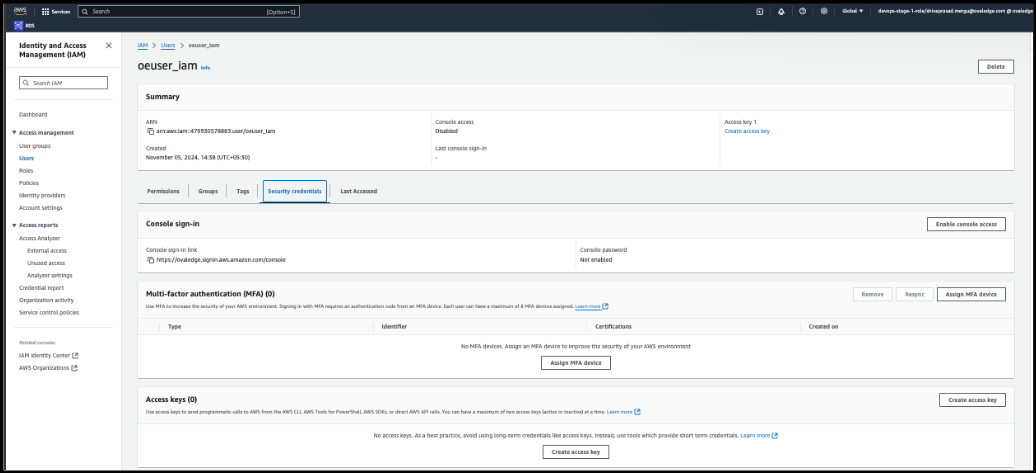
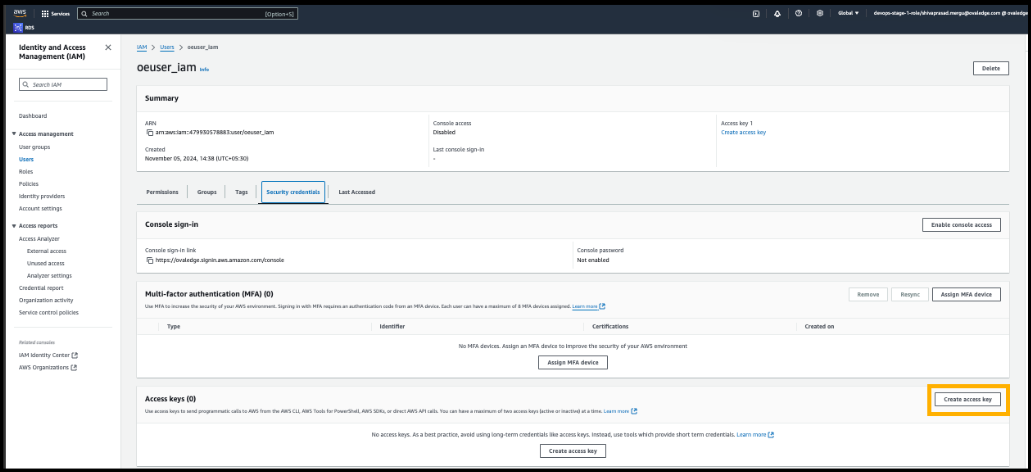
6. Navigate to the created user as shown below.

   <div align="left"><figure><img src="https://content.gitbook.com/content/ztcvwwOJCeaE1n6oHp4C/blobs/B8vXQ8u98KnKqtBWUHRO/image.png" alt=""><figcaption></figcaption></figure></div>
7. Click **Create Access Key.**

   <figure><img src="https://content.gitbook.com/content/ztcvwwOJCeaE1n6oHp4C/blobs/ujElsGCm3O7KkJJboOqI/image.png" alt=""><figcaption></figcaption></figure>
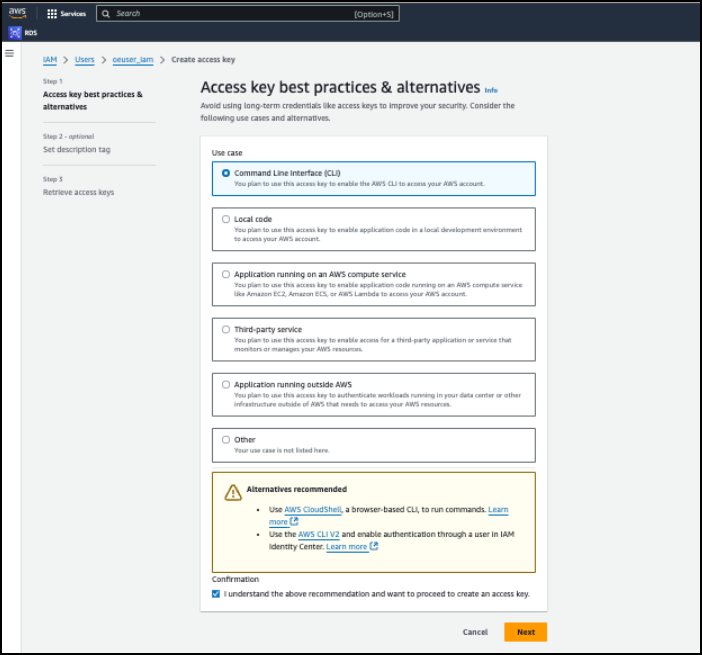
8. Click **Next**, then **Create**.

   <div align="left"><figure><img src="https://content.gitbook.com/content/ztcvwwOJCeaE1n6oHp4C/blobs/peeNYKe2RonrzScniWTl/image.png" alt=""><figcaption></figcaption></figure></div>
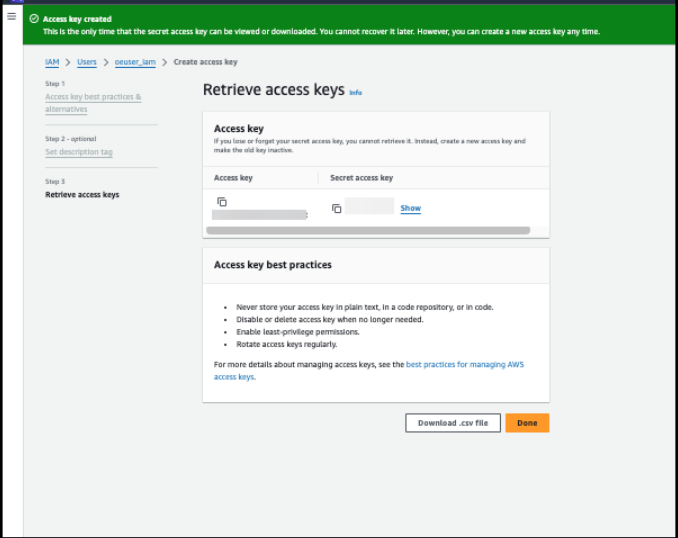
9. Copy the generated **Access Key** and **Secret Key**, then click **Done**.

   <div align="left"><figure><img src="https://content.gitbook.com/content/ztcvwwOJCeaE1n6oHp4C/blobs/TErwvu5i1C9JAzdE8DMS/image.png" alt=""><figcaption></figcaption></figure></div>

#### Generating Secret Name

1. Log in to the **AWS Console.**
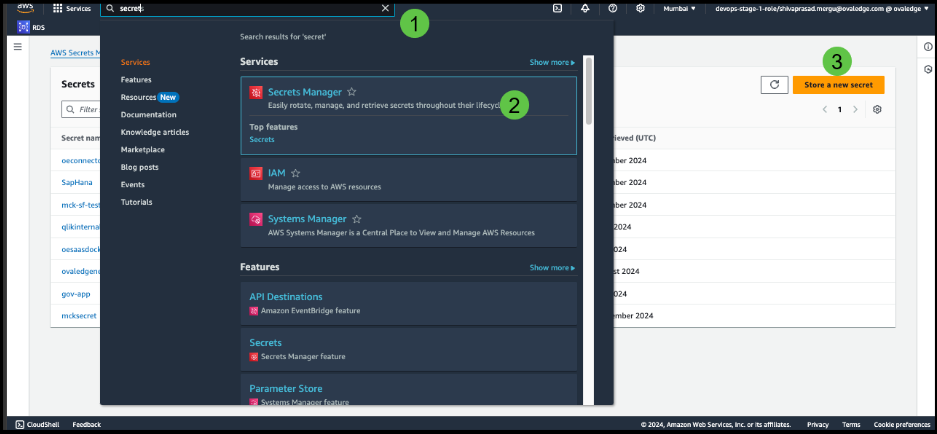
2. In the search bar, search for **Secrets Manager**, then select **Store a new secret.**

   <figure><img src="https://content.gitbook.com/content/ztcvwwOJCeaE1n6oHp4C/blobs/GsJw5jnk7taJnib0yGZo/image.png" alt=""><figcaption></figcaption></figure>
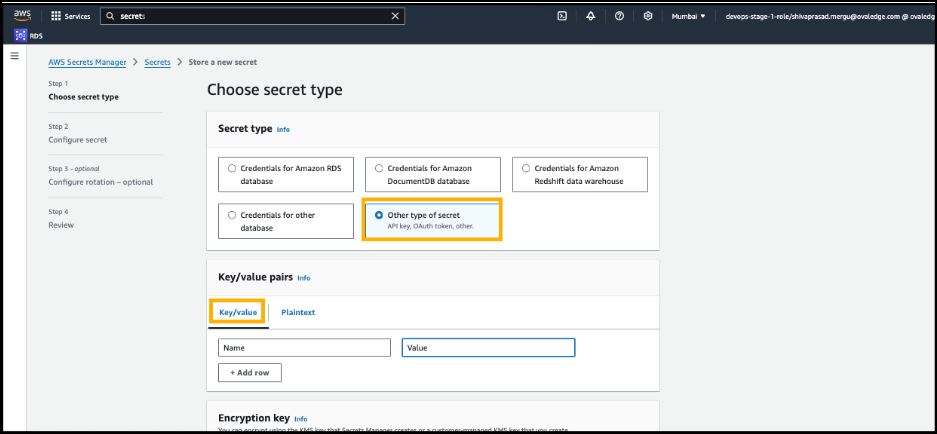
3. Select the ‘**Other type of secret**’ button and enter **Key/value pairs** as shown below.

   <figure><img src="https://content.gitbook.com/content/ztcvwwOJCeaE1n6oHp4C/blobs/NhYQ4ByqGZPyp3r5yb8P/image.png" alt=""><figcaption></figcaption></figure>
4. Click **Next**.
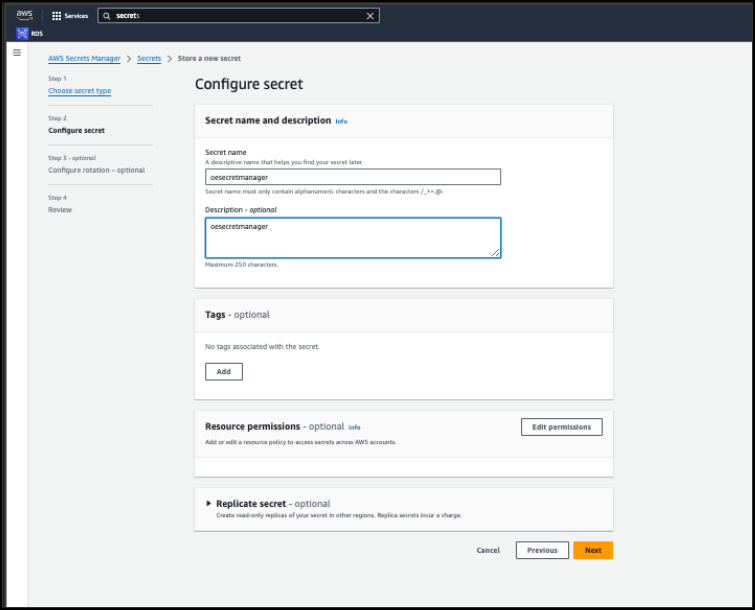
5. On the **Configure Secret** page, enter the **Secret name**, and then click **Next**.

   <div align="left"><figure><img src="https://content.gitbook.com/content/ztcvwwOJCeaE1n6oHp4C/blobs/QzvLp3jhFJL1nTVbGQf5/image.png" alt=""><figcaption></figcaption></figure></div>
6. Review the details and then click **Store**.
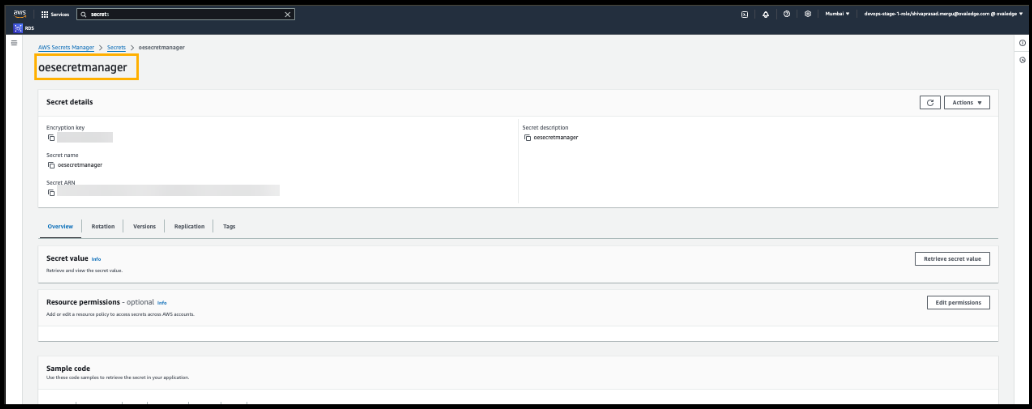
7. A secret name will be created.

   <div align="left"><figure><img src="https://content.gitbook.com/content/ztcvwwOJCeaE1n6oHp4C/blobs/x2peUxbhIsswMS795ppP/image.png" alt=""><figcaption></figcaption></figure></div>

**Secrets Manager Region**

Specify the region where the Secrets Manager was created in the connector validation section.

#### **Role Based Authentication**

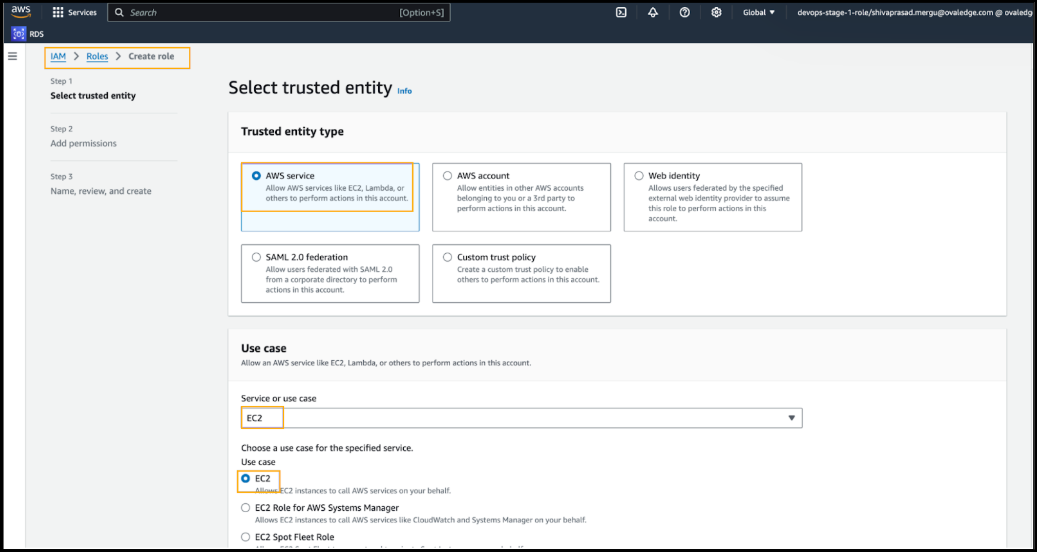
1. Log in to the AWS Console and create an IAM Role as per the screen below.

   <figure><img src="https://content.gitbook.com/content/ztcvwwOJCeaE1n6oHp4C/blobs/Ed09Z0Yt4mm2SfJLSAMU/image.png" alt=""><figcaption></figcaption></figure>
2. Attach Secret Manager Permissions.
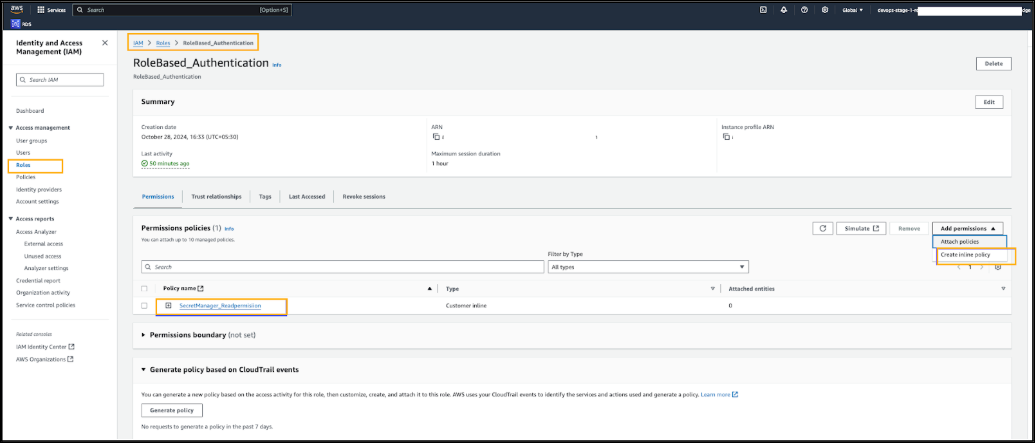
3. Create an Inline policy in IAM Permissions as per the provided below.

   <figure><img src="https://content.gitbook.com/content/ztcvwwOJCeaE1n6oHp4C/blobs/drkNlnxG7ZKD0CsfZ6qU/image.png" alt=""><figcaption></figcaption></figure>

{% hint style="info" %}
IAM role with read-only access to AWS Secrets Manager, attach a policy like the following JSON to the role.
{% endhint %}

```
{
    "Version": "2012-10-17",
    "Statement": [
        {
            "Effect": "Allow",
            "Action": [
                "secretsmanager:GetSecretValue",
                "secretsmanager:DescribeSecret",
                "secretsmanager:ListSecrets"
            ],
            "Resource": "*"
        }
    ]
}
```

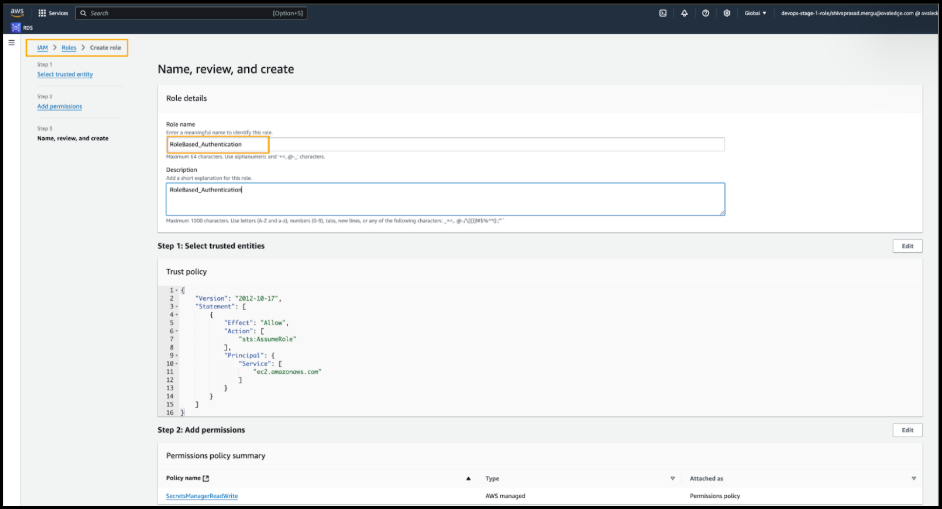
3. Name and create the role.\
   Specify a name for the role and complete the creation process.

   <figure><img src="https://content.gitbook.com/content/ztcvwwOJCeaE1n6oHp4C/blobs/HqqmlVUJtgS5Hoy4BRZd/image.png" alt=""><figcaption></figcaption></figure>
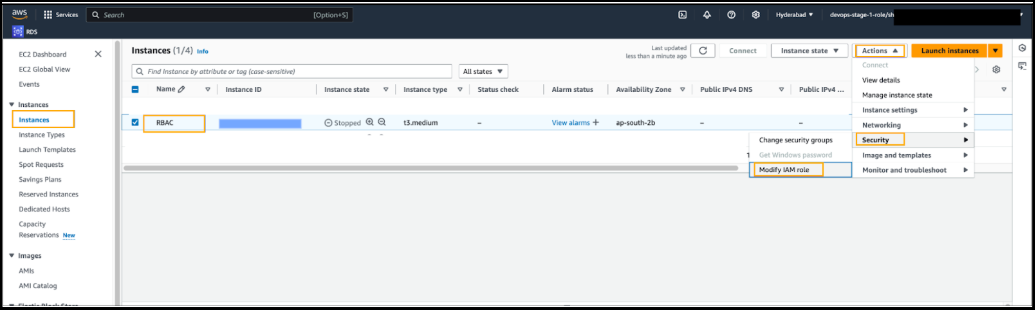
4. Go to the OvalEdge application running the EC2 Instance and then navigate to the below-mentioned configuration steps.\
   Go to **Actions > Security > Modify** IAM Role for the EC2 instance.

   <div align="left"><figure><img src="https://content.gitbook.com/content/ztcvwwOJCeaE1n6oHp4C/blobs/BR04goQYZPxy6kTGjvom/image.png" alt=""><figcaption></figcaption></figure></div>

**Secret Manager Creation Process**

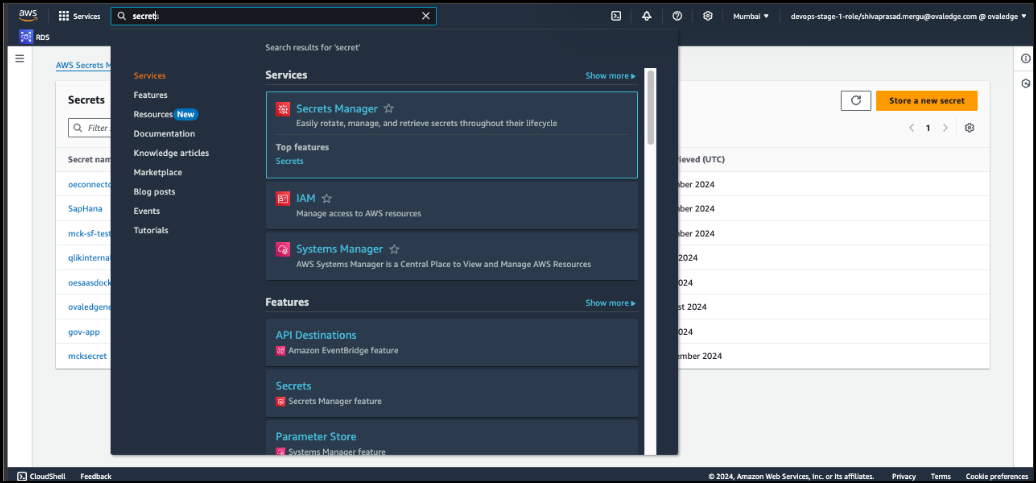
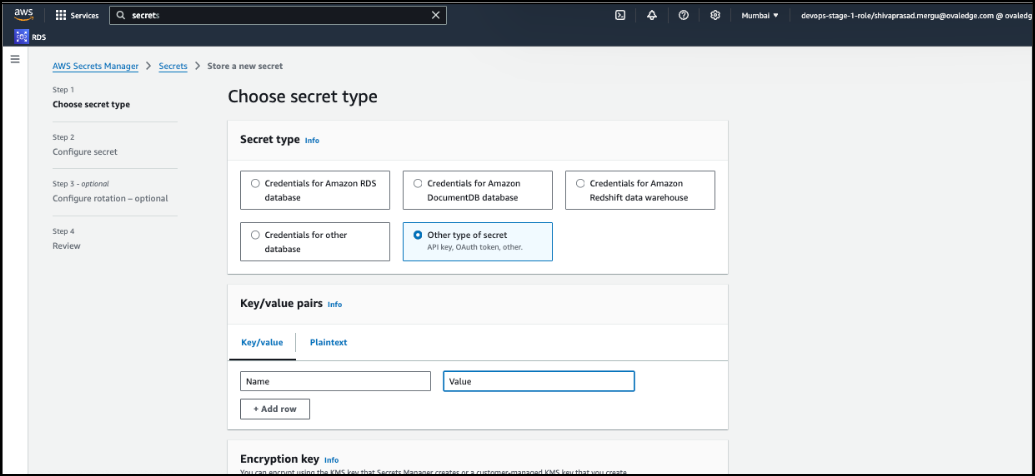
1. In the search bar, search for **Secrets Manager** then select **Store a new secret.**

   <figure><img src="https://content.gitbook.com/content/ztcvwwOJCeaE1n6oHp4C/blobs/7NSZHwU8J7ZSLgkDo7do/image.png" alt=""><figcaption></figcaption></figure>
2. Select the ‘**Other type of secret**’ button and enter **Key/value pairs** as shown below.

   <figure><img src="https://content.gitbook.com/content/ztcvwwOJCeaE1n6oHp4C/blobs/mKa8FSoRr9hbEznmpN61/image.png" alt=""><figcaption></figcaption></figure>
3. Click **Next**.
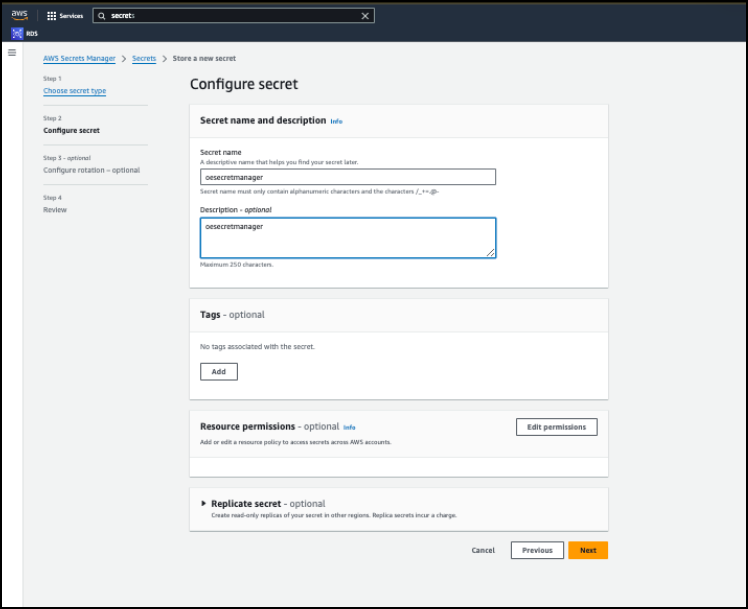
4. On the **Configure Secret page**, enter the **Secret name**, and then click **Next**.

   <figure><img src="https://content.gitbook.com/content/ztcvwwOJCeaE1n6oHp4C/blobs/U6yviEJHMxVEOmK1TALt/image.png" alt=""><figcaption></figcaption></figure>
5. Review the details and then click **Store**.
6. Secret Name will be created.
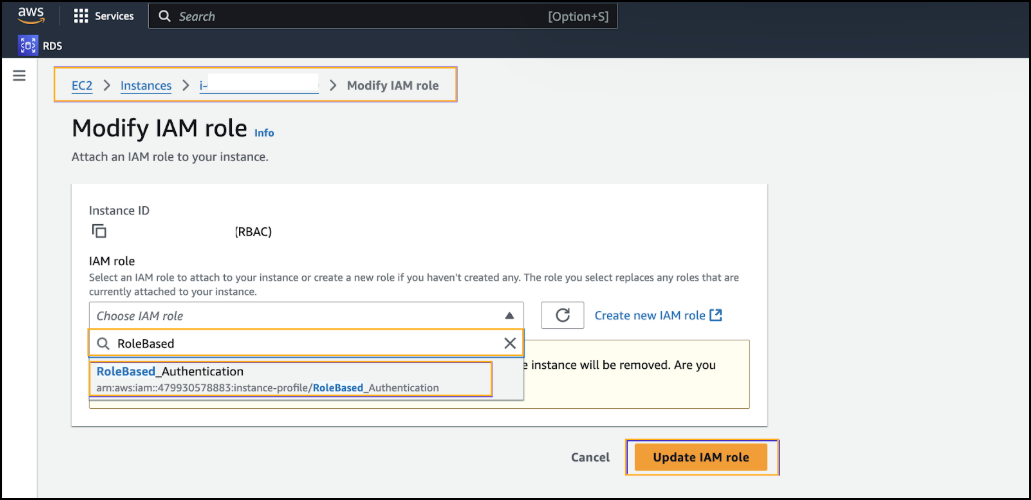
7. Assign Role to **EC2**.\
   Select the created role and update it for the instance.

   <figure><img src="https://content.gitbook.com/content/ztcvwwOJCeaE1n6oHp4C/blobs/HfhlZ8aYJ5EKmx9wFvuz/image.png" alt=""><figcaption></figcaption></figure>
8. Validate in OvalEdge.\
   In the OvalEdge application, validate the **Secret Manager** connection by entering the **role ARN** in the connector section.

### Connection Configuration Steps

{% hint style="info" %}
Only a user with a Connector Creator role can set up a connection in OvalEdge.
{% endhint %}

1. Log into OvalEdge, go to Administration > Connectors, click + (New Connector), search for AWS Secrets Manager, and complete the specific parameters.&#x20;

{% hint style="info" %}
Fields marked with an asterisk (\*) are mandatory for establishing a connection.
{% endhint %}

<table><thead><tr><th width="225.25">Field Name</th><th>Description</th></tr></thead><tbody><tr><td>Connector Type</td><td>By default, "AWS Secrets Manager" is displayed as the selected connector type.</td></tr><tr><td>Authentication*</td><td><p>Select Authentication from the drop-down list.</p><ul><li>IAM User Authentication </li><li>Role Based Authentication</li></ul></td></tr><tr><td>IAM User Authentication</td><td></td></tr><tr><td>License Add Ons</td><td>OvalEdge connectors have a default license add-on for data crawling and profiling.</td></tr><tr><td>Connector Name*</td><td><p>Enter a unique name for the AWS Secrets Manager connection              </p><p>(Example: "AWSSecrets_Prod").</p></td></tr><tr><td>Connector Environment</td><td>Select the environment (Example: PROD, STG) configured for the connector. </td></tr><tr><td>Access key*</td><td>Enter Access Key.</td></tr><tr><td>Secret key*</td><td>Enter Secret Key.</td></tr><tr><td>Secrets Manager Region*</td><td>Enter Secrets Manager Region.</td></tr><tr><td>Secret Name</td><td>Enter Secret Name.</td></tr><tr><td>Role Based Authentication</td><td></td></tr><tr><td>License Add Ons</td><td>OvalEdge connectors have a default license add-on for data crawling and profiling.</td></tr><tr><td>Connector Name*</td><td><p>Enter a unique name for the AWS Secrets Manager connection              </p><p>(Example: "AWSSecrets_Prod").</p></td></tr><tr><td>Connector Environment</td><td>Select the environment (Example: PROD, STG) configured for the connector. </td></tr><tr><td>Cross-Account Role ARN</td><td>Enter Cross-Account Role ARN.</td></tr><tr><td>Secrets Manager Region*</td><td>Enter Secrets Manager Region.</td></tr><tr><td>Secret Name</td><td>Enter Secret Name.</td></tr><tr><td>Default Governance Roles*</td><td>Select the appropriate users or teams for each governance role from the dropdown list. All users and teams configured in OvalEdge Security are displayed for selection. </td></tr><tr><td>Admin Roles*</td><td>Select one or more users from the dropdown list for Integration Admin and Security and Governance Admin. All users configured in OvalEdge Security are available for selection.</td></tr><tr><td>No Of Archive Objects*</td><td><p>It indicates the number of recent metadata changes to a dataset at the source. By default, it is off. You can enable it by toggling the Archive button and specifying the number of objects to archive.</p><p>Example: Setting it to 4 retrieves the last four changes, shown in the 'version' column of the 'Metadata Changes' module.</p></td></tr><tr><td>Select Bridge*</td><td>The dropdown displays all the active and inactive bridges configured in the OvalEdge. Select the appropriate bridge that enables seamless connectivity between data sources without altering firewall rules.</td></tr></tbody></table>

2. After entering all connection details, you can perform the following actions:
   1. Click Validate to verify the connection.
   2. Click Save to store the connection for future use.
   3. Click Save & Configure to apply additional settings before saving.
3. The saved connection will appear on the Connectors home page.

## Redshift Connector

The below process depicts how the Redshift connector connects to OvalEdge using AWS Secrets Manager - Role-Based Authentication.

1. Log into OvalEdge, go to **Administration > Connectors**, click **+ (New Connector)**, search for **Redshift**, and complete the specific parameters.

{% hint style="info" %}
Fields marked with an asterisk (\*) are mandatory for establishing a connection.
{% endhint %}

<table><thead><tr><th width="221.5">Field Name</th><th>Description</th></tr></thead><tbody><tr><td>Connector Type</td><td>By default, "Redshift" is displayed as the selected connector type.</td></tr><tr><td>Credential Manager*</td><td>Select AWS Secrets Manager from the drop-down list.</td></tr><tr><td>License Add Ons</td><td><p>OvalEdge connectors have a default license add-on for data crawling and profiling.</p><ul><li>Select the checkbox for Auto Lineage Add-On to build data lineage automatically.</li><li>Select the checkbox for Data Quality Add-On to identify data quality issues using data quality rules and anomaly detection.</li><li>Select the Data Access Add-On license that will enforce connector access via OvalEdge with Data Access Management (DAM) feature enabled.</li></ul></td></tr><tr><td>Credential Manager Connector ID*</td><td><p>Enter the connector ID generated during the AWS Secrets Manager connector validation.</p><p>Example: 1020</p></td></tr><tr><td>Connector Name*</td><td><p>Enter a unique name for the Redshift connection              </p><p>Example: "Redshift_Prod"</p></td></tr><tr><td>Connector Environment</td><td>Select the environment (Example: PROD, STG) configured for the connector.</td></tr><tr><td>Server*</td><td>Enter the Server name.</td></tr><tr><td>Port*</td><td>Enter Port.</td></tr><tr><td>Database*</td><td>Enter the Database name.</td></tr><tr><td>Driver*</td><td>Driver details are shown by default.</td></tr><tr><td>Username*</td><td>Enter username. (These details are obtained from the Secret manager)<br>Ex: &#x3C;secret_name>/&#x3C;Secret key></td></tr><tr><td>Password*</td><td>Enter Password.</td></tr><tr><td>Connection String</td><td><p>Configure the connection string for the Redshift database:</p><ul><li>Automatic Mode: The system generates a connection string based on the provided credentials.</li><li>Example (Redshift): </li></ul><p>jdbc:redshift://{server}:5439/{sid}</p><ul><li>Manual Mode: Manually enter a valid connection string.</li></ul><p>Replace placeholders with actual database details.</p><p>{sid} refers to Database Name</p></td></tr><tr><td>Default Governance Roles*</td><td>Select the appropriate users or teams for each governance role from the dropdown list. All users and teams configured in OvalEdge Security are displayed for selection.</td></tr><tr><td>Admin Roles*</td><td>Select one or more users from the dropdown list for Integration Admin and Security and Governance Admin. All users configured in OvalEdge Security are available for selection.</td></tr><tr><td>No Of Archive Objects*</td><td><p>It indicates the number of recent metadata changes to a dataset at the source. By default, it is off. You can enable it by toggling the Archive button and specifying the number of objects to archive.</p><p>Example: Setting it to 4 retrieves the last four changes, shown in the 'version' column of the 'Metadata Changes' module.</p></td></tr><tr><td>Select Bridge*</td><td>The dropdown displays all the active and inactive bridges configured in the OvalEdge. Select the appropriate bridge that enables seamless connectivity between data sources without altering firewall rules.</td></tr></tbody></table>

2. After entering all connection details, you can perform the following actions:
   1. Click Validate to verify the connection.
   2. Click Save to store the connection for future use.
   3. Click Save & Configure to apply additional settings before saving.
3. The saved connection will appear on the Connectors home page.

### Additional information

1. Log in to the **AWS Console.**
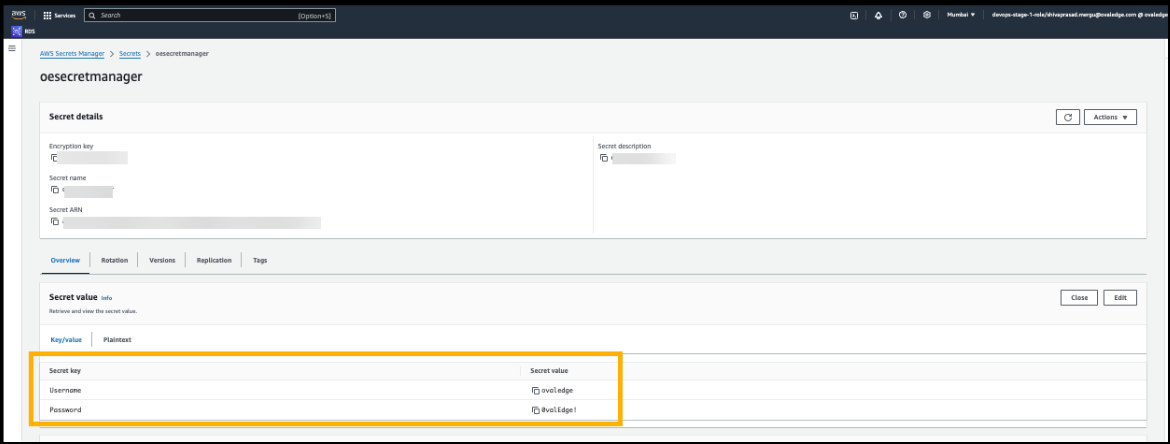
2. Search for **Secrets Manager**, then select the created secret. Click “**Retrieve secret value.**”
3. Copy the keys in the **Key/value tab** as shown in the screenshot below.

   <figure><img src="https://content.gitbook.com/content/ztcvwwOJCeaE1n6oHp4C/blobs/J8sqw7KqP3ChJL9Z8XzH/image.png" alt=""><figcaption></figcaption></figure>