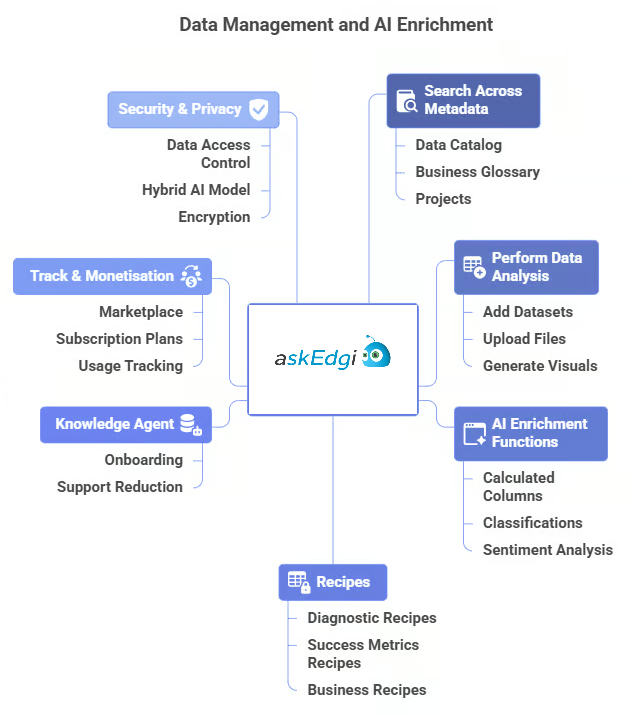
# Get Started with askEdgi

<figure><img src="https://content.gitbook.com/content/ztcvwwOJCeaE1n6oHp4C/blobs/cD4ZXLiUeSIRJltsW2eL/image.png" alt=""><figcaption></figcaption></figure>

## Interactive Guidance Section

The workspace offers quick-access learning components designed to promote platform familiarity and operational efficiency.

<table><thead><tr><th width="219.8333740234375">Option</th><th>Purpose</th></tr></thead><tbody><tr><td>Watch a Demo</td><td>Opens an embedded demonstration of workspace operations, file handling, and analysis execution.</td></tr><tr><td>Take a Tour</td><td>Launches an interactive walkthrough that highlights key interface elements, buttons, and feature modules.</td></tr></tbody></table>

<figure><img src="https://4123149314-files.gitbook.io/~/files/v0/b/gitbook-x-prod.appspot.com/o/spaces%2FztcvwwOJCeaE1n6oHp4C%2Fuploads%2FuUOoVDVDRSvK2PuXFo4J%2Fimage.png?alt=media&#x26;token=55eaf84d-41a5-4484-bd39-171ecf6633da" alt=""><figcaption></figcaption></figure>

{% hint style="info" %}
These options can be initiated at any time and run independently of active workspace operations.
{% endhint %}

{% hint style="warning" %}
The guidance components operate in a read-only capacity and do not modify workspace configuration or data.
{% endhint %}

## AI Assistant Interface

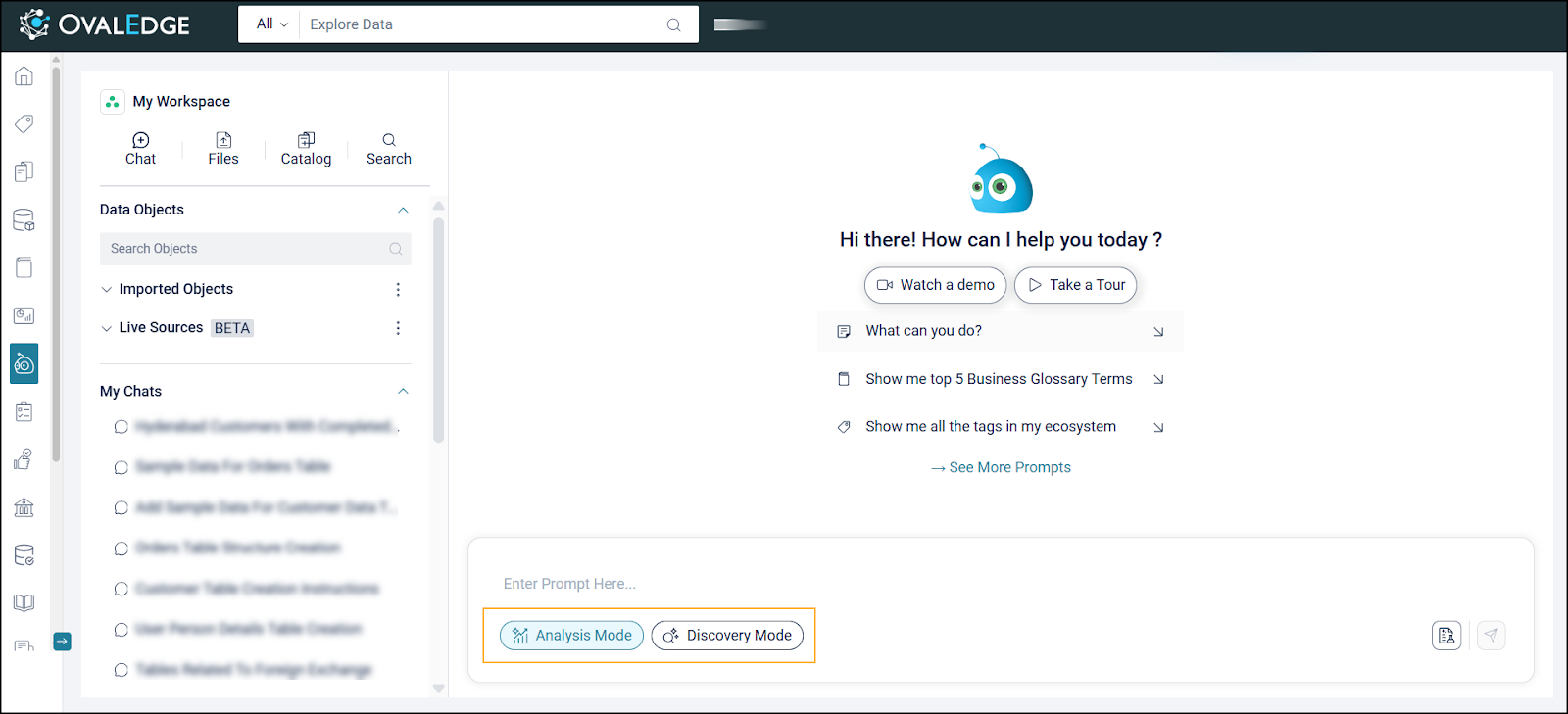
The AI assistant embedded within the workspace provides a dynamic conversational interface for data exploration, metadata discovery, and analytics generation.

<div align="left"><figure><img src="https://4123149314-files.gitbook.io/~/files/v0/b/gitbook-x-prod.appspot.com/o/spaces%2FztcvwwOJCeaE1n6oHp4C%2Fuploads%2FsYzED4qdt0sMPF8HaVxA%2Funknown.png?alt=media&#x26;token=bf851bd3-8edf-41fd-a1a0-33e4352170b5" alt=""><figcaption></figcaption></figure></div>

### **Chat Mode Selection**

<table><thead><tr><th width="219.8333740234375">Mode</th><th>Functionality</th></tr></thead><tbody><tr><td>Discoveryᵝ</td><td>Searches and retrieves catalog information such as datasets, tables, glossary terms, and governance details. The mode focuses on structured exploration and metadata understanding without performing analytical execution.</td></tr><tr><td>Analysis</td><td>Performs end to end intelligence and execution. The mode interprets intent, retrieves relevant enterprise context, validates dataset relationships, and performs analysis on eligible workspace data. It supports business aligned explanations and analytical outputs such as summaries, tables, or visual insights.</td></tr></tbody></table>

<figure><img src="https://4123149314-files.gitbook.io/~/files/v0/b/gitbook-x-prod.appspot.com/o/spaces%2FztcvwwOJCeaE1n6oHp4C%2Fuploads%2FAdWhYvs9rGvviWePVlnZ%2Funknown.png?alt=media&#x26;token=7b5c79e6-fa2e-413b-a62b-c6d57fc67689" alt=""><figcaption></figcaption></figure>

{% hint style="info" %}
Analysis Mode uses Retrieval Augmented Generation to retrieve enterprise context before execution. Discovery Mode does not use Retrieval Augmented Generation and does not perform analysis.
{% endhint %}

### Continuous Discovery to Analysis Flow

Analysis Mode supports a continuous experience that combines discovery, validation, and execution within a single interaction flow.

Instead of separating guidance and execution into multiple modes, askEdgi:

* Understands the business intent behind a question
* Identifies relevant datasets
* Validates structural relationships
* Performs analysis
* Explains results in business context

This unified flow reduces ambiguity, improves usability, and accelerates insight generation without requiring manual mode transitions.

#### **Workspace First Execution Boundary**

Analysis Mode respects the Workspace as the execution boundary.

Execution rules include:

* If tables remain pinned, analysis is restricted to pinned tables
* If no tables remain pinned, eligible workspace tables are considered
* Additional catalog assets are surfaced only when necessary
* Data outside the intended scope is not analyzed

This boundary ensures controlled execution, prevents unintended data usage, and maintains governance alignment.

#### **Deterministic Behavior Principles**

askEdgi follows deterministic execution principles to ensure predictable and trustworthy outcomes.

The system:

* Executes only when required context is available
* Validates structural compatibility before execution
* Stops when information is incomplete or unclear
* Displays explicit errors without hidden corrections
* Avoids automatic retries or silent adjustments

These principles ensure that analytical results remain explainable, repeatable, and governance aligned.

## Interaction Process

### Select Mode

* Choose the appropriate chat mode (Discovery, or Analysis) from the selector below the input field to define the context for the assistant's response.

### Submit Prompt

* Enter a natural language question or command in the chat input field to specify the requested action or information.

### Automatic Processing

* The assistant processes the prompt using the selected mode's specialized capabilities and available workspace data to generate a response.

### Review Results

* The system presents the output in dynamically rendered formats, including visual charts, text summaries, or structured data tables based on query content.

## Intent Routing Using Data Stories

askEdgi includes an intent routing mechanism that classifies user requests and directs them to the appropriate response pathway before execution begins. This routing logic is powered by a router prompt stored in Data Stories, ensuring consistent interpretation and deterministic behavior across interactions.

The routing mechanism improves response quality by selecting the most suitable processing path based on the detected intent.

**Routing Behavior**

For each user request, askEdgi:

* Loads the router prompt from Data Stories
* Evaluates the request to determine intent type
* Routes the request to the appropriate execution pathway

Supported routing paths include:

* General documentation and knowledge responses
* Analytical execution workflows
* Catalog focused exploration scenarios

This approach ensures that requests are handled consistently while preserving governance controls and execution boundaries.

## My Chats Management

The AI chat interface maintains a **Chat View** that records all historical interactions within the workspace. Each chat represents a complete analytical conversation containing queries, insights, and outputs.

<figure><img src="https://4123149314-files.gitbook.io/~/files/v0/b/gitbook-x-prod.appspot.com/o/spaces%2FztcvwwOJCeaE1n6oHp4C%2Fuploads%2FQzd3DfkoKC6ziiPOloVd%2Funknown.png?alt=media&#x26;token=3ea27181-5fd6-4f18-9256-64c4d8245c14" alt=""><figcaption></figcaption></figure>

### Chat History Access

The interface displays a chronological list of all previous user interactions with the AI assistant.

* Access the conversation history panel to view past chats.
* Chats are organized with the most recent interaction at the top.

### Chat Reactivation

Users can reopen any prior conversation Chat to continue their analysis from a previous point.

* Select a specific chat from the history list.
* The chat interface reloads the complete conversation context, allowing for new follow-up questions.

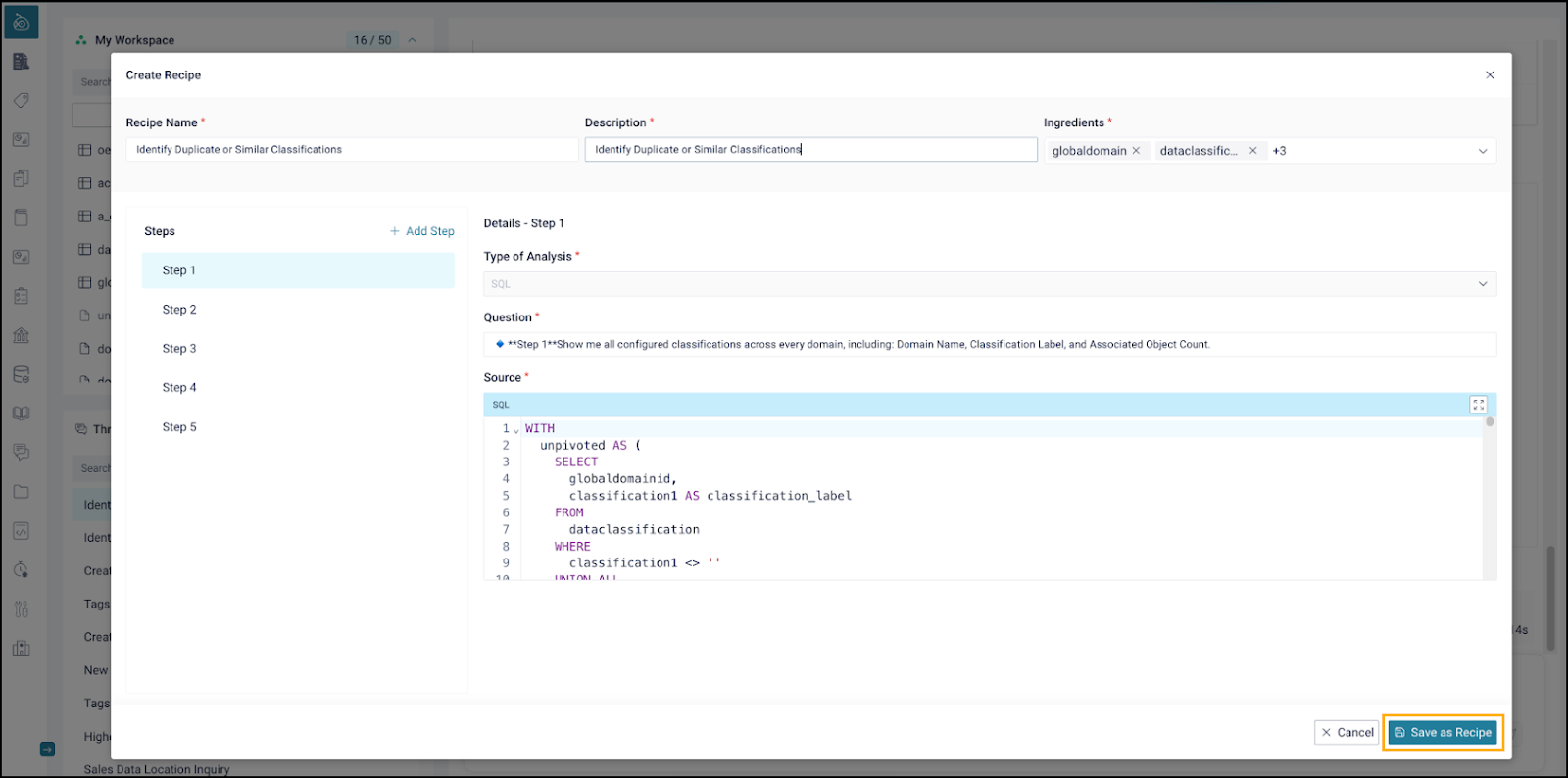
### **Chat-to-Recipe Conversion**

This function allows for the transformation of an existing conversation chat into a reusable Recipe.

* Select the conversion option from the menu of a saved chat.
* The system automatically preserves the analytical logic, queries, and configuration from the conversation.
* Open the **Chats panel** and select the desired conversation chat.
* Click the '**Save as Recipe**' option for the selected chat to configure the Recipe.
* Share recipes with internal teams or publish to the Marketplace.

<figure><img src="https://4123149314-files.gitbook.io/~/files/v0/b/gitbook-x-prod.appspot.com/o/spaces%2FztcvwwOJCeaE1n6oHp4C%2Fuploads%2FLyxKiExYgLMym2cyhkON%2Funknown.png?alt=media&#x26;token=5b4bc8d3-df9b-48d8-9e73-49965e73f698" alt=""><figcaption></figcaption></figure>

<figure><img src="https://content.gitbook.com/content/ztcvwwOJCeaE1n6oHp4C/blobs/PwTWeyOkQLGEHebGzssw/unknown.png" alt=""><figcaption></figcaption></figure>

### **Share askEdgi Chat (Public Edition Only)**

The Share askEdgi Chat feature allows sharing entire conversation chats, including prompts, responses, and visual elements such as charts and tables, via a secure, accessible link. This functionality enhances collaboration, facilitates knowledge exchange, and supports the sharing of external feedback. The shared chat maintains its original structure, ensuring that recipients can view the complete analytical context in a well-formatted, read-only view.

{% hint style="info" %}
The sharing functionality currently supports Public Sharing, which allows users to distribute analytical insights externally via a view-only link.
{% endhint %}

**Objectives**

* Allow seamless sharing of askEdgi chats containing questions, responses, and AI-generated visuals.
* Support Public Sharing (accessible to anyone with the link).
* Preserve complete conversation context, including visualizations and formatting, for clear understanding by recipients.

{% hint style="warning" %}
All shared Chats are read-only, ensuring that recipients cannot edit the original content.
{% endhint %}

#### Generate Shareable Link

A Share Chat option is available in each askEdgi conversation. When clicked, it opens a pop-up modal with three options: Copy Link, Post on LinkedIn, and Post on Reddit.

* **Public Share**: Generates a link that anyone can view without a login.

Each shared chat opens in a dedicated preview page that preserves formatting, the chat title, and shared view details.

{% hint style="info" %}
Shared chats are versioned. If a user modifies a chat, the existing link continues to show the same version unless a new link is created manually.
{% endhint %}

<figure><img src="https://4123149314-files.gitbook.io/~/files/v0/b/gitbook-x-prod.appspot.com/o/spaces%2FztcvwwOJCeaE1n6oHp4C%2Fuploads%2FTQLHQNxJGwrSyr6Ii7mu%2Funknown.png?alt=media&#x26;token=da1af1a7-9e9b-44bf-9f55-8b1c35d29b04" alt=""><figcaption></figcaption></figure>

#### Metadata and Display

The shared chat page displays:

* Chat title and sharing mode (Public).
* Complete Q & A flow, including prompts, responses, and visuals.

Visuals such as charts and tables are displayed in a static, non-interactive format for consistent viewing.

{% hint style="warning" %}
Recipe executions or data workflows cannot be shared as part of a chat.
{% endhint %}

#### Steps to Share a Chat

**Creator (User A)**

1. Open an AskEdgi conversation chat.
2. Click the **Share Chat** button located in the Chat header.
3. A pop-up modal will appear.
4. Select one of the following options:
   1. **Copy Link**: Copies the shareable URL to the clipboard.
   2. **Post on LinkedIn**: Opens a pre-filled LinkedIn post with the link.
   3. **Post on Reddit**: Opens a pre-filled Reddit draft with the link.

<figure><img src="https://4123149314-files.gitbook.io/~/files/v0/b/gitbook-x-prod.appspot.com/o/spaces%2FztcvwwOJCeaE1n6oHp4C%2Fuploads%2F53fPtDt095ExENviVch1%2Fimage.png?alt=media&#x26;token=37cdc487-29e1-44bd-afee-846165e67565" alt=""><figcaption></figcaption></figure>

5. Upon generating the link, a confirmation toast appears: “Link copied successfully.”

**Generated URL Format**: <https://askedgi.com/public/share/{uuid}>

Each URL corresponds to a static snapshot of the current chat.

**Viewer (User B)**

1. Open the shared link in a browser.
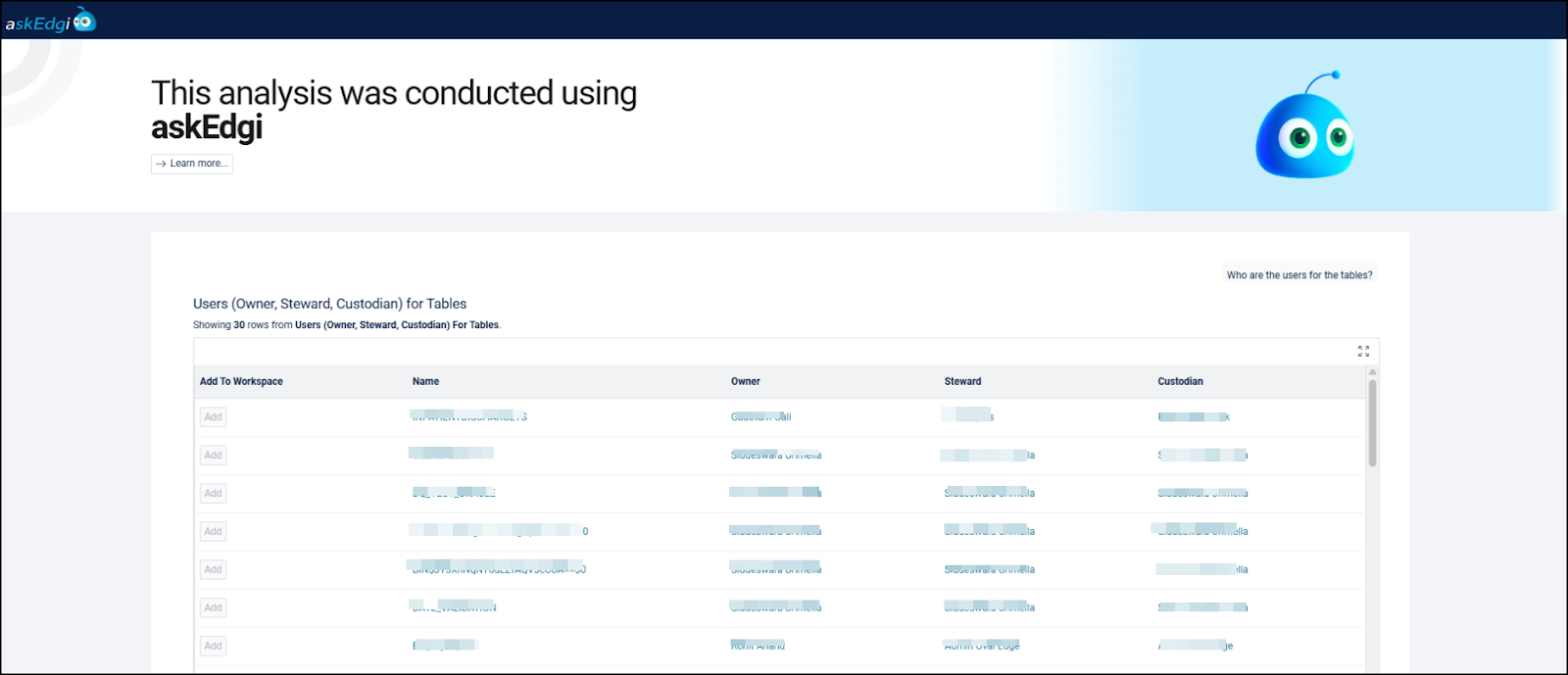
2. The chat loads as a read-only HTML/Markdown page displaying:
   1. Chat title.
   2. Complete conversation (questions, responses, and visual outputs).
   3. Non-interactive charts and tables.

{% hint style="info" %}
Public links do not require a login and can be accessed directly.
{% endhint %}

**Preview of Shared Chat**

* A read-only page that shows the Chat title, Public mode, and full conversation.
* Static display of prompts, responses, charts, and tables.

<figure><img src="https://content.gitbook.com/content/ztcvwwOJCeaE1n6oHp4C/blobs/zkxeRG0p2d0JhHcQYOjt/unknown.png" alt=""><figcaption></figcaption></figure>

### **Download table**

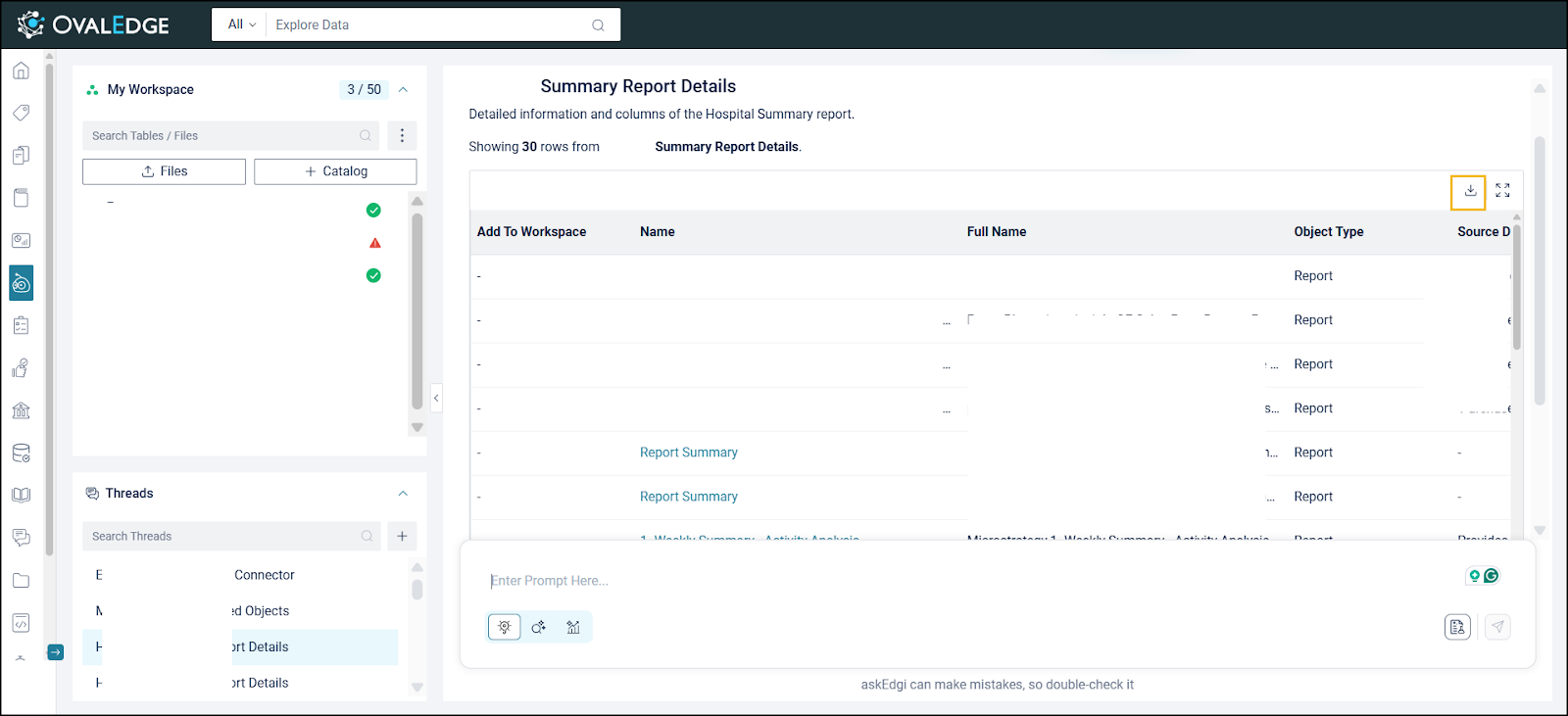
The download capability in askEdgi allows exporting search results displayed in a Tabular format. This functionality enables quick access to data for analysis, sharing, or archival in a structured CSV format. The download process is straightforward and aligned with the existing system settings to ensure controlled and efficient data handling.

<figure><img src="https://content.gitbook.com/content/ztcvwwOJCeaE1n6oHp4C/blobs/iW6C05AkAxuTU4COq8dA/unknown.png" alt=""><figcaption></figcaption></figure>

{% hint style="info" %}
Performance may vary depending on the length of the chat or the volume of visual data included.
{% endhint %}

The generated download link remains active for 24 hours from the time it is created. Once expired, a new download must be initiated to regenerate the link and access the data again.

#### Steps to Download Search Results

1. Navigate to **askEdgi > Search**.
2. Run a search query to display the results in a **Tabular format.**
3. Locate the **Download** icon at the **top-right corner** of the table.
4. Click the **Download** icon.
5. The table data will be automatically downloaded in **CSV format.**

<figure><img src="https://4123149314-files.gitbook.io/~/files/v0/b/gitbook-x-prod.appspot.com/o/spaces%2FztcvwwOJCeaE1n6oHp4C%2Fuploads%2Fwe3Jb0RGV9S24M07i3Em%2Funknown.png?alt=media&#x26;token=1395e228-dac7-467d-a8f8-dae73309a7f0" alt=""><figcaption></figcaption></figure>

{% hint style="info" %}
The Download icon will not be displayed if the search results are not in a Tabular format.
{% endhint %}

***

Copyright © 2025, OvalEdge LLC, Peachtree Corners, GA USA