> For the complete documentation index, see [llms.txt](https://docs.ovaledge.com/llms.txt). Markdown versions of documentation pages are available by appending `.md` to page URLs; this page is available as [Markdown](https://docs.ovaledge.com/release7.2/deployment-and-maintenance/installation/java-17.x-on-windows-machine.md).
# Java 17.x on Windows Machine
This article provides step-by-step instructions for installing Java 17.x (OpenLogic JDK) on a Windows system and configuring the required environment variables for successful Java application execution.
## Prerequisites
Ensure the following before proceeding:
* **Operating System**: Windows 10 or later.
* **Administrative Privileges**: Required for installation and configuration.
* **Basic Knowledge**: Familiarity with File Explorer and system settings.
## Installation Steps
### **Download Java 17 Installer**
* Download the Java 17 MSI installer from the link provided by your team or from the official source.
* For **OpenLogic JDK**, use the following link:\
📥 [Download OpenLogic JDK 17](https://ovaledge.s3.us-west-1.amazonaws.com/scripts/packages/openlogic-openjdk-17.0.15.6-windows-x64.msi)
### **Run the Installer**
* Double-click the downloaded `.msi` file.
* This launches the installation wizard.
 ### **Follow the Installation Wizard**
* Click **Next** to proceed.
### **Follow the Installation Wizard**
* Click **Next** to proceed.
 * Accept the **license agreement** and click **Next**.
 * Choose an installation directory (default is recommended) and click **Next**.
 * Click **Install** to begin installation.
 * After installation completes, click **Finish**.
 ### **Default Installation Directory**
* Java is typically installed at:
```
C:\Program Files\OpenLogic\jdk-17.0.15.6-hotspot
```
### **Configure Environment Variables**
* **Set JAVA\_HOME**
1. Open the Start Menu, search for **Environment Variables**, and open it.
### **Default Installation Directory**
* Java is typically installed at:
```
C:\Program Files\OpenLogic\jdk-17.0.15.6-hotspot
```
### **Configure Environment Variables**
* **Set JAVA\_HOME**
1. Open the Start Menu, search for **Environment Variables**, and open it.
 2. In the **System Properties** window, go to **Advanced** → **Environment Variables**.
 3. Under **System Variables**, click **New** and insert:
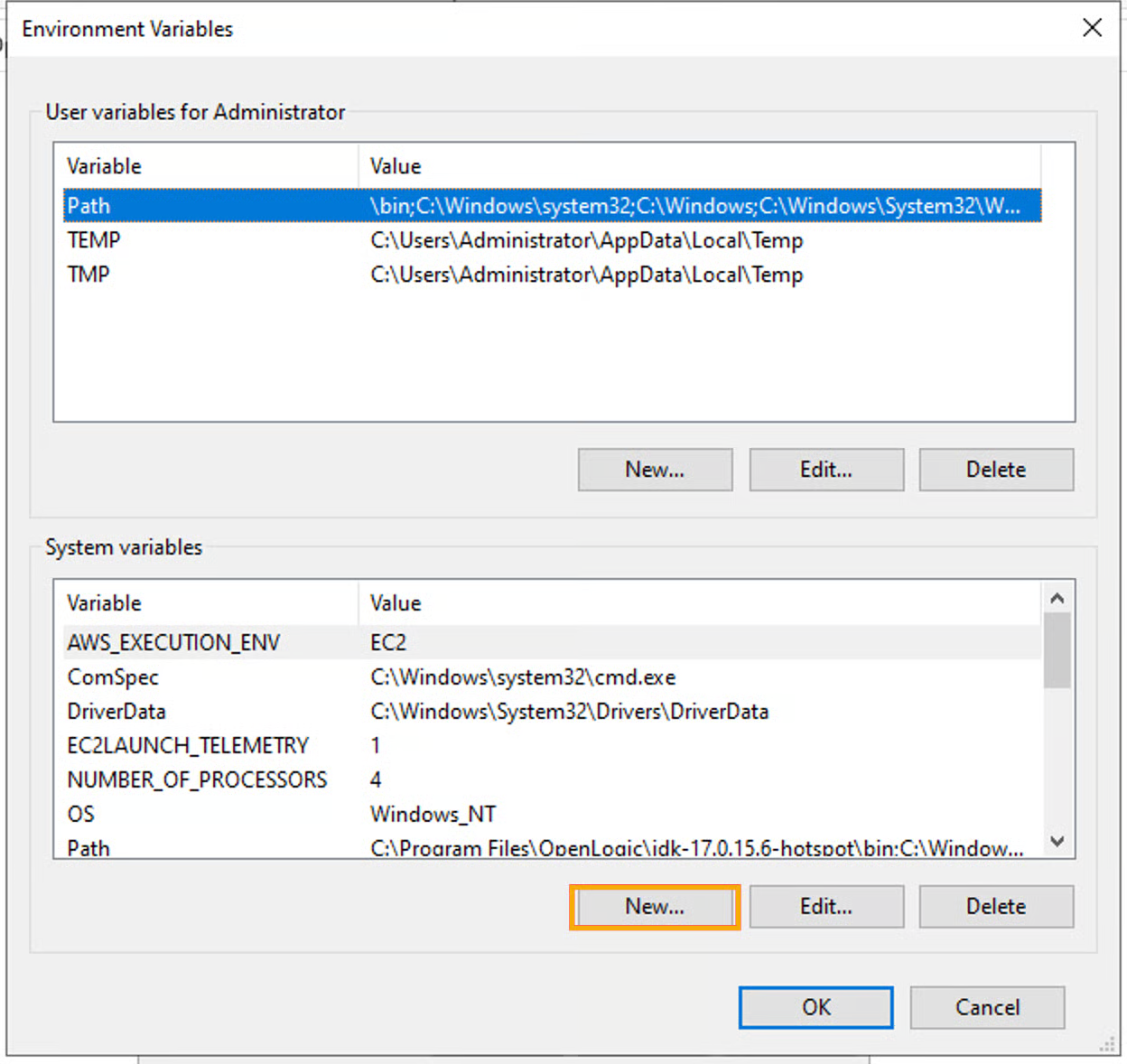 4. Insert the below values,
* Variable Name: `JAVA_HOME`
* Variable Value:
```
C:\Program Files\OpenLogic\jdk-17.0.15.6-hotspot
```
4. Insert the below values,
* Variable Name: `JAVA_HOME`
* Variable Value:
```
C:\Program Files\OpenLogic\jdk-17.0.15.6-hotspot
```
 5. Click **OK** to save.
* **Update PATH Variable**
1. In the same Environment Variables window, under **System Variables**, select `Path` and click **Edit**.
5. Click **OK** to save.
* **Update PATH Variable**
1. In the same Environment Variables window, under **System Variables**, select `Path` and click **Edit**.
 2. Click **New** and add:
```
%JAVA_HOME%\bin
```
2. Click **New** and add:
```
%JAVA_HOME%\bin
```
 3. Click **OK** to save all changes.
### **Verify Installation**
* Open a new **Command Prompt** and run:
```bash
java -version
```
3. Click **OK** to save all changes.
### **Verify Installation**
* Open a new **Command Prompt** and run:
```bash
java -version
```
 * The output should confirm Java 17 installation.
***
Copyright © 2025, OvalEdge LLC, Peachtree Corners, GA, USA.
---
# Agent Instructions
This documentation is published with GitBook. GitBook is the documentation platform designed so that both humans and AI agents can read, navigate, and reason over technical content effectively. Learn more at gitbook.com.
## Querying This Documentation
If you need additional information that is not directly available in this page, you can query the documentation dynamically by asking a question.
Perform an HTTP GET request on the current page URL with the `ask` query parameter, and the optional `goal` query parameter:
```
GET https://docs.ovaledge.com/release7.2/deployment-and-maintenance/installation/java-17.x-on-windows-machine.md?ask=&goal=
```
`ask` is the immediate question: it should be specific, self-contained, and written in natural language.
`goal` is optional and describes the broader end goal you are ultimately trying to accomplish on behalf of the user. GitBook uses it to tailor the answer towards what is most useful for that goal.
The response will contain a direct answer to the question and relevant excerpts and sources from the documentation.
Use this mechanism when the answer is not explicitly present in the current page, you need clarification or additional context, or you want to retrieve related documentation sections.
* The output should confirm Java 17 installation.
***
Copyright © 2025, OvalEdge LLC, Peachtree Corners, GA, USA.
---
# Agent Instructions
This documentation is published with GitBook. GitBook is the documentation platform designed so that both humans and AI agents can read, navigate, and reason over technical content effectively. Learn more at gitbook.com.
## Querying This Documentation
If you need additional information that is not directly available in this page, you can query the documentation dynamically by asking a question.
Perform an HTTP GET request on the current page URL with the `ask` query parameter, and the optional `goal` query parameter:
```
GET https://docs.ovaledge.com/release7.2/deployment-and-maintenance/installation/java-17.x-on-windows-machine.md?ask=&goal=
```
`ask` is the immediate question: it should be specific, self-contained, and written in natural language.
`goal` is optional and describes the broader end goal you are ultimately trying to accomplish on behalf of the user. GitBook uses it to tailor the answer towards what is most useful for that goal.
The response will contain a direct answer to the question and relevant excerpts and sources from the documentation.
Use this mechanism when the answer is not explicitly present in the current page, you need clarification or additional context, or you want to retrieve related documentation sections.