> For the complete documentation index, see [llms.txt](https://docs.ovaledge.com/llms.txt). Markdown versions of documentation pages are available by appending `.md` to page URLs; this page is available as [Markdown](https://docs.ovaledge.com/connectors/connector-repositories/reporting-tool/power-bi/power-bi-cloud/power-bi-cloud-system-configuration.md).
# Power BI Cloud System Configuration
## **Overview**
**Power BI Cloud supports two types of authentication.**
* Service Principal
* Service User
### **Service Principal**
**Prerequisites**
The following are the prerequisites required for establishing a connection:
* Azure Configuration
* Power BI Configuration
* Service Principal User Account with minimum Read Permissions
* Configure Environment Variables (Optional)
**Azure Configuration**
1. **Creating an App**
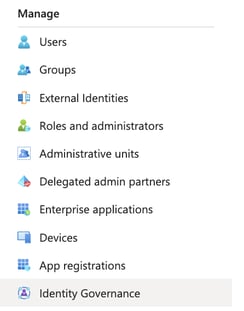
1. Sign in to the Azure portal and search for Azure AD in the Azure services text box. Under **Manage**, click on **App registrations**.\

2. Click on **New registration**.
3. Provide a meaningful name for the application that will be visible to users.
4. Choose the types of accounts that can access the application, such as Single tenant, Multi-tenant, etc.
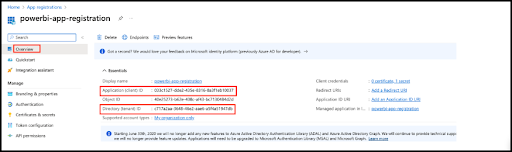
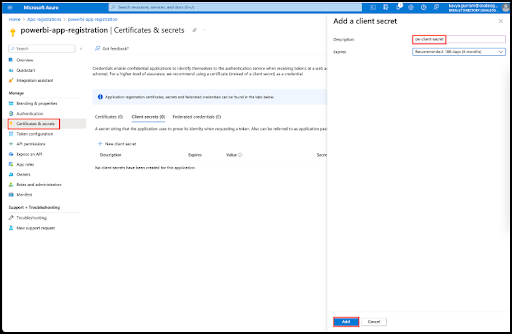
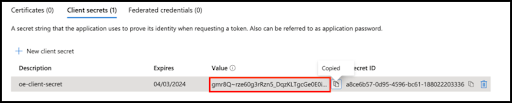
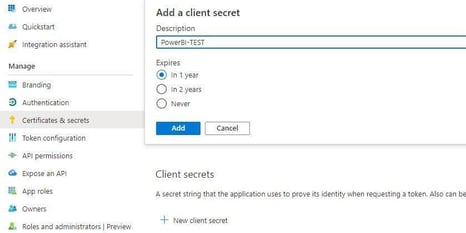
5. Copy the **client ID** and **tenant ID**. Next, click on ***Manage*** and select ***Certificates & secrets*** from the left side menu. Then, create a client ID and client secret.
6. Click on **Add**.
7. Copy the client's secret key, which will be used to create a connection.
2. **Creating a new Security Group**
1. Sign in to the Azure portal and search for *Azure AD***.**
2. Create a new security group in *Azure Active Directory*. If an existing security group is already available for use, this step can be skipped.
3. In the Manage, click on the Groups. The Groups Overview page is displayed.
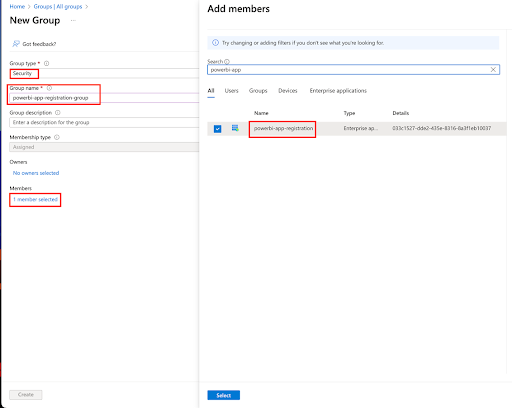
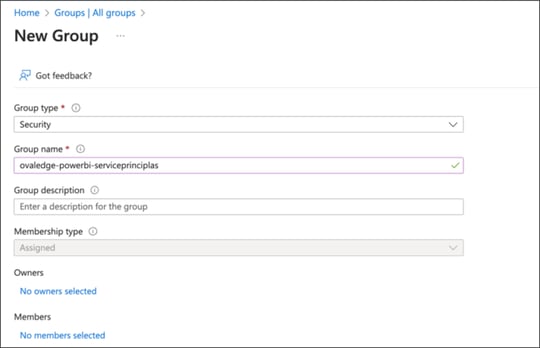
4. Click on the New Group.
5. Select the Group Type as Security and enter the Group Name.
6. Describe the Group by describing the Group description field and click on the Members. The Add Members page is displayed.
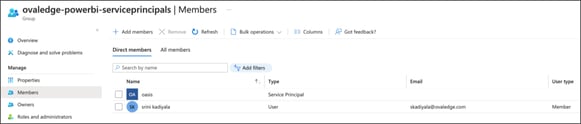
7. Select the checkbox for the members associated with the Group.
8. Click on the Select button.
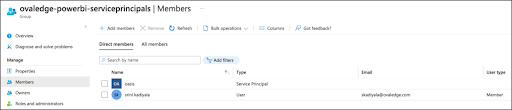
9. Add the service principal app or users to the current security group based on the requirement.
**Power BI Application Configuration**
1. **Log in with Power BI Administrator Privileges**
1. Use an account with Power BI admin rights and enable the following settings.
2. **Enable Power BI Service Admin Settings**
1. Access the Power BI Admin Portal.\
**Note:** Administrative privileges are required to view tenant settings.
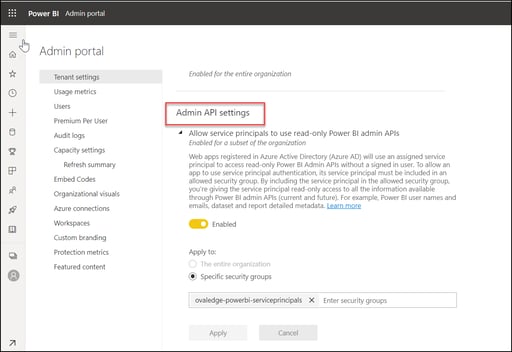
2. Go to **Admin API Settings** and enable the option for service principals to use read-only Power BI admin APIs.
3. Set the toggle to "Enabled," select the "Specific security groups" radio button, and add the appropriate security group.
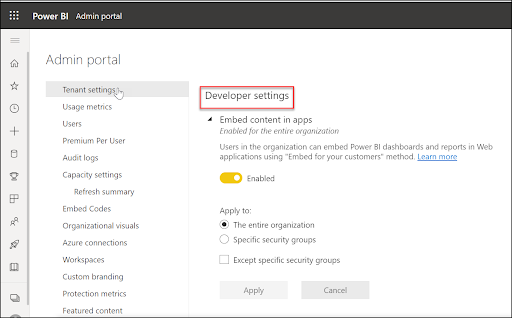
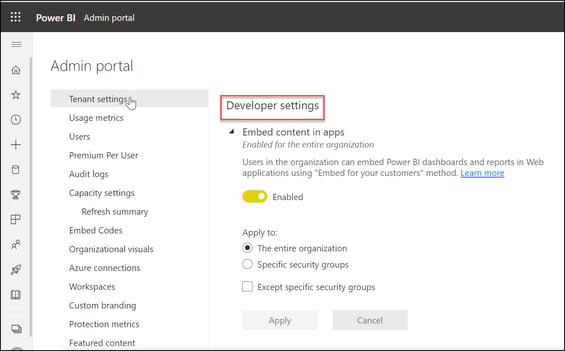
4. Navigate to Admin Portal > Tenant Settings > Developer Settings to enable these settings.
3. **Enable Embedding Content in Apps**
1. In Admin Portal > Tenant Settings > Developer Settings, select the "Entire organization" option and enable the settings under Embed Content in Apps.
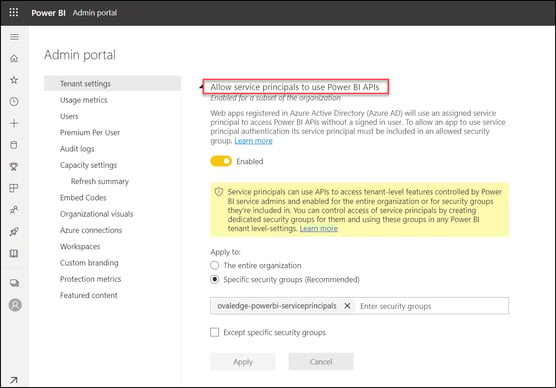
4. **Allow Service Principals to Use Power BI APIs**
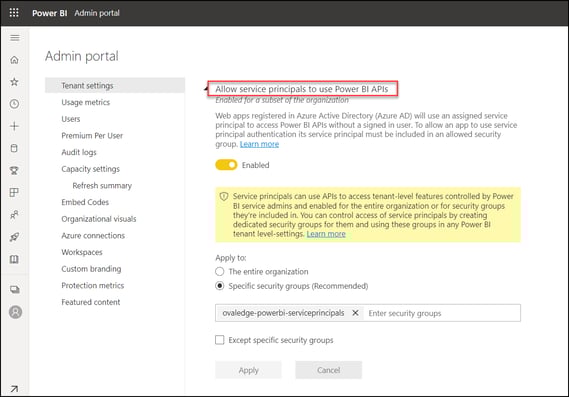
1. In Developer Settings > Allow service principals to use Power BI APIs, select "Specific security groups" and enable the setting.
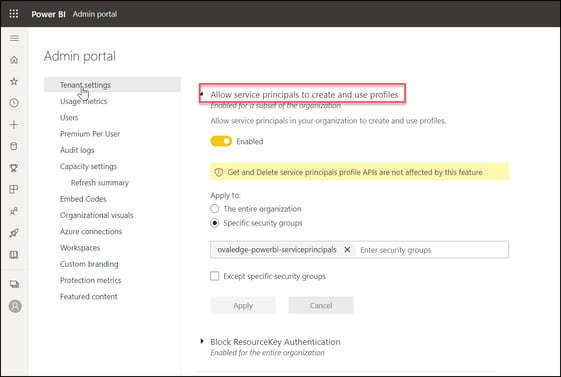
5. **Allow Service Principals to Create and Use Profiles**
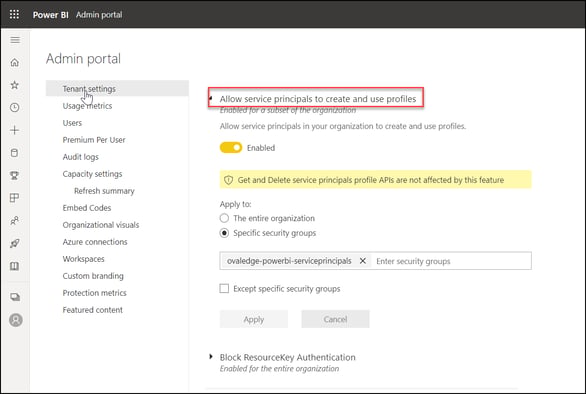
1. In Developer Settings > Allow service principals to create and use profiles, select "Specific security groups" and enable the setting.
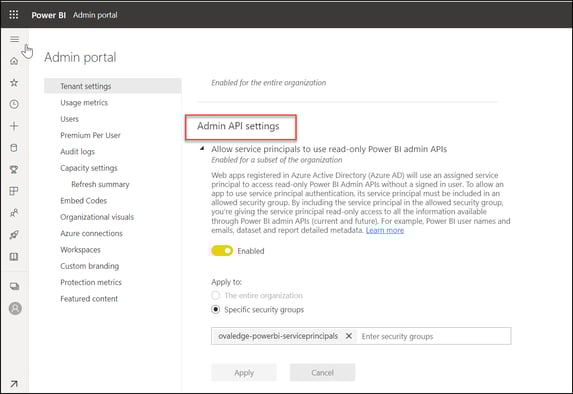
6. **Admin API Settings for Service Principals**
1. In Admin Portal > Tenant Settings > Admin API Settings, enable the setting to allow service principals to use read-only Power BI admin APIs. Select "Specific security groups" and enable the option.
{% hint style="info" %}
If a **Microsoft Fabric license** is in use, the setting label appears as **“Allow service principals to use read-only Fabric admin APIs”** instead of Power BI admin APIs.
{% endhint %}
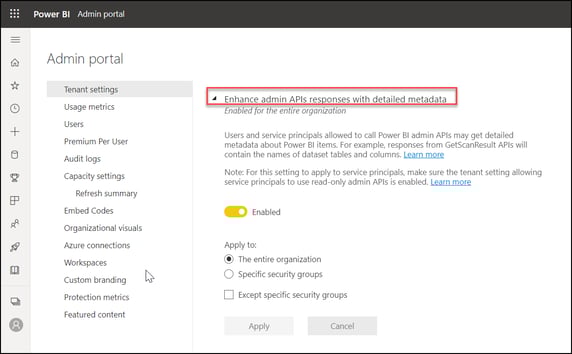
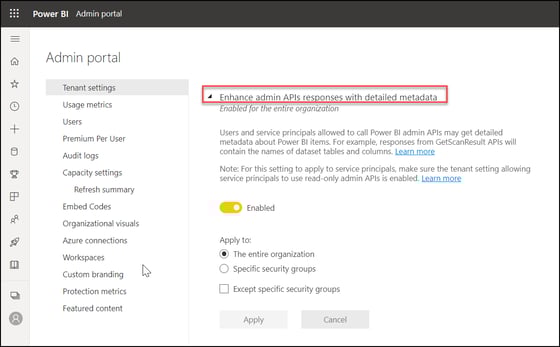
7. **Enhance Admin API Responses**
1. In Admin API Settings > Enhance admin API responses with detailed metadata, select the "Entire organization" option and enable the setting.
2. Similarly, enable the Enhance admin API responses with DAX and mashup expressions option for the entire organization.
8. **Download Reports**
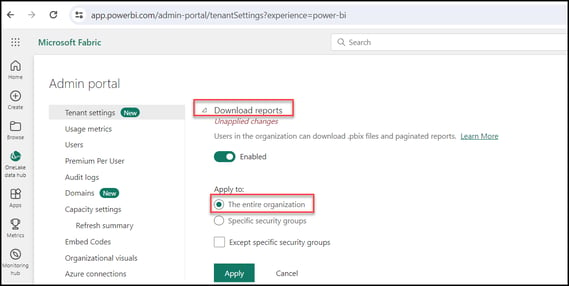
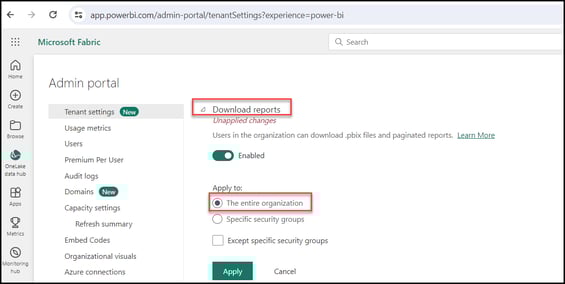
1. In Admin Portal > Tenant Settings > Export and Sharing Settings > Download Reports, select the "Entire organization" option and click Apply to allow all users to download reports.
2. Alternatively, if the **“Specific security groups”** option is selected, enter the appropriate security group. Only members of that group can download reports.
9. **Grant Access to Power BI Workspaces**
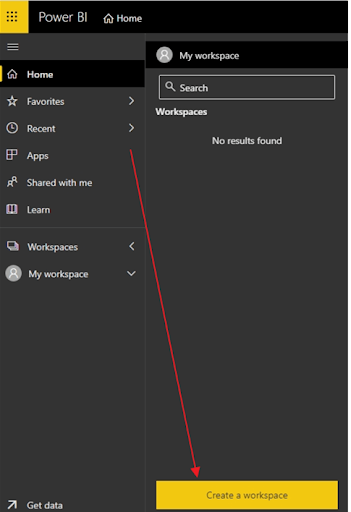
1. Create a workspace in Power BI if there is no existing workspace to crawl in OvalEdge.
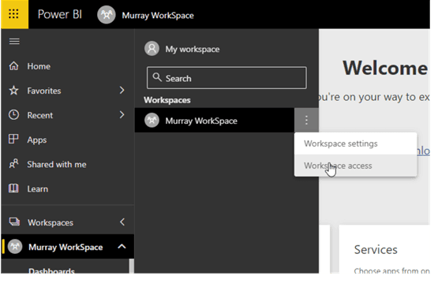
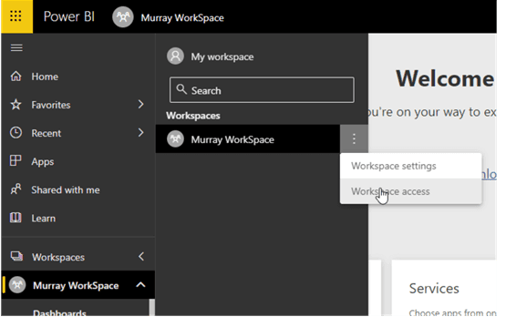
2. To access a workspace for OvalEdge crawling, search for the workspace name, click the three dots for Workspace Settings, and select Workspace Access.
3. **Add Users or Service Principals:**
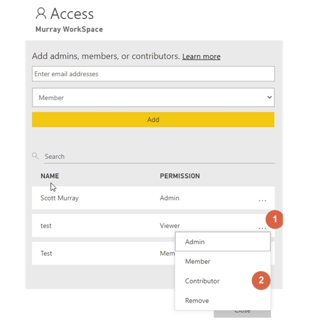
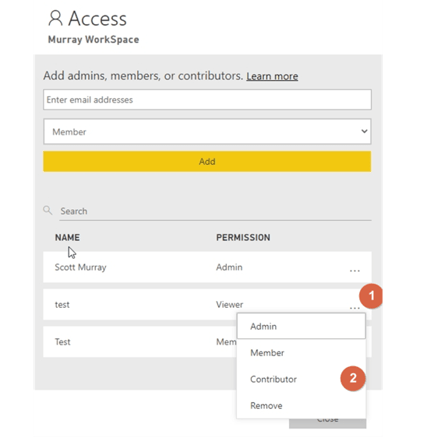
1. In the Access pane, under Add admins, members, or contributors, add one of the following:
2. The service principal (the display name of the Microsoft Entra application as shown in the application Overview tab).
4. A security group that includes the service principal. The minimum required permission for the service principal is Member, and the maximum is Admin.
5. From the dropdown menu, select Member or Admin, then click **Add**.
For detailed guidance, refer to:
* [Power BI Embed Service Principal](https://learn.microsoft.com/en-us/power-bi/developer/embedded/embed-service-principal)
* [Power BI Service Roles in Workspaces](https://learn.microsoft.com/en-us/power-bi/collaborate-share/service-roles-new-workspaces)
### Service User
**Prerequisites**
The following are the prerequisites required for establishing a connection:
* Azure Configuration
* Office 365 Configuration
* Power BI Configuration
* Service User Account with Minimum Read Permissions
* Configure Environment Variables (Optional)
**Azure Configuration**
1. **Creating an App**
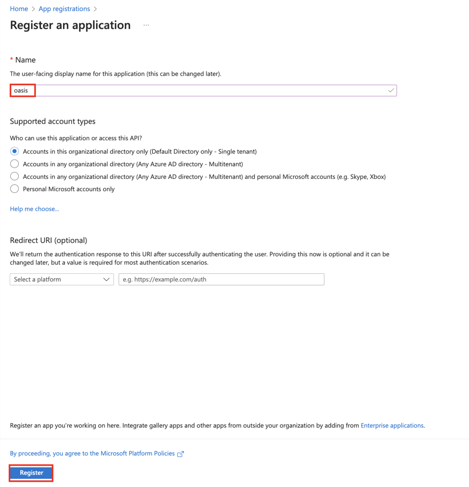
1. Sign in to the Azure portal and search for **Azure AD**. Under Manage, click **App registrations.**
2. Click **New registration.**
3. Provide a user-facing display name for the app, select supported account types, and set the Redirect URI as [**https://app.powerbi.com**](https://app.powerbi.com/)**.**
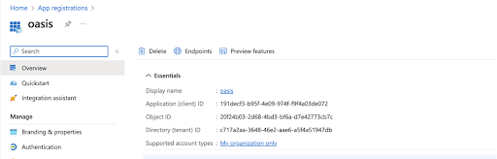
4. Click **Register** and take note of the Directory Tenant ID and App Client ID.
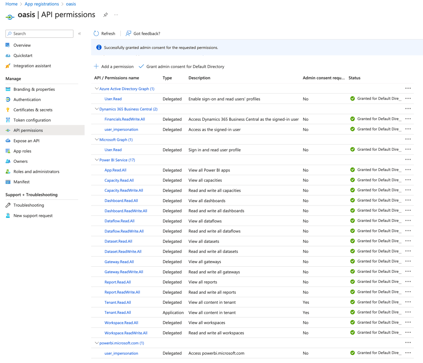
2. **Enabling API Permissions in Azure**
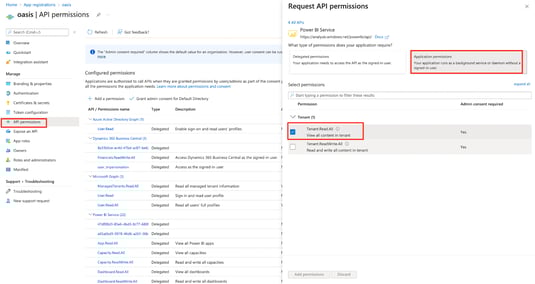
1. In the app's settings, click API Permissions and then Request API Permissions.
2. Select Microsoft APIs > Application Permissions and choose Tenant.Read.All. Ensure that admin consent is set to **YES.**
3. Create a client secret by navigating to **Certificates & secrets,** clicking **New Client Secret,** and noting the **Secret ID** value**.**
3. **Creating a Security Group**
1. Create a security group in Azure Active Directory. Ensure the group type is set to Security.
2. Add the service user and the registered app to this security group.
**Office 365 Configuration**
**Service User Setup:** Create a new service user in Office 365 or use an existing user for configuration.
To enable Power BI Admin APIS for the created service user, there are two options:
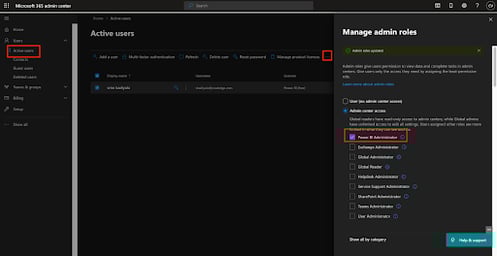
1. Either enable the OvalEdge service user as a Power BI Administrator role, or use an existing user with the Power BI Administrator role.
2. Afterward, configure the required permissions in the Power BI Admin Portal.
**Power BI Configuration**
1. **Power BI Admin Portal Configuration**
1. Log in to the Power BI Admin Portal using the service user credentials.\
**Note:** Power BI Admin privileges are required to view the Tenant Settings page.
2. Under Admin API Settings, enable the option to allow service principals to use read-only Power BI admin APIs and add the security group created in Azure.
3. To enable the Power BI service admin setting, navigate to Admin Portal > Tenant Settings > Developer Settings.
4. Select the "Entire organization" option and enable the settings in the Admin Portal > Tenant Settings > Developer settings > Embed Content in apps.
5. In Developer settings > Allow service principals to use Power BI APIs, select specific security groups, and enable the settings.
6. In Developer settings > Allow service principals to create and use profiles, select specific security groups, and enable the settings.
7. In the Admin Portal > Tenant Settings > Admin API settings > Allow service principals to use read-only Power BI admin, select specific security groups, and enable the settings.
2. **Enhanced API Responses**
1. In the Admin Portal > Tenant Settings > Admin API settings > Enable the Enhance admin API responses with detailed metadata option for the entire organization.
2. Enable Enhance admin API responses with DAX and mashup expressions for the entire organization.
3. **Report Downloads**
1. In the Admin Portal > Tenant Settings > Export and sharing settings > Download Reports, select The entire organization option, then click Apply. All the users in the organization can download the reports.
2. Alternatively, if the Specific security groups option is selected, enter the specific security group and click **Apply**. Then, only people in the entered group can download the reports.
4. **Power BI Workspace Configuration**
1. **Creating a Workspace**\
**Note**: If a workspace has already been created, this step can be skipped.
1. Navigate to[ ](https://app.powerbi.com/)[**app.powerbi.com**](https://app.powerbi.com/)**.**
2. The First step is to create a workspace (Premium / Non-premier ) in Power BI.
3. Click on the **Create a workspace** button.
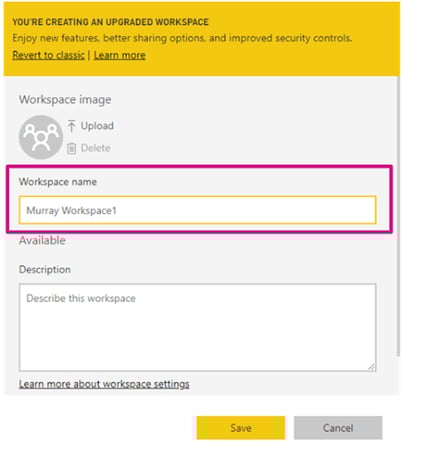
4. Enter the workspace name.
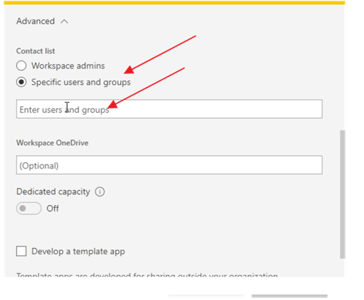
5. Click on the **Save** button in the advanced tab, select the option for **Specific users and groups**, and then enter the users and groups.
6. Once the workspace is successfully created, search the workspace name.
2. **Workspace Access**
1. Once the workspace is created, search for the workspace name, click the three dots, and select Workspace Access.
2. In the Access pane, add the security group created in Azure with Contributor permissions. **The minimum permission required for the service user is Contributor, and the maximum is Admin.**
**For more detailed, refer to:**
* [Power BI Embed Service Principal](https://learn.microsoft.com/en-us/power-bi/developer/embedded/embed-service-principal)
* [Power BI Service Roles in Workspaces](https://learn.microsoft.com/en-us/power-bi/collaborate-share/service-roles-new-workspaces)
***
Copyright © 2026, OvalEdge LLC, Peachtree Corners GA USA
---
# Agent Instructions
This documentation is published with GitBook. GitBook is the documentation platform designed so that both humans and AI agents can read, navigate, and reason over technical content effectively. Learn more at gitbook.com.
## Querying This Documentation
If you need additional information that is not directly available in this page, you can query the documentation by asking a question.
Perform an HTTP GET request on the following URL with the `ask` and `goal` query parameters:
```
GET https://docs.ovaledge.com/connectors/connector-repositories/reporting-tool/power-bi/power-bi-cloud/power-bi-cloud-system-configuration.md?ask=&goal=
```
`ask` is the immediate question: it should be specific, self-contained, and written in natural language.
`goal` is what the user is ultimately trying to achieve, the reason they need the answer. Sharing it helps GitBook give you a better, more relevant answer. A goal is most helpful when it describes the outcome the user wants rather than restating the question. For example, with `ask=how do I create an API token`, a goal like `automate deployments from our CI pipeline` lets GitBook tailor the answer to that use case.
The response will contain a direct answer to the question and relevant excerpts and sources from the documentation.
Use this mechanism when the answer is not explicitly present in the current page, you need clarification or additional context, or you want to retrieve related documentation sections.

.png?width=567&height=303&name=Enhance%20admin%20API%20responses(DAX).png)

.png?width=565&height=302&name=Enhance%20admin%20API%20responses(DAX).png)