> For the complete documentation index, see [llms.txt](https://docs.ovaledge.com/llms.txt). Markdown versions of documentation pages are available by appending `.md` to page URLs; this page is available as [Markdown](https://docs.ovaledge.com/connectors/connector-repositories/rdbms/microsoft-sql-server/fabric-warehouse-lakehouse-integration.md).
# Fabric Warehouse / Lakehouse Integration
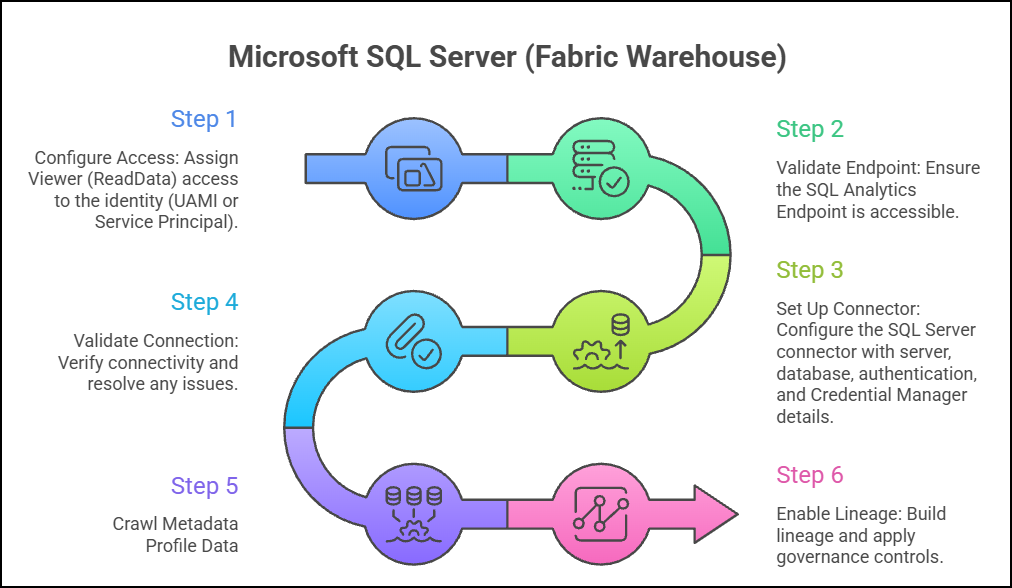
Microsoft Fabric Warehouse / Lakehouse can be integrated with OvalEdge through the SQL Analytics Endpoint. Azure Active Directory authentication provides secure access to the Fabric Warehouse / Lakehouse and supports metadata extraction, profiling, and lineage.
This article describes the required access configuration and the steps to establish the integration using the Microsoft SQL Server connector.
### Supported Authentication Methods
* Managed Identity (User Assigned)
* Service Principal
{% hint style="warning" %}
Select the authentication method based on the deployment model and security policies.
{% endhint %}
### Prerequisites
Ensure the following conditions are met before proceeding:
#### 1. Fabric Environment Setup
* An active Fabric workspace is available
* The target Warehouse / Lakehouse is created and accessible.
#### 2. Identity Requirements
* A User Assigned Managed Identity (UAMI) or Service Principal (SP) is created
* The identity is associated with the Bridge Client VM (if applicable).
#### 3. Access Permissions
The user performing this configuration must have:
* Workspace Admin, Owner, or equivalent role
* Permission to manage access (**roleAssignments/write**).
{% hint style="warning" %}
If sufficient privileges are not available, the Manage Permissions option will not be accessible.
{% endhint %}
### Fabric Warehouse / Lakehouse Access Configuration
Viewer-level access is required for the identity used to connect to the Fabric Warehouse / Lakehouse. This access uses the **Read all data using SQL (ReadData)** permission.
Viewer access enables the connector to:
* Execute read-only SQL queries.
* Access schema and metadata.
* Perform metadata crawling and profiling.
### Steps to Configure Viewer Access
Follow the steps below to configure read-only access:
#### Step 1: Access Fabric Portal
* Log in to the **Microsoft Fabric Portal**
* Use an account with **Admin** or **Owner privileges**
#### Step 2: Navigate to Workspace
* Open the required Fabric Workspace
* Locate the target Warehouse / Lakehouse
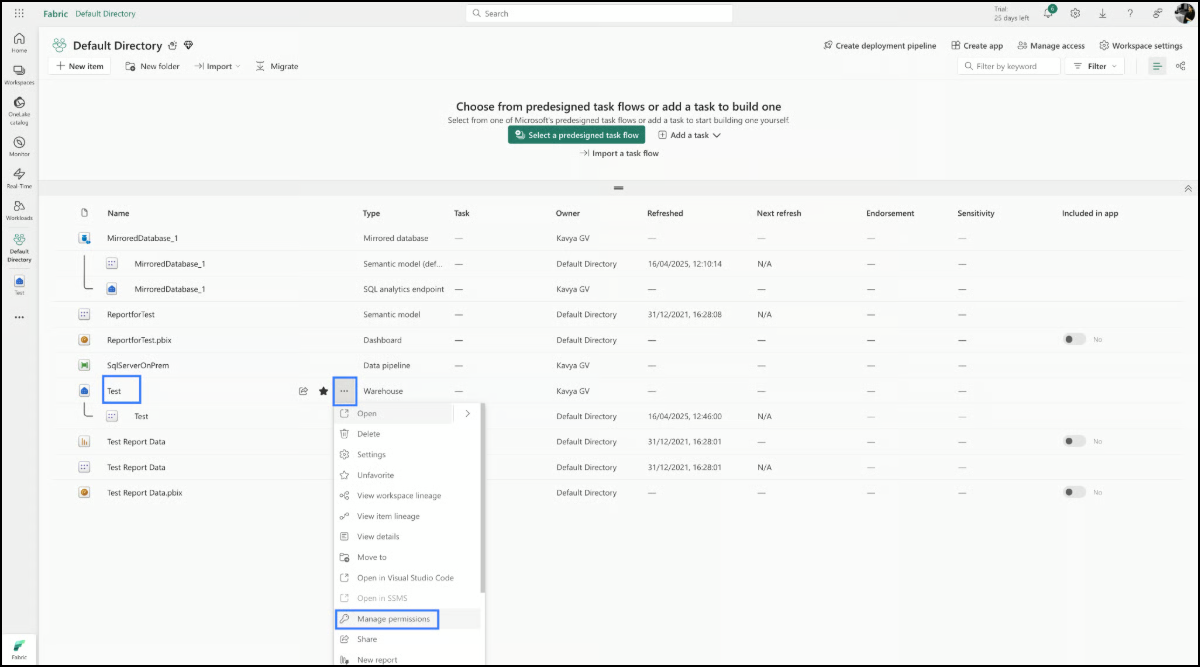
#### Step 3: Open Manage Permissions
* Click on the **three-dot menu (⋯)** for the Warehouse / Lakehouse
* Select **Manage Permissions**
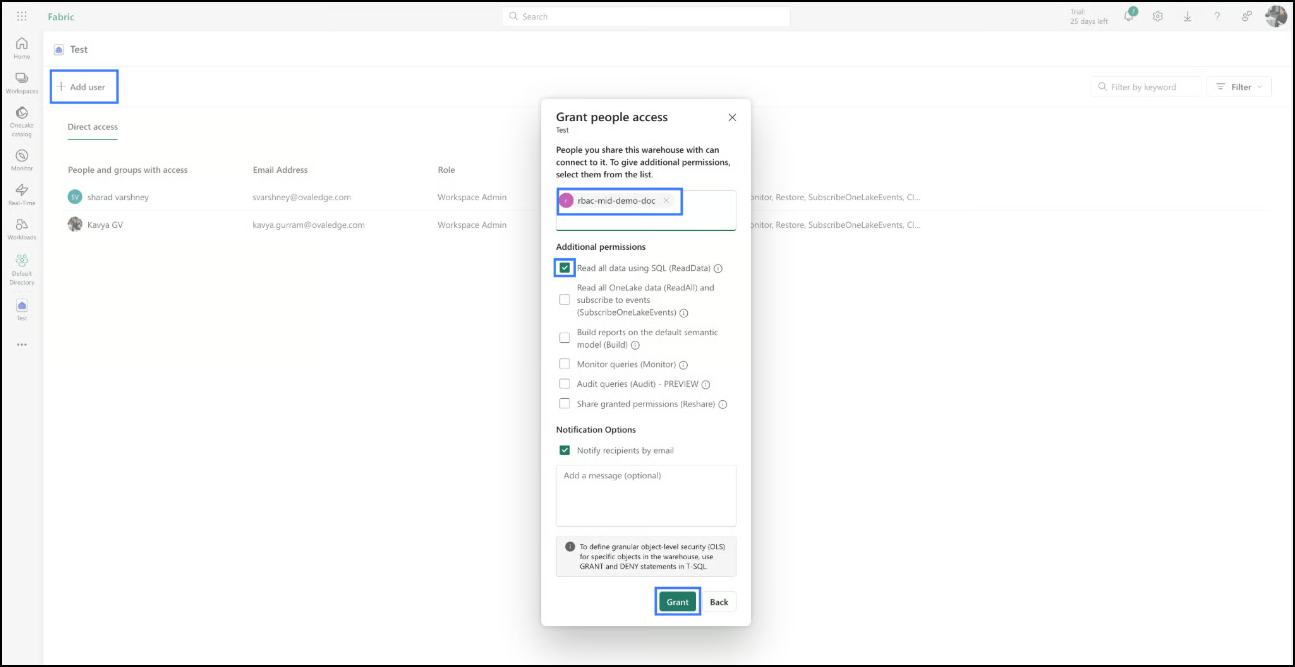
#### Step 4: Add Identity
* Click **+ Add user**
* Select the required identity:
* User Assigned Managed Identity (UAMI)
* Service Principal (SP)
#### Step 5: Assign Viewer Permission
* **Select the permission:** Read all data using SQL (ReadData)
This enables:
* Read-only SQL query execution
* Metadata and schema visibility
* Secure access without modification capability
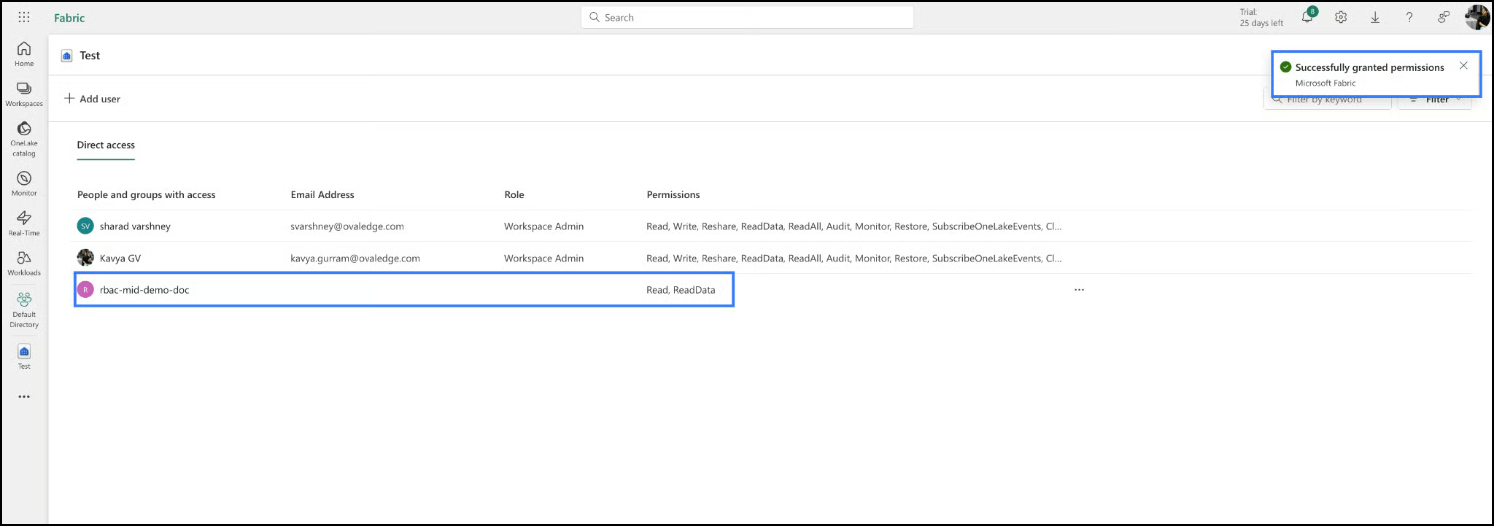
#### Step 6: Validate Configuration
* Confirm that the identity appears in the permissions list
* Verify that the assigned permission reflects **ReadData (Viewer-level access)**
{% hint style="info" %}
The configured access is immediately visible in the permissions panel upon successful assignment.
{% endhint %}
### Permission Summary