| Prerequisite | Description |
|---|---|
| Microsoft Entra Access | Access to the Microsoft Entra admin center with permission to create application registrations. |
| Azure Portal Access | Access to the Azure portal for application registration and credential management. |
| Administrative Access | Permission to grant Microsoft Graph API permissions and admin consent. |
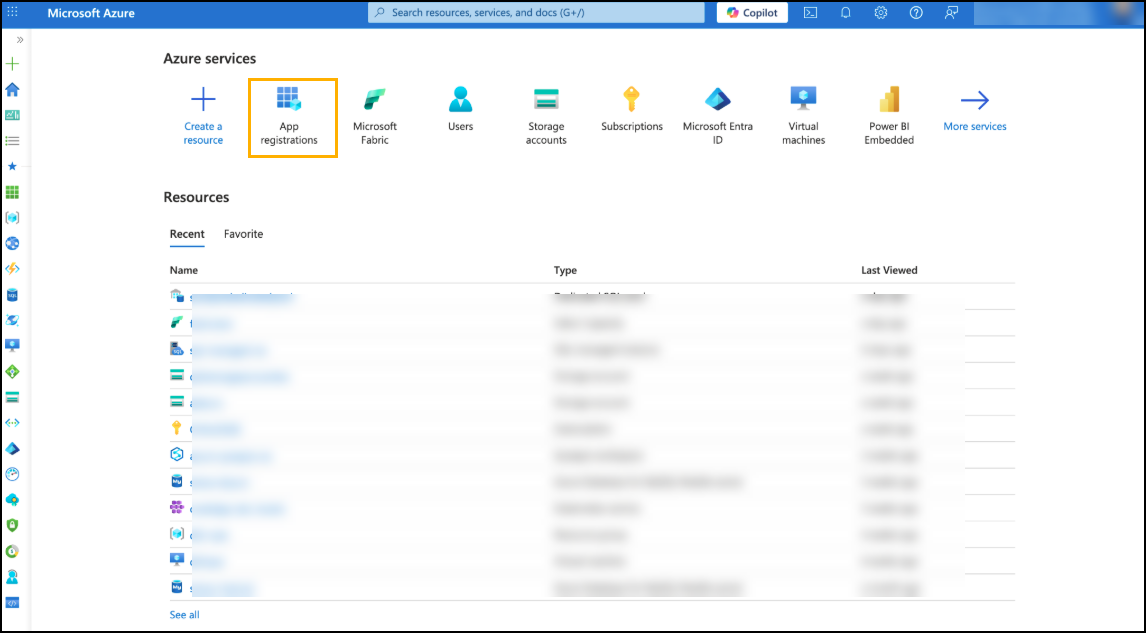 ### Step 2: Create a New Application Registration
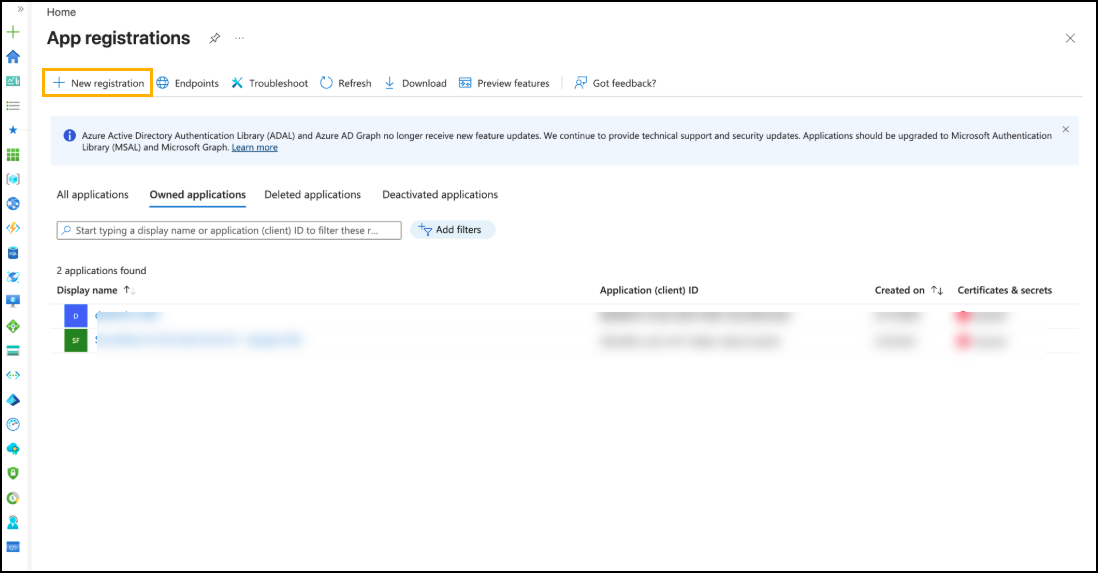
1. Click **New Registration**.
### Step 2: Create a New Application Registration
1. Click **New Registration**.
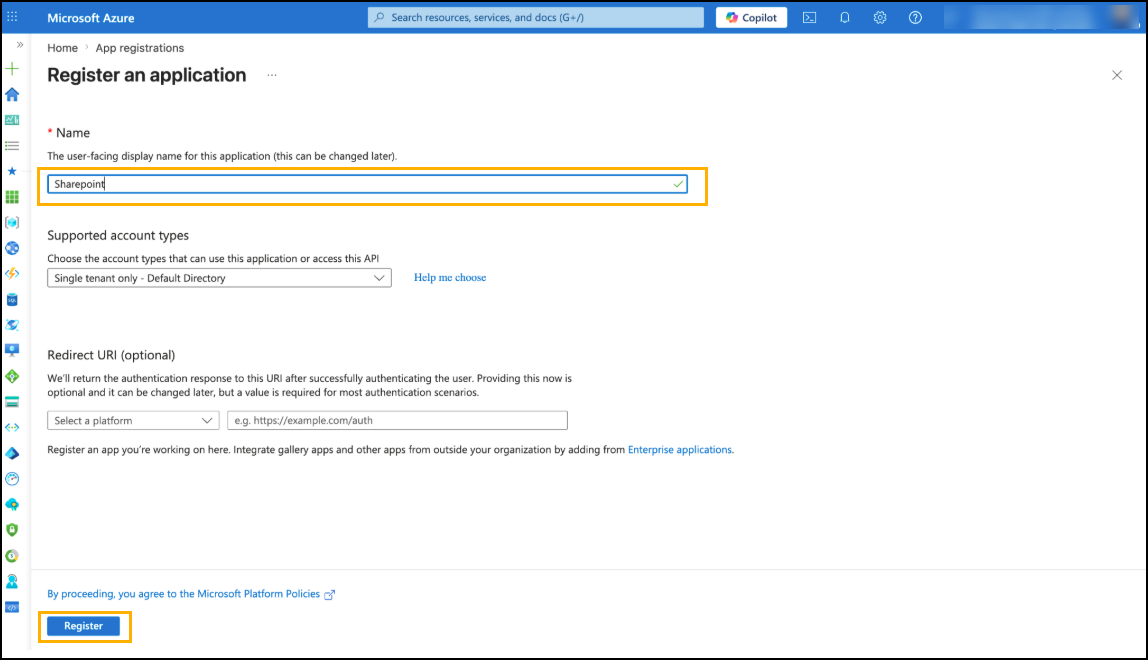
 2. Enter a name for the application.
3. Click **Register**.
2. Enter a name for the application.
3. Click **Register**.
 ### Step 3: Open the App Registration
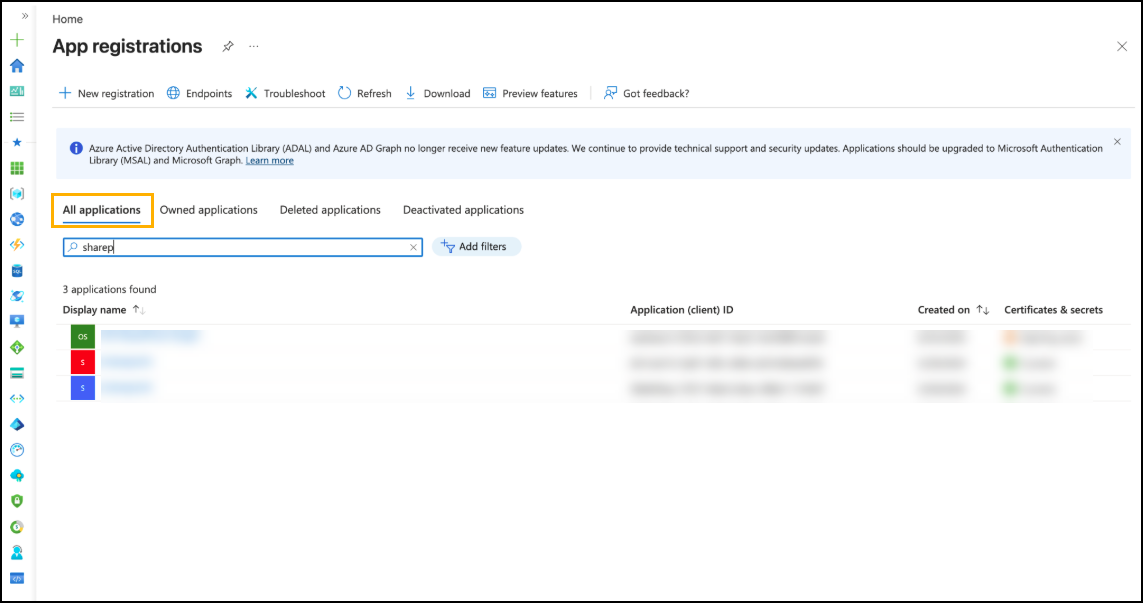
1. Navigate to **App Registrations**.
2. Click **All Applications**.
3. Search for the newly created application.
4. Open the application registration.
### Step 3: Open the App Registration
1. Navigate to **App Registrations**.
2. Click **All Applications**.
3. Search for the newly created application.
4. Open the application registration.
 ## Retrieve Authentication Credentials
### Retrieve Client ID and Tenant ID
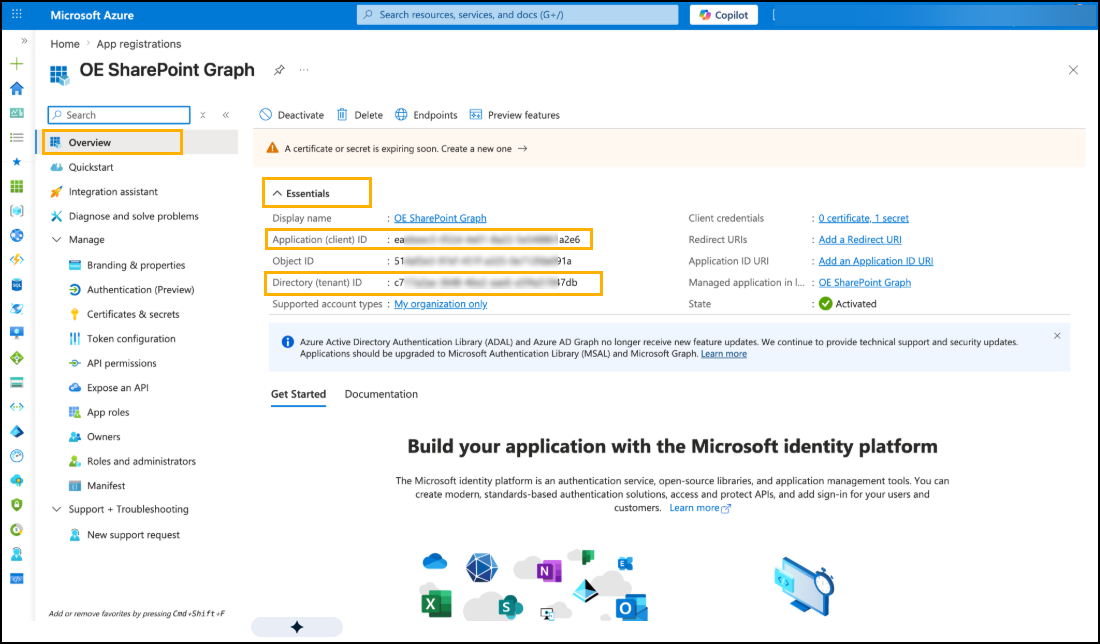
1. Navigate to the **Overview** page of the application registration.
2. In the Essentials section, copy the following values:
| Credential | Azure Field |
| ---------- | ----------------------- |
| Client ID | Application (Client) ID |
| Tenant ID | Directory (Tenant) ID |
## Retrieve Authentication Credentials
### Retrieve Client ID and Tenant ID
1. Navigate to the **Overview** page of the application registration.
2. In the Essentials section, copy the following values:
| Credential | Azure Field |
| ---------- | ----------------------- |
| Client ID | Application (Client) ID |
| Tenant ID | Directory (Tenant) ID |
 ### Create a Client Secret
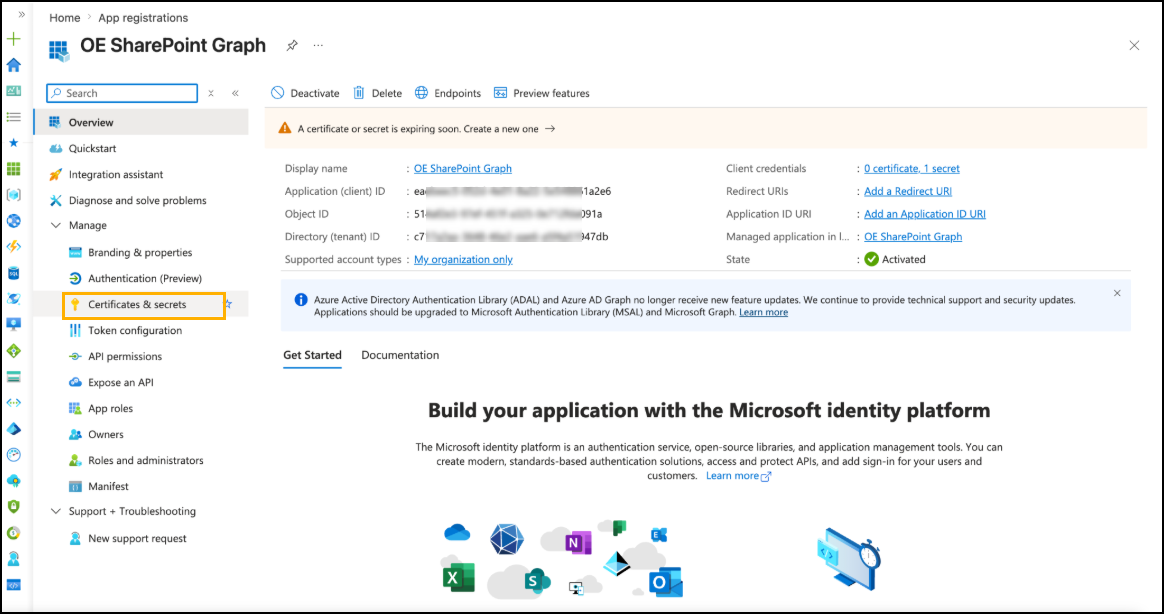
1. Navigate to **Certificates & Secrets**.
### Create a Client Secret
1. Navigate to **Certificates & Secrets**.
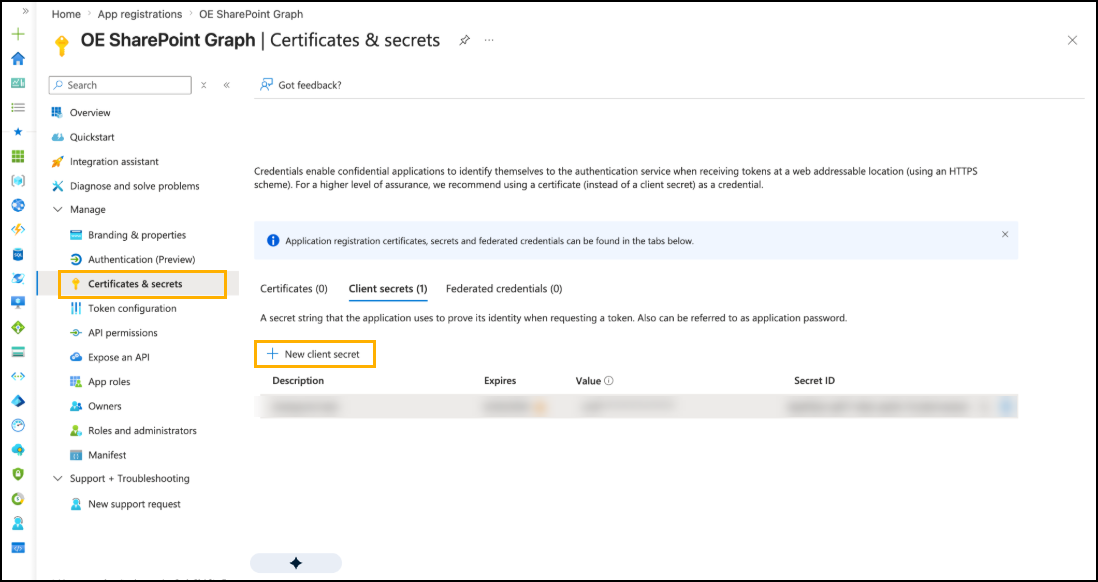
 2. Click **New Client Secret**.
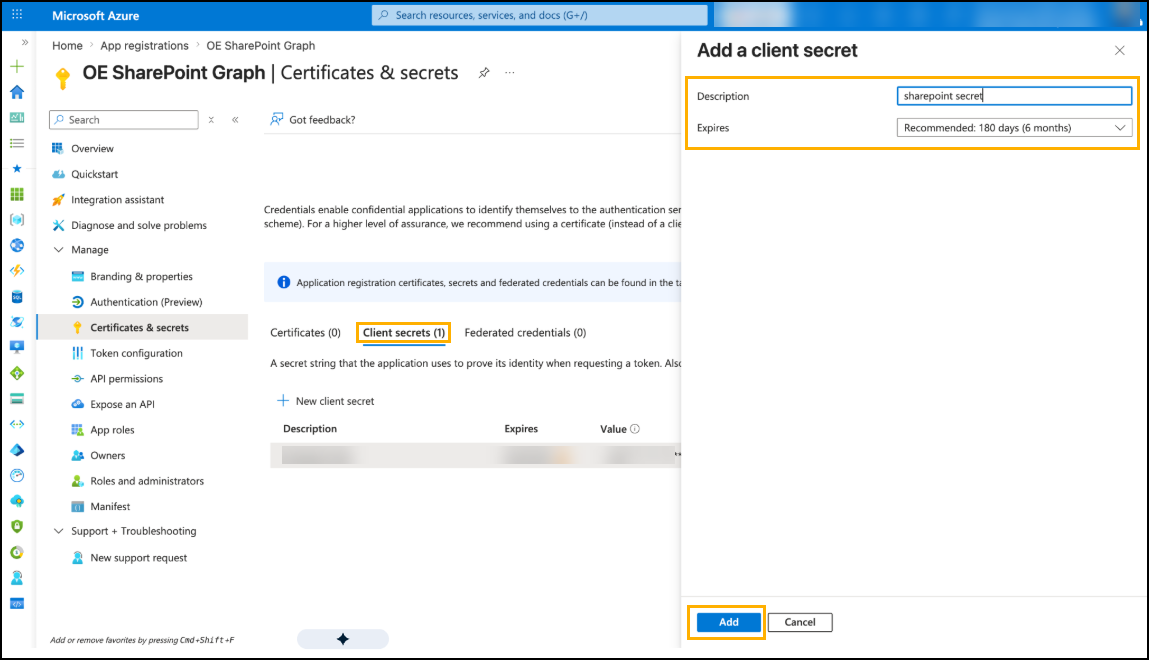
 3. Enter a **description**.
4. Select the required **expiration period**.
5. Click **Add**.
3. Enter a **description**.
4. Select the required **expiration period**.
5. Click **Add**.
 ### Retrieve Client Secret
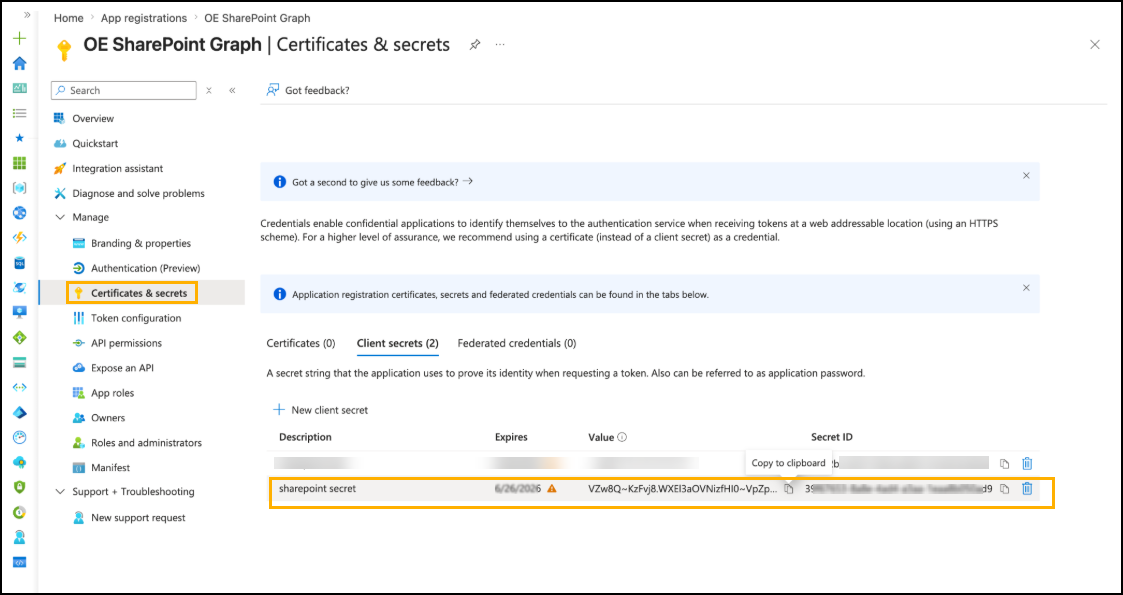
1. Copy the Value immediately after the **client secret** is created.
### Retrieve Client Secret
1. Copy the Value immediately after the **client secret** is created.
 {% hint style="warning" %}
The Client Secret value is displayed only once during creation. Ensure that the value is copied and stored securely before leaving the page.
{% endhint %}
## Configure API Permissions
### Step 1: Add Microsoft Graph Permissions
1. Navigate to **API Permissions**.
2. Click **Add a Permission**.
{% hint style="warning" %}
The Client Secret value is displayed only once during creation. Ensure that the value is copied and stored securely before leaving the page.
{% endhint %}
## Configure API Permissions
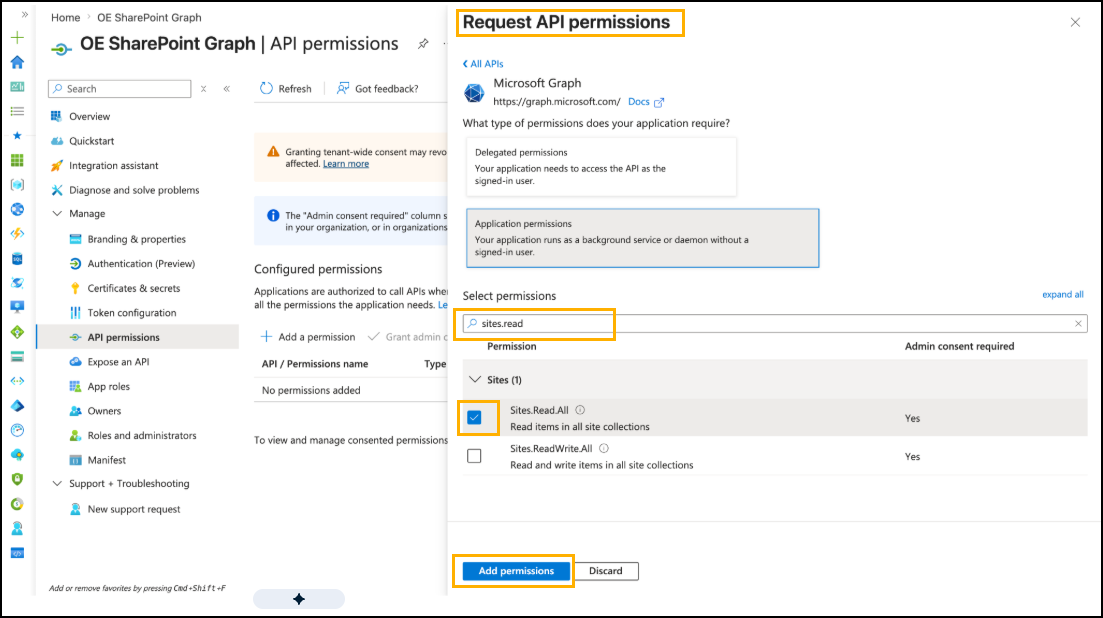
### Step 1: Add Microsoft Graph Permissions
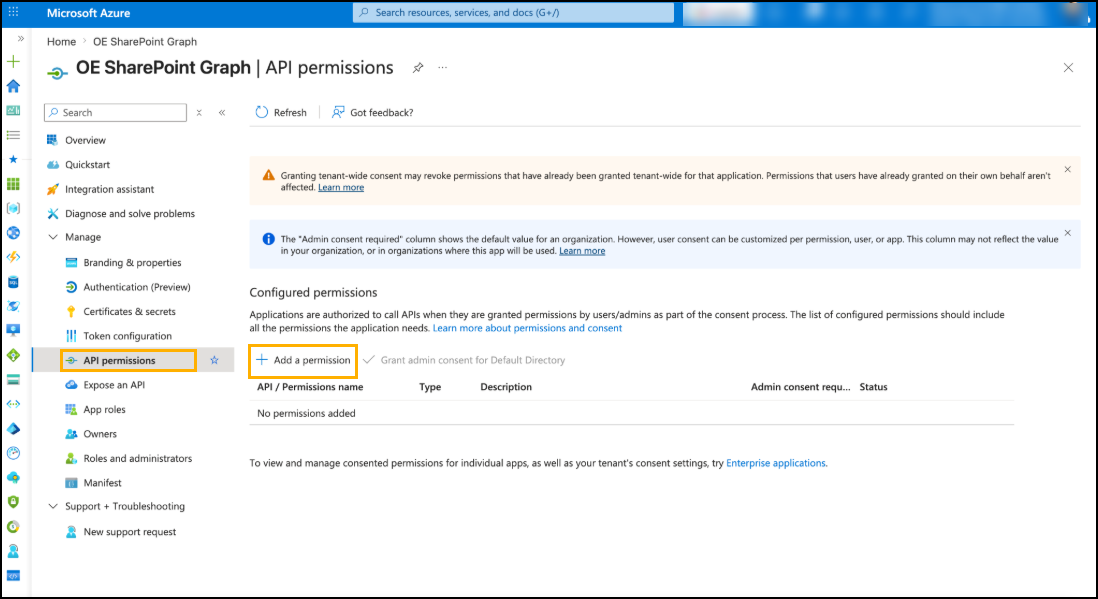
1. Navigate to **API Permissions**.
2. Click **Add a Permission**.
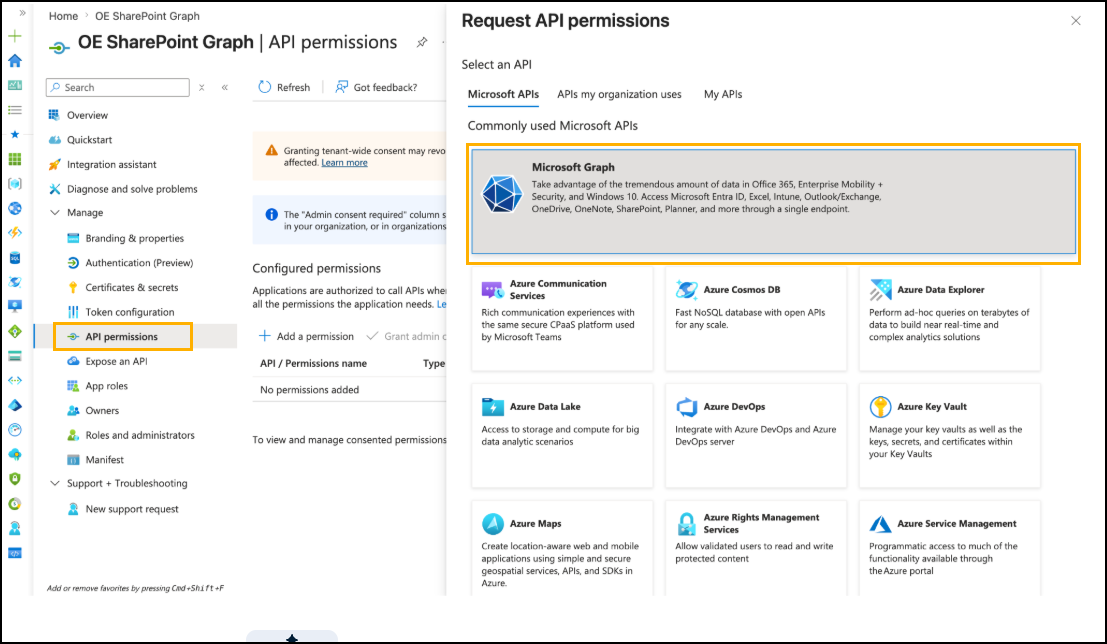
 3. Select **Microsoft Graph**.
 4. Select **Application Permissions**.
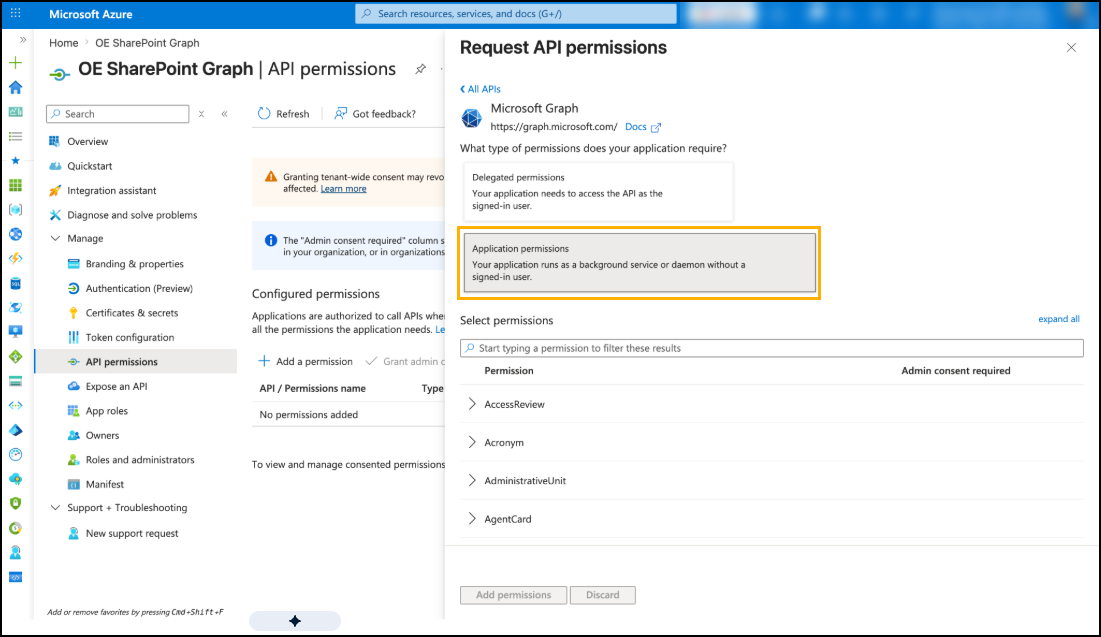 5. Search for **Sites.Read.All**.
6. Select the **Sites.Read.All** permission.
7. Click **Add Permissions**.
5. Search for **Sites.Read.All**.
6. Select the **Sites.Read.All** permission.
7. Click **Add Permissions**.
 ### Step 2: Grant Administrative Consent
1. Click **Grant Admin Consent**.
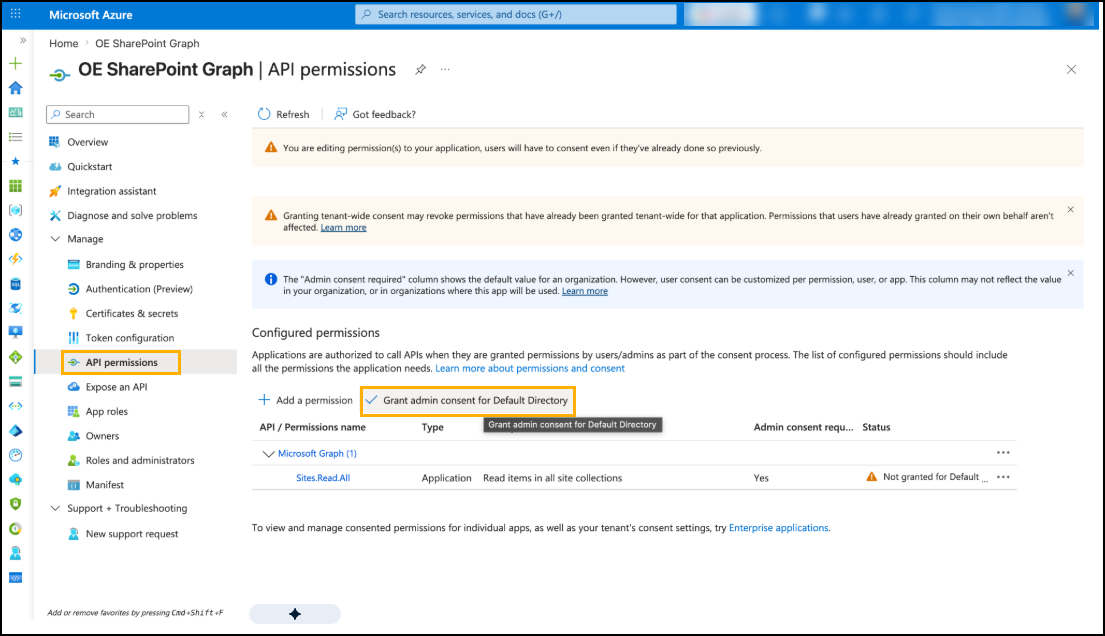
### Step 2: Grant Administrative Consent
1. Click **Grant Admin Consent**.
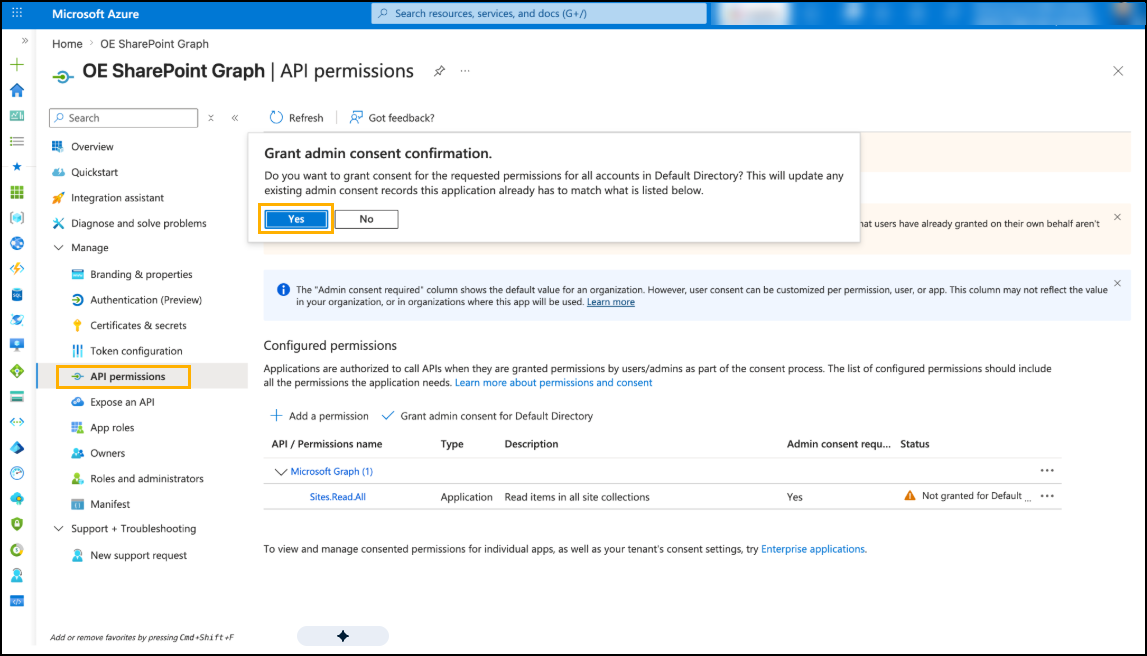
 2. Click **Yes** to confirm.
 {% hint style="warning" %}
Administrative consent must be granted before the SharePoint connector can access SharePoint metadata.
{% endhint %}
## Credentials Required for Connector Configuration
The following values are required when configuring the SharePoint connector in OvalEdge:
| Credential | Description |
| ------------- | --------------------------------------------------------- |
| Client ID | Application (Client) ID from the application registration |
| Tenant ID | Directory (Tenant) ID from the application registration |
| Client Secret | Secret value generated for the application registration |
{% hint style="info" %}
**Disclaimer**
This document is provided for reference purposes only and is subject to change in the future. For the latest information, contact the System Administrator of the system.
{% endhint %}
***
Copyright © 2026, OvalEdge LLC, Peachtree Corners, GA, USA.
---
# Agent Instructions
This documentation is published with GitBook. GitBook is the documentation platform designed so that both humans and AI agents can read, navigate, and reason over technical content effectively. Learn more at gitbook.com.
## Querying This Documentation
If you need additional information that is not directly available in this page, you can query the documentation by asking a question.
Perform an HTTP GET request on the following URL with the `ask` and `goal` query parameters:
```
GET https://docs.ovaledge.com/connectors/connector-repositories/file-connectors/sharepoint/sharepoint-microsoft-entra-authentication.md?ask=
{% hint style="warning" %}
Administrative consent must be granted before the SharePoint connector can access SharePoint metadata.
{% endhint %}
## Credentials Required for Connector Configuration
The following values are required when configuring the SharePoint connector in OvalEdge:
| Credential | Description |
| ------------- | --------------------------------------------------------- |
| Client ID | Application (Client) ID from the application registration |
| Tenant ID | Directory (Tenant) ID from the application registration |
| Client Secret | Secret value generated for the application registration |
{% hint style="info" %}
**Disclaimer**
This document is provided for reference purposes only and is subject to change in the future. For the latest information, contact the System Administrator of the system.
{% endhint %}
***
Copyright © 2026, OvalEdge LLC, Peachtree Corners, GA, USA.
---
# Agent Instructions
This documentation is published with GitBook. GitBook is the documentation platform designed so that both humans and AI agents can read, navigate, and reason over technical content effectively. Learn more at gitbook.com.
## Querying This Documentation
If you need additional information that is not directly available in this page, you can query the documentation by asking a question.
Perform an HTTP GET request on the following URL with the `ask` and `goal` query parameters:
```
GET https://docs.ovaledge.com/connectors/connector-repositories/file-connectors/sharepoint/sharepoint-microsoft-entra-authentication.md?ask=