# DSEFS (Datastax Enterprise File System)

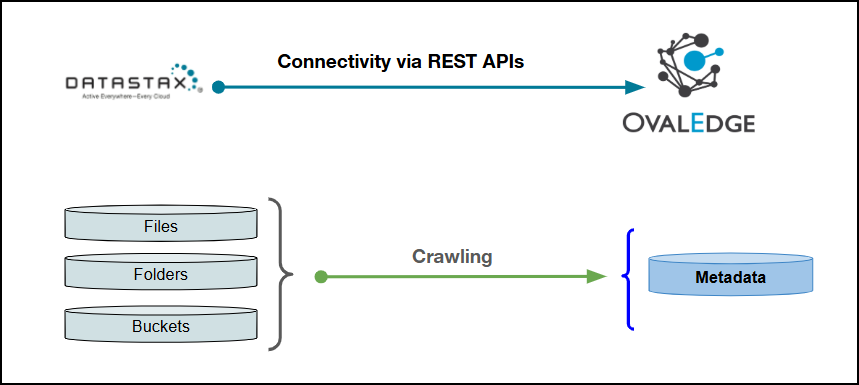
This article outlines the integration with the DSEFS (Datastax Enterprise File System) connector, enabling streamlined metadata management through features such as crawling, data preview, and manual lineage building. It also supports impact analysis and ensures secure authentication via Credential Manager.

<figure><img src="https://1813356899-files.gitbook.io/~/files/v0/b/gitbook-x-prod.appspot.com/o/spaces%2FhTnkoJQml0pok9awFDhx%2Fuploads%2Fr7vU7LZUEHLlGaMPifdz%2Fimage.png?alt=media&#x26;token=aa86725c-e7ca-4850-bd71-bdef12d3ab9e" alt=""><figcaption></figcaption></figure>

## Overview

### Connector Details

| Connector Category                                                        | File System                     |
| ------------------------------------------------------------------------- | ------------------------------- |
| OvalEdge Release Supported                                                | Release6.0\_gamma to Release7.2 |
| <p>Connectivity</p><p>\[How the connection is established with DSEFS]</p> | REST APIs                       |
| Verified DSEFS Version                                                    | 6.7.x                           |

{% hint style="info" %}
The DSEFS connector has been validated with the mentioned "Verified DSEFS Versions" and is expected to be compatible with other supported DSEFS versions. If there are any issues with validation or metadata crawling, please submit a support ticket for investigation and feedback.
{% endhint %}

### Connector Features

| Feature                                                        | Availability |
| -------------------------------------------------------------- | :----------: |
| <ul><li>Crawling</li></ul>                                     |       ✅      |
| <ul><li>Delta Crawling</li></ul>                               |       ❌      |
| <ul><li>Profiling</li></ul>                                    |       ❌      |
| <ul><li>Query Sheet</li></ul>                                  |      NA      |
| <ul><li>Data Preview</li></ul>                                 |       ✅      |
| <ul><li>Auto Lineage</li></ul>                                 |      NA      |
| <ul><li>Manual Lineage</li></ul>                               |       ✅      |
| <ul><li>Secure Authentication via Credential Manager</li></ul> |       ✅      |
| <ul><li>Data Quality</li></ul>                                 |       ❌      |
| <ul><li>DAM (Data Access Management)</li></ul>                 |       ❌      |
| <ul><li>Bridge</li></ul>                                       |       ✅      |

{% hint style="info" %}
'NA' indicates that the respective feature is 'Not Applicable.'
{% endhint %}

### Metadata Mapping

The following objects are crawled from DSEFS and mapped to the corresponding UI assets.

| DSEFS Object                                                | DSEFS Attribute | OvalEdge Attribute | OvalEdge Category | OvalEdge Type   |
| ----------------------------------------------------------- | --------------- | ------------------ | ----------------- | --------------- |
| Bucket                                                      | Bucket          | Bucket             | Bucket            | Bucket          |
| Folder                                                      | Folder          | Folder             | Folder            | Folder          |
| File                                                        | File            | File               | File              | File            |
| XLSX                                                        | XLSX            | Folder(subfile)    | Folder(subfile)   | Folder(subfile) |
| XLS                                                         | XLS             | Folder(subfile)    | Folder(subfile)   | Folder(subfile) |
| CSV                                                         | CSV             | File               | File              | File            |
| TXT                                                         | TXT             | File               | File              | File            |
| PARQUET                                                     | PARQUET         | File               | File              | File            |
| ORC                                                         | ORC             | File               | File              | File            |
| JSON                                                        | JSON            | File               | File              | File            |
| YAML                                                        | YAML            | File               | File              | File            |
| PIP                                                         | PIP             | File               | File              | File            |
| All Files According to the configuration in System Settings | -               | File               | File              | File            |

## Set up a Connection

### Prerequisites

The following are the prerequisites to establish a connection.

### **Service Account User Permissions**

{% hint style="warning" %}
It is recommended to use a separate service account to establish the connection to the data source, configured with the following minimum set of permissions.
{% endhint %}

{% hint style="info" %}
👨‍💻**Who can provide these permissions?** These permissions are typically granted by the DSEFS administrator, as users may not have the required access to assign them independently.
{% endhint %}

<table><thead><tr><th width="218.16668701171875">Objects</th><th>Access Permission</th></tr></thead><tbody><tr><td>Connector Validation</td><td>Execute permission (x), Files: Read permission (r)</td></tr><tr><td>Crawling</td><td>Execute permission (x), Files: Read permission (r)</td></tr><tr><td>Folder</td><td>Execute permission (x), Files: Read permission (r)</td></tr><tr><td>Files</td><td>Execute permission (x), Files: Read permission (r)</td></tr></tbody></table>

### Connection Configuration Steps

{% hint style="warning" %}
Users are required to have the Connector Creator role in order to configure a new&#x20;

connection.
{% endhint %}

1. Log into OvalEdge, go to Administration > Connectors, click **+ (New Connector)**, search for **DSEFS**, and complete the required parameters.

{% hint style="info" %}
Fields marked with an asterisk (\*) are mandatory for establishing a connection.
{% endhint %}

<table><thead><tr><th width="218.16668701171875">Field Name</th><th>Description</th></tr></thead><tbody><tr><td>Connector Type</td><td>By default, "DSEFS" is displayed as the selected connector type.</td></tr><tr><td>Credential Manager*</td><td><p>Select the desired credentials manager from the drop-down list. Relevant parameters will be displayed based on the selected option.</p><p>Supported Credential Managers:</p><ul><li>OE Credential Manager</li><li>AWS Secrets Manager</li><li>HashiCorp</li><li>Azure Key Vault</li></ul></td></tr><tr><td>Connector Environment</td><td>Select the environment (Example: PROD, STG) configured for the connector.</td></tr><tr><td>Connector Name*</td><td><p>Enter a unique name for the DSEFS connection              </p><p>(Example: "DSEFSdb").</p></td></tr><tr><td>Connector Description</td><td>Enter a brief description of the connector.</td></tr><tr><td>Username*</td><td>Enter the valid username with access privileges to the Datastax Enterprise File System.</td></tr><tr><td>Password*</td><td>Enter the password for the provided username to authenticate access.</td></tr><tr><td>DSEFS URL*</td><td>Enter the complete and valid URL of the Datastax Enterprise File System instance (Example: https://xxxxxx.xxx).</td></tr><tr><td>Proxy Enabled*</td><td>Select Yes to route the connection through a configured proxy, or No to connect directly without a proxy.</td></tr></tbody></table>

**Default Governance Roles**

<table data-header-hidden><thead><tr><th width="218.1666259765625"></th><th></th></tr></thead><tbody><tr><td>Default Governance Roles*</td><td>Select the appropriate users or teams for each governance role from the drop-down list. All users configured in the security settings are available for selection.</td></tr></tbody></table>

**Admin Roles**

<table data-header-hidden><thead><tr><th width="218.16668701171875"></th><th></th></tr></thead><tbody><tr><td>Admin Roles*</td><td><p>Select one or more users from the dropdown list for Integration Admin and Security &#x26; Governance Admin. All users configured</p><p>in the security settings are available for selection.</p></td></tr></tbody></table>

**No Of Archive Objects\***

<table data-header-hidden><thead><tr><th width="218.1666259765625"></th><th></th></tr></thead><tbody><tr><td>No Of Archive Objects*</td><td><p>This shows the number of recent metadata changes to a dataset at the source. By default, it is off. To enable it, toggle the Archive button and specify the number of objects to archive.</p><p>Example: Setting it to 4 retrieves the last four changes, displayed in the 'Version' column of the 'Metadata Changes' module.</p></td></tr></tbody></table>

**Bridge**

<table data-header-hidden><thead><tr><th width="218.16668701171875"></th><th></th></tr></thead><tbody><tr><td>Select Bridge*</td><td><p>If applicable, select the bridge from the drop-down list.</p><p>The drop-down list displays all active bridges that have been configured. These bridges facilitate communication between data sources and the system without requiring changes to firewall rules.</p></td></tr></tbody></table>

2. After entering all connection details, the following actions can be performed:
   1. Click **Validate** to verify the connection.
   2. Click **Save** to store the connection for future use.
   3. Click **Save & Configure** to apply additional settings before saving.
3. The saved connection will appear on the Connectors home page.

## Manage Connector Operations

### Crawl

{% hint style="info" %}
To perform crawl operations, users must be assigned the Integration Admin role.
{% endhint %}

1. Navigate to the **Connectors** page and click **Crawl/Profile**.
2. This action initiates the metadata collection process from the data source and loads the retrieved metadata into the **File Manager**.
3. In the **File Manager**, select the specific folder(s) or file(s), then click **Catalog Files/Folders** from the Nine Dots menu.
4. The selected files or folders will be added to the **Data Catalog> Databases/Files/File Columns** tab.

### Other Operations

The Connectors page provides a centralized view of all configured connectors, along with their health status.

**Managing connectors includes**:

* **Connectors Health**: Displays the current status of each connector using a green icon for active connections and a red icon for inactive connections, helping to monitor the connectivity with data sources.
* **Viewing**: Click the Eye icon next to the connector name to view connector details, including databases, tables, columns, and codes.

**Nine Dots Menu Options:**

To view, edit, validate, build lineage, configure, or delete connectors, click on the Nine Dots menu.

* **Edit Connector**: Update and revalidate the data source.
* **Validate Connector**: Check the connection's integrity.
* **Settings**: Modify connector settings.
  * **Crawler**: Configure data extraction.
  * **Access Instruction**: Add notes on how data can be accessed.
  * **Business Glossary Settings**: Manage term associations at the connector level.
* **Delete Connector**: Remove a connector with confirmation.

## Connectivity Troubleshooting

If incorrect parameters are entered, error messages may appear. Ensure all inputs are accurate to resolve these issues. If issues persist, contact the assigned support team.

<table><thead><tr><th width="84.8333740234375">S.No.</th><th>Error Message(s)</th><th>Error Description &#x26; Resolution</th></tr></thead><tbody><tr><td>1</td><td>Error while validating connection: Exception in validateConnection() : The API returned an error code [400] invalid_client</td><td><p>Description:</p><p>Invalid client credentials provided.</p><p>Resolution:</p><p>Enter the correct client ID and secret.</p></td></tr><tr><td>2</td><td>Error while validating connection: Error : URI is not absolute</td><td><p>Description: The provided DSEFS URL is not absolute.</p><p>Resolution: Enter a valid absolute DSEFS URL (e.g., https://xxxxxxx/path).</p></td></tr></tbody></table>

***

Copyright © 2026, OvalEdge LLC, Peachtree Corners, GA, USA.
