# Delta Lake

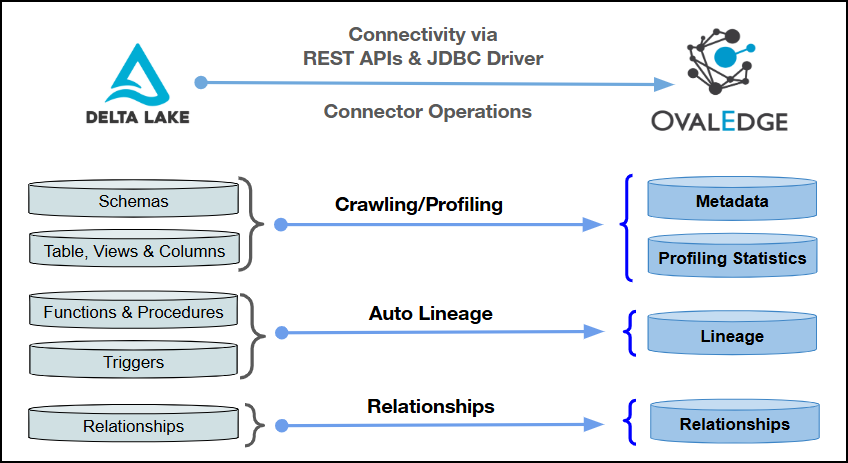
This article outlines the integration with Delta Lake, enabling streamlined metadata management through features such as crawling, profiling, querying, data preview, and lineage building (both automatic and manual). It also ensures secure authentication via Credential Manager.

Within the OvalEdge Delta Lake integration, two distinct Database Types are supported:

1. **Delta Lake Regular**: The standard (legacy) Hive Metastore–based workspace database.
2. **Delta Lake Unity Catalog**: A Databricks-governed database managed through Unity Catalog.

<figure><img src="https://1813356899-files.gitbook.io/~/files/v0/b/gitbook-x-prod.appspot.com/o/spaces%2FhTnkoJQml0pok9awFDhx%2Fuploads%2FJYtQL93Ks9cQ3io90zdU%2Fimage.png?alt=media&#x26;token=64027c4e-c6f6-4b1e-a737-cf400176e6e7" alt=""><figcaption></figcaption></figure>

## **Overview**

### **Connector Details**

<table data-header-hidden><thead><tr><th width="407.3333740234375"></th><th></th></tr></thead><tbody><tr><td>Connector Category</td><td>RDBMS System-Data Warehouse</td></tr><tr><td>Connector Version</td><td>Release6.3.4</td></tr><tr><td>Releases Supported (Available from)</td><td>Release6.1</td></tr><tr><td><p>Connectivity</p><p><em>[How the connection is established with Delta Lake]</em></p></td><td>REST APIs &#x26; JDBC driver</td></tr><tr><td>Verified Delta Lake Version</td><td>2.6.40</td></tr></tbody></table>

{% hint style="info" %}
The Delta Lake connector has been internally verified with the above Delta Lake versions and is expected to be compatible with other supported Delta Lake versions. If there are any issues with validation or metadata crawling, please submit a support ticket for investigation and feedback.
{% endhint %}

### **Connector Features**

| Feature                               | Availability |
| ------------------------------------- | :----------: |
| Crawling                              |       ✅      |
| Delta Crawl                           |       ❌      |
| Profiling                             |       ✅      |
| Query Sheet                           |       ✅      |
| Data Preview                          |       ✅      |
| Auto Lineage                          |       ✅      |
| Manual Lineage                        |       ✅      |
| Authentication via Credential Manager |       ✅      |
| Data Quality                          |       ✅      |
| DAM (Data Access Management)          |       ❌      |
| Bridge                                |       ✅      |

### **Metadata Mapping**

The following objects are crawled from Delta Lake and mapped to the corresponding UI assets.

<table><thead><tr><th width="116.41668701171875">Delta Lake Object</th><th width="153.5">Delta Lake Attribute</th><th width="146.91668701171875">OvalEdge Attribute</th><th width="157">OvalEdge Category</th><th width="129.0001220703125">OvalEdge Type</th></tr></thead><tbody><tr><td>Schema</td><td>DatabaseName</td><td>Schema</td><td>Databases</td><td>Schema</td></tr><tr><td>Table</td><td>Table Name</td><td>Table</td><td>Tables</td><td>Table</td></tr><tr><td>Table</td><td>Table Data Type</td><td>Table Type</td><td>Tables</td><td>Table</td></tr><tr><td>Columns</td><td>Column Name</td><td>Column</td><td>Table Columns</td><td>Columns</td></tr><tr><td>Columns</td><td>Column Datatype</td><td>Column Type</td><td>Table Columns</td><td>Columns</td></tr><tr><td>Columns</td><td>Column Comment</td><td>Source Description</td><td>Table Columns</td><td>Columns</td></tr><tr><td>Views</td><td>View Name</td><td>View</td><td>Tables</td><td>Views</td></tr></tbody></table>

## **Set up a Connection**

### **Prerequisites**

The following are the prerequisites to establish a connection:

**Whitelisting Ports**

Ensure the inbound port “443” is whitelisted to enable successful connectivity with the Delta Lake database.

{% hint style="warning" %}
The default port number for the Delta Lake data source is 443. If a different port is used, ensure that the updated port number is specified during connection setup, the port is whitelisted, and communication between the system and Delta Lake is properly established.
{% endhint %}

#### **Service Account User Permissions**

{% hint style="warning" %}
It is recommended to use a separate service account to establish the connection to the data source, configured with the following minimum set of permissions.
{% endhint %}

{% hint style="info" %}
**👨‍💻Who can provide these permissions?** These permissions are typically granted by the Microsoft SQL Server administrator, as users may not have the required access to assign them independently.
{% endhint %}

<table><thead><tr><th width="137.58343505859375">Operations</th><th width="138.83331298828125">Objects</th><th width="359.0833740234375">System Tables</th><th width="129.9998779296875">Access Permissions</th></tr></thead><tbody><tr><td>Crawling &#x26; Profiling</td><td>Schemas</td><td>Schemas</td><td>USAGE</td></tr><tr><td>Crawling &#x26; Profiling</td><td>Tables / Views</td><td>Tables</td><td>USAGE</td></tr><tr><td>Crawling &#x26; Profiling</td><td>Table / View Columns</td><td>On the Table</td><td>SELECT</td></tr><tr><td>Crawling &#x26; Lineage Building</td><td>Lineage related source codes</td><td>System.Access.Table_Lineage, System.Access.Column_Lineage</td><td>SELECT</td></tr><tr><td>Crawling</td><td>Column Relations</td><td>Information_Schema.Table_Constraints, Information_Schema.Key_Column_Usage, Information_Schema.Referential_Constraints</td><td>SELECT</td></tr></tbody></table>

### Connection Configuration Steps

{% hint style="warning" %}
Users are required to have the Connector Creator role in order to configure a new connection.
{% endhint %}

1. Log into OvalEdge, navigate to **Administration > Connectors**, click **+ (New Connector)**, search for **Delta Lake**, and complete the specific parameters.

{% hint style="info" %}
*Fields marked with an asterisk (**\***) are mandatory for establishing a connection.*
{% endhint %}

<table><thead><tr><th width="219">Field Name</th><th>Description</th></tr></thead><tbody><tr><td>Connector Type</td><td>By default, "Delta Lake" is displayed as the selected connector type.</td></tr><tr><td>Authentication</td><td><p>Delta Lake supports the following two types of authentications:</p><ul><li>Service Principal</li><li>Personal Access Token</li></ul></td></tr></tbody></table>

{% tabs %}
{% tab title="Service Principal" %}

<table><thead><tr><th width="215.25">Field Name</th><th>Description</th></tr></thead><tbody><tr><td>Credential Manager*</td><td><p>Select the desired credentials manager from the drop-down list. Relevant parameters will be displayed based on the selection.</p><p>Supported Credential Managers:</p><ul><li>OE Credential Manager</li><li>AWS Secrets Manager</li><li>HashiCorp</li><li>Azure Key Vault</li></ul></td></tr><tr><td>License Add Ons</td><td><ul><li>Select the checkbox for the Auto Lineage Add-On to build data lineage automatically.</li><li>Select the checkbox for the Data Quality Add-On to identify data quality issues using data quality rules and anomaly detection.</li></ul></td></tr><tr><td>Connector Name*</td><td><p>Enter a unique name for the Delta Lake connection              </p><p>(Example: "Delta Lakedb").</p></td></tr><tr><td>Connector Environment</td><td>Select the environment (Example: PROD, STG) configured for the connector.</td></tr><tr><td>Connector Description</td><td>Enter a description to identify the purpose of the connector.</td></tr><tr><td>Client Id*</td><td>Enter the Client ID configured for accessing the Delta Lake database.</td></tr><tr><td>Client Secret*</td><td>Enter the Client Secret associated with the provided Client ID.</td></tr><tr><td>Server*</td><td>Enter the Delta Lake server name or IP address (Example: xxxx-sxxxxxx.xxxx4ijxxxl.xx-south-1.rxs.xxxxx.com or 1xx.xxx.1.xx).</td></tr><tr><td>Port*</td><td>By default, the port number for the Delta Lake, "443" is auto-populated. If required, the port number can be modified according to the custom port number configured for the Delta Lake Database.</td></tr><tr><td>Database Type*</td><td><p>Select the database type from the drop-down:</p><ul><li>Delta Lake_Regular</li><li>Delta Lake_Unity_Catalog</li></ul></td></tr><tr><td>Database</td><td>Enter the database name to which the service account user has access to within Delta Lake.</td></tr><tr><td>Driver*</td><td>By default, the Delta Lake driver details are auto-populated. </td></tr><tr><td>HTTP Path*</td><td>Enter the HTTP Path, which is typically associated with the cluster or warehouse.</td></tr><tr><td>Lineage Fetching Mode*</td><td><p>Select the Lineage Fetching Mode from the drop-down:</p><ul><li>QUERY mode (Access lineage via system tables)</li><li>API mode (Access lineage via REST APIs)</li></ul></td></tr><tr><td>Connection String</td><td><p>Configure the connection string for the Delta Lake database:</p><ul><li>Automatic Mode: The system generates a connection string based on the provided credentials.</li><li>Manual Mode: Enter a valid connection string manually.</li></ul><p>Replace placeholders with actual database details.</p><p>{<strong>sid</strong>} refers to the <strong>Database Name.</strong></p></td></tr><tr><td>Proxy Enabled*</td><td>Select <strong>Yes</strong> to route API calls through a proxy server. Select <strong>No</strong> to bypass the proxy and connect directly.</td></tr><tr><td>Plugin Server</td><td>Enter the server’s name when running as a plugin server.</td></tr><tr><td>Plugin Port</td><td>Enter the port number on which the plugin is running.</td></tr></tbody></table>
{% endtab %}

{% tab title="Personal Access Token" %}

<table><thead><tr><th width="219">Field Name</th><th>Description</th></tr></thead><tbody><tr><td>Credential Manager*</td><td><p>Select the desired credentials manager from the drop-down list. Relevant parameters will be displayed based on the selection.</p><p>Supported Credential Managers:</p><ul><li>OE Credential Manager</li><li>AWS Secrets Manager</li><li>HashiCorp</li><li>Azure Key Vault</li></ul></td></tr><tr><td>License Add Ons</td><td><ul><li>Select the checkbox for the Auto Lineage Add-On to build data lineage automatically.</li><li>Select the checkbox for the Data Quality Add-On to identify data quality issues using data quality rules and anomaly detection.</li></ul></td></tr><tr><td>Connector Name*</td><td><p>Enter a unique name for the Delta Lake connection              </p><p>(Example: "Delta Lakedb").</p></td></tr><tr><td>Connector Environment</td><td>Select the environment (Example: PROD, STG) configured for the connector.</td></tr><tr><td>Connector Description</td><td>Enter a description to identify the purpose of the connector.</td></tr><tr><td>Server*</td><td>Enter the Delta Lake server name or IP address (Example: xxxx-sxxxxxx.xxxx4ijxxxl.xx-south-1.rxs.xxxxx.com or 1xx.xxx.1.xx).</td></tr><tr><td>Port*</td><td>By default, the port number for the Delta Lake, "443" is auto-populated. If required, the port number can be modified according to the custom port number configured for the Delta Lake Database.</td></tr><tr><td>Database Type*</td><td><p>Select the database type from the drop-down:</p><ul><li>Delta Lake_Regular</li><li>Delta Lake_Unity_Catalog</li></ul></td></tr><tr><td>Database</td><td>Enter the database name to which the service account user has access within the Delta Lake.</td></tr><tr><td>Driver*</td><td>By default, the Delta Lake driver details are auto-populated. </td></tr><tr><td>HTTP Path*</td><td>Enter the HTTP Path, which is typically associated with the cluster or warehouse.</td></tr><tr><td>Lineage Fetching Mode*</td><td><p>Select the Lineage Fetching Mode from the drop-down:</p><ul><li>QUERY mode (Access lineage via system tables)</li><li>API mode (Access lineage via REST APIs)</li></ul></td></tr><tr><td>Username*</td><td>Enter the service account username set up to access the Delta Lake database (Example: "<em>oesauser</em>").</td></tr><tr><td>Password*</td><td>Enter the password associated with the service account user.</td></tr><tr><td>Connection String</td><td><p>Configure the connection string for the Delta Lake database:</p><ul><li>Automatic Mode: The system generates a connection string based on the provided credentials.</li><li>Manual Mode: Enter a valid connection string manually.</li></ul><p>Replace placeholders with actual database details.</p><p>{sid} refers to the Database Name</p></td></tr><tr><td>Proxy Enabled*</td><td>Select Yes to route API calls through a proxy server. Select No to bypass the proxy and connect directly.</td></tr><tr><td>Plugin Server</td><td>Enter the server’s name when running as a plugin server.</td></tr><tr><td>Plugin Port</td><td>Enter the port number on which the plugin is running.</td></tr></tbody></table>
{% endtab %}
{% endtabs %}

<table data-header-hidden><thead><tr><th width="221.5"></th><th></th></tr></thead><tbody><tr><td><strong>Default Governance Roles</strong></td><td></td></tr><tr><td>Default Governance Roles<strong>*</strong></td><td>Select the appropriate users or teams for each governance role from the drop-down list. All users and teams configured in OvalEdge Security are displayed for selection.</td></tr><tr><td><strong>Admin Roles</strong></td><td></td></tr><tr><td>Admin Roles<strong>*</strong></td><td>Select one or more users from the dropdown list for Integration Admin and Security and Governance Admin. All users configured in OvalEdge Security are available for selection.</td></tr><tr><td><strong>No of Archive Objects</strong></td><td></td></tr><tr><td>No Of Archive Objects<strong>*</strong></td><td><p>It indicates the number of recent metadata changes to a dataset at the source. By default, it is off. You can enable it by toggling the <strong>Archive</strong> button and specifying the number of objects to archive.</p><p><strong>Example:</strong> Setting it to 4 retrieves the last 4 changes, shown in the 'version' column of the 'Metadata Changes' module.</p></td></tr><tr><td><strong>Bridge</strong></td><td></td></tr><tr><td>Select Bridge<strong>*</strong></td><td><p><strong>If applicable,</strong> select the bridge from the drop-down list.</p><p>The drop-down list displays all active bridges configured in OvalEdge. These bridges enable communication between data sources and OvalEdge without altering firewall rules.</p></td></tr></tbody></table>

2. After entering all connection details, the following actions can be performed:
   1. Click **Validate** to verify the connection.
   2. Click **Save** to store the connection for future use.
   3. Click **Save & Configure** to apply additional settings before saving.
3. The saved connection will appear on the Connectors home page.

## **Manage Connector Operations**

### **Crawl/Profile**

{% hint style="warning" %}
To perform crawl and profile operations, users must be assigned the Integration Admin role.
{% endhint %}

The **Crawl/Profile** button allows users to select one or more schemas for crawling and profiling.

1. Navigate to the **Connectors page** and click **Crawl/Profile**.
2. Select the schemas to crawl.
3. The **Crawl** option is selected by default. To perform both operations, select the **Crawl & Profile** radio button.
4. Click **Run** to collect metadata from the connected source and load it into the **Data Catalog**.
5. After a successful crawl, the information appears in the **Data Catalog > Databases** tab.

The **Schedule** checkbox allows automated crawling and profiling at defined intervals, from a minute to a year.

1. Click the **Schedule** checkbox to enable the Select Period drop-down.
2. Select a time interval for the operation from the drop-down menu.
3. Click **Schedule** to initiate metadata collection from the connected source.
4. The system will automatically execute the selected operation (**Crawl** or **Crawl & Profile**) at the scheduled time.

### **Other Operations**

The Connectors page provides a centralized view of all configured connectors, along with their health status.

**Managing connectors includes:**

* **Connectors Health**: Displays the current status of each connector using a green icon for active connections and a red icon for inactive connections, helping to monitor the connectivity with data sources.
* **Viewing**: Click the **Eye icon** next to the connector name to view connector details, including databases, tables, columns, and codes.

#### **Nine Dots Menu Options**:

You can view, edit, validate, and delete connectors using the **Nine Dots** menu.

* **Edit Connector**: Update and revalidate the data source.
* **Validate Connector**: Check the connection's integrity.
* **Settings**: Modify connector settings.
  * **Crawler**: Configure data that needs to be extracted.
  * **Profiler**: Customize data profiling rules and methods.
  * **Query Policies**: Define rules for executing queries based on roles.&#x20;
  * **Access Instructions**: Specify how data can be accessed as a note.&#x20;
  * **Business Glossary Settings**: Manage term associations at the connector level.
  * **Connection Pooling**: Allows configuring parameters such as maximum pool size, idle time, and timeouts directly within the application.
  * **Others**: Configure notification recipients for metadata changes.
* **Build Lineage:** Automatically build data lineage using source code parsing.
* **Delete Connector**: Remove connectors with confirmation.

## **Connectivity Troubleshooting**

If incorrect parameters are entered, error messages may appear. Ensure all inputs are accurate to resolve these issues. If issues persist, contact the assigned support team.

<table><thead><tr><th width="84">S.No.</th><th width="192.3333740234375">Error Message(s)</th><th>Error Description / Resolution</th></tr></thead><tbody><tr><td>1</td><td>Error setting/closing session: 401 Unauthorized</td><td><p><strong>Description</strong>:</p><p>The connector can't authenticate because the token or client secret is expired or incorrect.</p><p><strong>Resolution</strong>:</p><ul><li>Check if the token or client secret has expired.</li><li>Generate a new one if needed.</li></ul></td></tr><tr><td>2</td><td>OAuth2 is currently supported on AWS, Azure, and GPC platforms.</td><td><p><strong>Description</strong>:</p><p>The connector can't connect because the server address includes an unsupported protocol (http/https).</p><p><strong>Resolution</strong>:</p><ul><li>Enter only the IP address or hostname.</li><li>Do not include http:// or https:// before it.</li><li>Save the changes and test the connection.</li></ul></td></tr><tr><td>3</td><td>Error setting/closing session: 401 Unauthorized</td><td><p><strong>Description</strong>:</p><p>This error can occur due to:</p><ul><li>Incorrect client ID</li><li>Wrong HTTP path</li><li>Invalid database name</li></ul><p><strong>Resolution</strong>:</p><ul><li>Use only the IP address or hostname (no http:// or https://)</li><li>Verify the client ID, HTTP path, and database name</li><li>Correct any invalid values and retest the connection</li></ul></td></tr><tr><td>4</td><td>Query processing time exceeded the queryTimeout(). SQLTimeoutException</td><td><p><strong>Description</strong>:</p><p>The server is taking time to initialize the cluster, which may cause the connection to fail temporarily.</p><p><strong>Resolution</strong>:</p><ul><li>Wait for 2 minutes and try validating the connection again.</li></ul></td></tr></tbody></table>

## FAQs

<details>

<summary>The system cannot connect to Delta Lake. What could be the issue?</summary>

This typically indicates that the application cannot reach the Databricks workspace. Verify that the server hostname matches your workspace URL, the port is set to 443, and the HTTP Path is correctly specified (for example, `/sql/1.0/warehouses/<id>`). Ensure network connectivity is working, confirm that firewall or proxy settings are not blocking access, and try opening the Databricks workspace in a browser from the same machine. If the issue persists, contact your network or database administrator and confirm that the connection details and workspace access are valid.

</details>

<details>

<summary>I’m unsure which Database Type to select. What’s the difference?</summary>

There are two Delta Lake connection types, and the correct choice depends on your Databricks workspace configuration: select **Delta Lake (Regular)** for workspaces that use the Hive Metastore, and **Delta Lake (Unity Catalog)** for workspaces configured with Unity Catalog. If you are unsure which metastore your workspace uses, confirm with your administrator. Choosing the wrong type may result in catalog-related connection errors.

</details>

<details>

<summary>I cannot see any tables when browsing the database. Where are they?</summary>

This issue is caused by incorrect schema or catalog selection or insufficient permissions. Ensure you are browsing the correct schema and database/catalog, verify that the tables exist (for example, by checking directly in Databricks), refresh the table list, and confirm that your user account has the required permissions, including access to view the schema and SELECT privileges on the tables. If using Unity Catalog, make sure you are referencing objects in the correct `catalog.schema` format.

</details>

<details>

<summary>The system indicates that the Personal Access Token has expired. How can a new token be generated?</summary>

Personal Access Tokens may expire and must be regenerated in Databricks. Sign in to your workspace through a web browser, open **User Settings** from your profile menu, navigate to the **Access Tokens** section, and select **Generate New Token**. Provide a name, choose the token validity period (or set it to not expire, if permitted), and copy the token immediately since it will not be shown again. Update your application or connection settings by replacing the old token with the newly generated one.

</details>

***

Copyright © 2025, OvalEdge LLC, Peachtree Corners GA USA
