Netsuite CRM
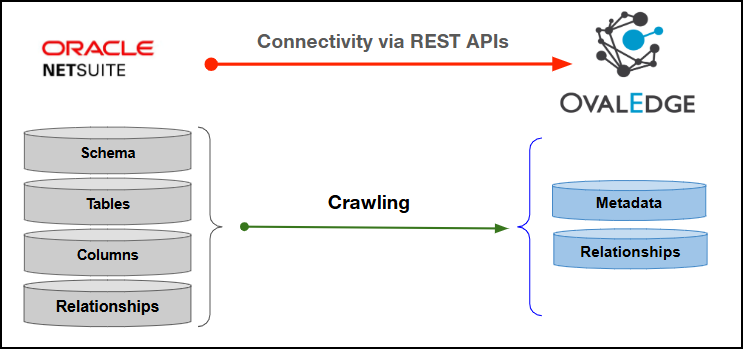
This article outlines the integration with the NetSuite CRM connector, enabling streamlined metadata management through features such as crawling, sample profiling, manual lineage, and data preview. The connector extracts metadata from NetSuite CRM record types, tables, columns, custom subrecords, and hierarchical relationships, providing comprehensive visibility into CRM metadata and its structure.
The connector establishes connectivity through the NetSuite SuiteTalk REST APIs using OAuth 1.0 Token-Based Authentication (TBA). Authentication is performed using a NetSuite integration record and a dedicated service account with the required REST Web Services and SuiteQL permissions for connection validation, metadata crawling, sample profiling, data preview, and related connector operations.

Overview
Connector Details
Connector Category
RDBMS
OvalEdge Release Supported
Release8.0 and later
Connectivity
[How the connection is established with NetSuite CRM]
REST APIs
Connector Features
Crawling
✅
Delta Crawling
❌
Profiling
❌
Sample Profiling
✅
Query Sheet
❌
Data Preview
✅
Auto Lineage
❌
Manual Lineage
✅
Secure Authentication via Credential Manager
✅
Data Quality
❌
DAM (Data Access Management)
❌
Bridge
✅
Metadata Mapping
The following objects are crawled from NetSuite CRM and mapped to the corresponding UI assets.
Schema
Schema Name
Schema
Databases
Schema
Schema
Schema Comment
Source Description
Databases
Schema
Table
Record Type Name
Table
Tables
Table
Table
Record Type/Table Type
Type
Tables
Table
Table
Record Description
Source Description
Descriptions
Source Description
Table
Object Property Name
Table
Tables
Table
Table
Custom Record Schema Name
Table
Tables
Table
Columns
Property Name (Field Key)
Column
Table Columns
-
Columns
JSON Schema Type
Column Type
Table Columns
-
Columns
Property Title
Title
Table Columns
-
Columns
Property Description
Source Description
Table Columns
-
Columns
Ordinal Position
Column Position
Table Columns
-
Columns
Length
Data Type Size
Table Columns
-
Relationship Column (Synthetic)
Parent Table Name
Column
Table Columns
-
Column Relations
Parent ↔ Child Object Table
Relationship
Relationships
-
Set up a Connection
Prerequisites
The prerequisites to establish a connection:
External Supporting Files
Service Account User Permissions
Connection Validation
SuiteTalk REST API
OPTIONS /services/rest/*
OPTIONS (Read)
Connection Validation
Schema
OPTIONS /services/rest/*
OPTIONS (Read)
Crawling
Tables (Record Types)
GET /services/rest/record/v1/metadata-catalog
GET (Read)
Crawling
Table Columns
GET /services/rest/record/v1/metadata-catalog
GET (Read)
Crawling
Custom Subrecords
GET /services/rest/record/v1/metadata-catalog (swagger)
GET (Read)
Crawling
Relationships
Derived From Metadata
Read (Metadata)
Profiling
Tables (Sample Data)
POST /services/rest/query/v1/suiteql
POST (Read)
Profiling
Tables (Row Count) / Table Columns
POST /services/rest/query/v1/suiteql
POST (Read)
-
Views, Procedures, Functions, Triggers, Query Sheet, Lineage, Indexes
N/A
Not Supported
Connection Configuration Steps
Log in to OvalEdge, go to Administration > Connectors, click + (New Connector), search for NetSuite CRM, and complete the required parameters.
Note: Fields marked with an asterisk (*) are mandatory for establishing a connection.
Connector Type
By default, "NetSuite CRM" is displayed as the selected connector type.
Credential Manager*
Select the desired credentials manager from the drop-down list. Relevant parameters will be displayed based on the selection.
Supported Credential Managers:
Database
HashiCorp
AWS Secrets Manager
Azure Key Vault
For more details, click here.
Connector Name*
Enter a unique name for the NetSuite CRM connection
(Example: "NetSuiteCRM_Prod").
Connector Environment
Select the environment (Example: PROD, STG) configured for the connector.
For more details, click here.
Connector Description
Enter the description related to the connector.
Netsuite account Id*
Enter the unique NetSuite Account ID associated with the NetSuite CRM instance.
Client/Consumer Id*
Enter the OAuth 1.0 Consumer ID (Consumer Key) generated from the NetSuite Integration record.
Client/Consumer Secret*
Enter the OAuth 1.0 Consumer Secret associated with the NetSuite integration application.
Token Id*
Enter the Token ID generated for Token-Based Authentication (TBA) in the NetSuite account.
Token secret*
Enter the Token Secret generated for the Token-Based Authentication (TBA) access token in NetSuite.
Realm Id*
Enter the NetSuite Realm ID (Account ID) in the Account_ID format to identify the NetSuite account to connect to.
Plugin Server
Enter the server name when running as a plugin server.
Plugin Port
Enter the port number on which the plugin is running.
Default Governance Roles
Default Governance Roles*
Select the appropriate users or teams for each governance role from the drop-down list. All users and teams configured in OvalEdge Security are displayed for selection.
Admin Roles
Admin Roles*
Select one or more users from the dropdown list for Integration Admin and Security & Governance Admin. All users configured in OvalEdge Security are available for selection.
No of Archive Objects
No Of Archive Objects*
This shows the number of recent metadata changes to a dataset at the source. By default, it is off. To enable it, toggle the Archive button and specify the number of objects to archive.
Example: Setting it to 4 retrieves the last four changes, displayed in the 'Version' column of the 'Metadata Changes' module.
Bridge
Select Bridge*
If applicable, select the bridge from the drop-down list.
The drop-down list displays all active bridges configured in OvalEdge. These bridges enable communication between data sources and OvalEdge without altering firewall rules.
After entering all connection details, the following actions can be performed:
Click Validate to verify the connection.
Click Save to store the connection for future use.
Click Save & Configure to apply additional settings before saving.
The saved connection will appear on the Connectors home page.
Manage Connector Operations
Crawl/Profile
The Crawl/Profile button allows users to select one or more schemas for crawling and profiling.
Navigate to the Connectors page and click Crawl/Profile.
Select the schemas to crawl.
The Crawl option is selected by default. Click the Crawl & Profile radio button to enable both operations.
Click Run to collect metadata from the connected source and load it into the Data Catalog.
After a successful crawl, the information appears in the Data Catalog > Databases tab.
The Schedule checkbox allows automated crawling and profiling at defined intervals, from a minute to a year.
Click the Schedule checkbox to enable the Select Period drop-down.
Select a time period for the operation from the drop-down menu.
Click Schedule to initiate metadata collection from the connected source.
The system will automatically execute the selected operation (Crawl or Crawl & Profile) at the scheduled time.
Other Operations
The Connectors page in OvalEdge provides a centralized view of all configured connectors, including their health status.
Managing connectors includes:
Connectors Health: Displays the current status of each connector, with a green icon for active connections and a red icon for inactive connections, helping monitor connectivity to data sources.
Viewing: Click the Eye icon next to the connector name to view connector details, including Tables, Views, and Columns.
Nine Dots Menu Options:
To view, edit, validate, configure, or delete connectors, click on the Nine Dots menu.
Edit Connector: Update and revalidate the data source.
Validate Connector: Check the integrity of the connection.
Settings: Modify connector settings.
Crawler: Configure data extraction.
Profiler: Customize data profiling rules and methods.
Access Instructions: Add notes on how data can be accessed.
Business Glossary Settings: Manage term associations at the connector level.
Others: Configure notification recipients for metadata changes.
Delete Connector: Remove a connector with confirmation.
For more details on connector settings, click here.
Connectivity Troubleshooting
If incorrect parameters are entered, error messages may appear. Ensure all inputs are accurate to resolve these issues. If issues persist, contact the assigned support team.
1
HTTP 401 Unauthorized
Error Description: The NetSuite CRM connector validation fails because the OAuth authentication request is rejected. This issue typically occurs due to an invalid OAuth signature, incorrect API credentials, or an incorrect Realm ID.
Resolution:
Verify that the Client (Consumer) ID and Client (Consumer) Secret are correct.
Ensure that the Token ID and Token Secret are valid and have not expired or been revoked.
Confirm that the configured Realm ID matches the NetSuite account ID.
Verify that the OAuth credentials use the HMAC-SHA256 signing method supported by the connector.
Regenerate the access token if the client secret or token secret has been rotated or updated.
Retry the connection after updating the OAuth credentials and Realm ID.
2
HTTP 403 Forbidden
Error Description: The NetSuite CRM connector request is denied because the configured integration role lacks the required permissions to access the requested REST resource.
Resolution:
Verify that the integration role has the REST Web Services permission enabled.
Ensure that the role has SuiteAnalytics Workbook and SuiteQL permissions required for profiling.
Confirm that the role has Read access to all record types selected for crawling.
Validate that the integration role has separate permissions for both Metadata Catalog and SuiteQL endpoints.
Save the updated role permissions and retry the connection or crawl operation.
3
Insufficient permissions to access NetSuite CRM. Minimum SuiteTalk REST permissions are required for connection validation and metadata crawling.
Error Description: The NetSuite CRM connector validation fails because the configured user or integration role lacks the minimum SuiteTalk REST permissions required to validate the connection, retrieve metadata, and perform profiling operations.
Resolution:
Ensure that the configured NetSuite user or integration role has the required SuiteTalk REST permissions.
Grant read access to OPTIONS /services/rest/* for connection validation.
Grant read access to GET /services/rest/record/v1/metadata-catalog and GET /services/rest/record/v1/metadata-catalog/{recordType} for metadata crawling.
Grant access to the Swagger metadata catalog for custom subrecords, if applicable.
Grant access to POST /services/rest/query/v1/suiteql for sample profiling and row count operations.
Verify that the assigned role has access to the required record types and metadata.
Retry the connection after updating the role permissions.
4
Error while retrieving profiling results: Received HTTP 400 (Bad Request) from the NetSuite CRM SuiteQL API.
Error Description: The profiling operation fails because the SuiteQL query is invalid or the configured role lacks permission to execute SuiteQL queries. This can also occur when profiling unsupported nested object tables or custom subrecords.
Resolution:
Verify that the configured NetSuite role has the required SuiteQL permissions.
Ensure that the table or record name used for profiling is valid and supported by SuiteQL.
Avoid profiling nested object tables and custom subrecords; instead, profile the parent record types whenever possible.
Review the NetSuite error details logged by the connector to identify the specific cause of the HTTP 400 response.
Retry the profiling operation after correcting the table selection or updating the role permissions.
FAQs
Copyright © 2026, OvalEdge LLC, Peachtree Corners, GA, USA.
Last updated
Was this helpful?

