# How to Import an SSL Certificate into a Java Keystore

This article explains how to import an SSL certificate into a Java keystore on Linux, Windows, and container environments.

## Purpose

An SSL/TLS certificate enables secure, encrypted communication between systems by establishing a TLS (Transport Layer Security) connection. It also authenticates the server's identity and helps protect transmitted data from interception or tampering.&#x20;

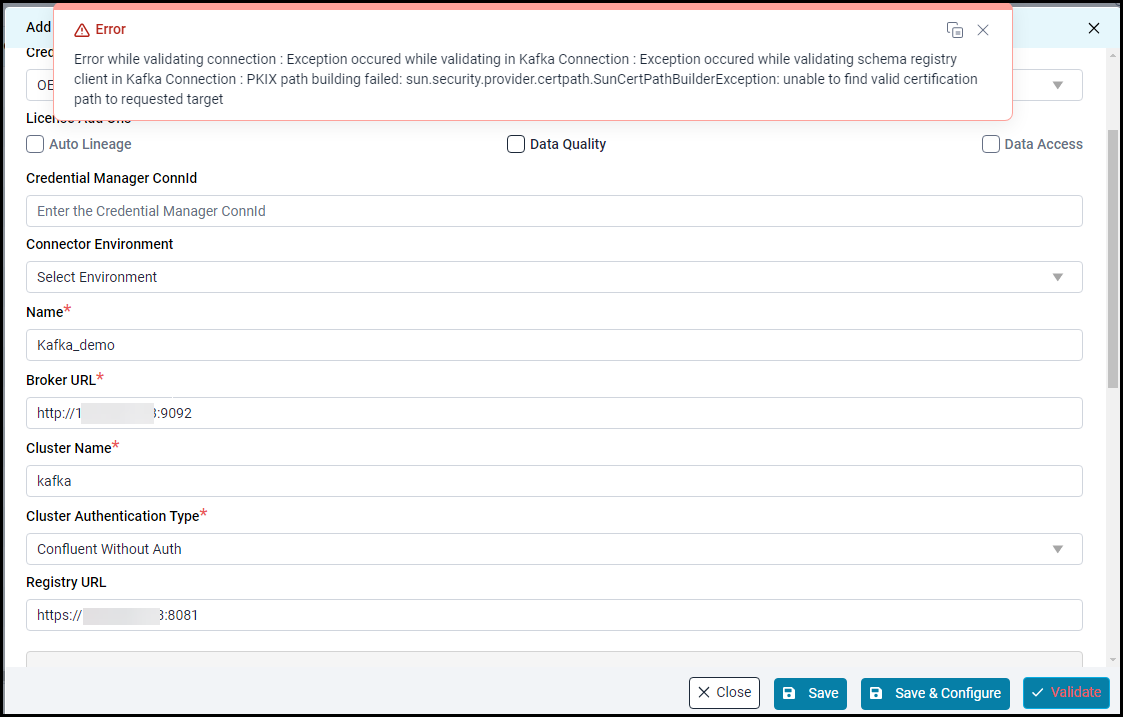
Certificates are issued and digitally signed by trusted Certificate Authorities (CAs).  In Java, trusted CA certificates are stored in a truststore (commonly the cacerts keystore included with the JRE/JDK). During a TLS handshake, Java verifies the server’s certificate by checking whether its certificate chain leads to a trusted CA present in the truststore. If the chain cannot be validated against the truststore, the connection fails with an SSL trust error.

<figure><img src="https://1813356899-files.gitbook.io/~/files/v0/b/gitbook-x-prod.appspot.com/o/spaces%2FhTnkoJQml0pok9awFDhx%2Fuploads%2F4AO2YhinkAgistsPj5ji%2Funknown.png?alt=media&#x26;token=69742b5f-f198-4915-aaf6-202d72f12985" alt=""><figcaption></figcaption></figure>

To resolve this issue, import the certificate into the Java cacerts keystore.

## Prerequisites

Before importing the certificate, ensure the following:

* Java is installed on the system.
* The keytool utility is available (included with Java).
* The SSL certificate file is available.
* Access to the Java keystore (usually cacerts).

## Obtain the SSL Certificate

Obtain the SSL certificate from your source system administrator, or follow the steps below to obtain it.

{% hint style="info" %}
The SSL certificate download process remains the same across Linux, Windows, and Container environments.
{% endhint %}

### Download the SSL Certificate

* Open the Google Chrome browser and enter the URL of the source system or service endpoint.\
  URL Format: [https://IP\_ADDRESS:PORT](about:blank)\
  Example URL:\
  ![](https://1813356899-files.gitbook.io/~/files/v0/b/gitbook-x-prod.appspot.com/o/spaces%2FhTnkoJQml0pok9awFDhx%2Fuploads%2FqC3jbBgFRUQPmgwkJqM8%2Funknown.png?alt=media\&token=924b45cf-da32-441c-951a-ef1ef37536fb)<br>

  <div data-gb-custom-block data-tag="hint" data-style="info" class="hint hint-info"><p>The steps for viewing and exporting an SSL certificate may vary depending on the web browser used.</p></div>
* If the certificate is not trusted by the browser, a warning message may appear indicating that the connection is not secure.&#x20;
  * Click on the **Certificate details**.\
    ![](https://1813356899-files.gitbook.io/~/files/v0/b/gitbook-x-prod.appspot.com/o/spaces%2FhTnkoJQml0pok9awFDhx%2Fuploads%2FU1vJASLEHADjAf1vYO4f%2Funknown.png?alt=media\&token=5f18ad62-b5f3-4f8a-b3f7-0c775a65f66c)
  * Navigate to **Details** → **Certificate Fields** → **Certificate** → **Export**.\
    ![](https://1813356899-files.gitbook.io/~/files/v0/b/gitbook-x-prod.appspot.com/o/spaces%2FhTnkoJQml0pok9awFDhx%2Fuploads%2FErByi9px9SghMLIcLXjB%2Funknown.png?alt=media\&token=fdf6bdb1-67c1-4b02-86b8-c05d148fa6e5)
  * Export and download the certificate.

    <div data-gb-custom-block data-tag="hint" data-style="info" class="hint hint-info"><p>The certificate will be downloaded with a .cer/.crt/.pem extension and will be saved in your local folder.</p></div>

## Import SSL Certificate into Keystore

### Linux Environment

* Download/Copy the certificate to Linux machine(s) where the application is running.
* Import the certificates to cacerts using the following command.

  ```
  sudo keytool -importcert -trustcacerts \
  -file /home/<username>/certs/<certificate_name>.cer \
  -keystore $JAVA_HOME/lib/security/cacerts \
  -alias connector-cert -storepass changeit -noprompt
  ```

  \
  Parameters:

  * **$JAVA\_HOME/lib/security/cacerts** – Path to the Java keystore
  * **connector-cert** – Alias name used to identify the imported certificate
  * **changeit** – Default password for the Java cacerts keystore
* Once the command executes successfully, the certificate is imported into the Java keystore.
* The same process is followed in the Bridge Client, which runs on Linux.

### Restart Tomcat

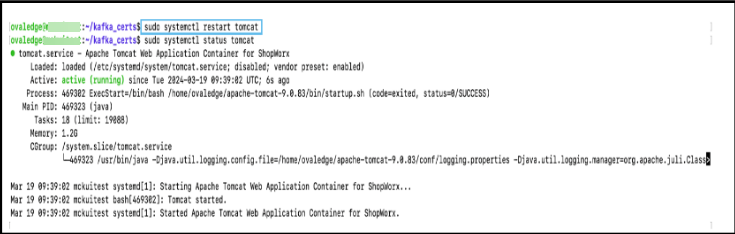
* After importing the certificate, restart Tomcat using the command below to ensure the imported certificate is reflected in the OvalEdge application.

  ```
  sudo systemctl restart tomcat
  ```

  \
  Sample reference screenshot

  <figure><img src="https://1813356899-files.gitbook.io/~/files/v0/b/gitbook-x-prod.appspot.com/o/spaces%2FhTnkoJQml0pok9awFDhx%2Fuploads%2F7UPiq6hC6D2IyXwfmO8d%2Funknown.png?alt=media&#x26;token=a0ed8068-b261-4d5d-812c-47e9371c0109" alt=""><figcaption></figcaption></figure>

### Windows Environment

* After transferring the certificate, log in to the OvalEdge application server and verify that the certificate file is present in the specified directory.\
  \
  Sample reference screenshot:

  <figure><img src="https://1813356899-files.gitbook.io/~/files/v0/b/gitbook-x-prod.appspot.com/o/spaces%2FhTnkoJQml0pok9awFDhx%2Fuploads%2FIC3ZuBWEtevW59jNlUPr%2Fimage.png?alt=media&#x26;token=cf2a8442-e1d8-4cfe-b795-c37904c4a436" alt=""><figcaption></figcaption></figure>
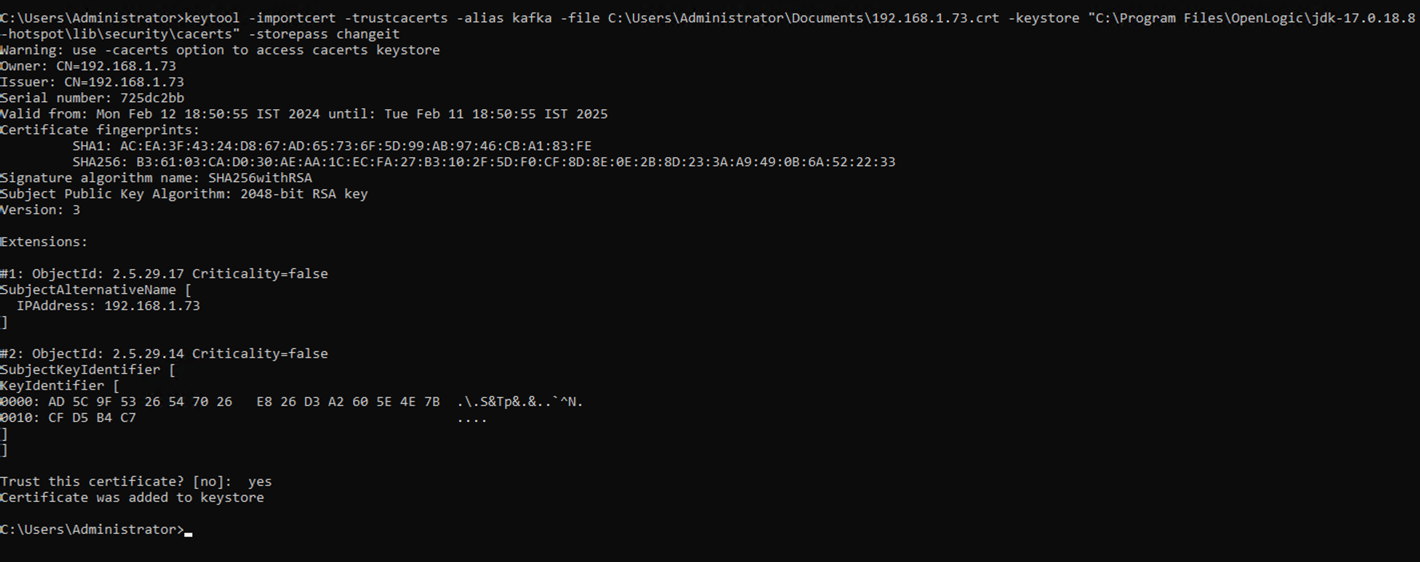
* Import the certificate into the Java cacerts keystore using the following command.

  <div data-gb-custom-block data-tag="hint" data-style="info" class="hint hint-info"><p>Open Command Prompt as Administrator and run the command below to import the certs.</p></div>

  ```
  keytool -importcert -trustcacerts -alias <Connector_cert> -file C:\Users\Administrator\Documents\<connector_cert>.crt -keystore "C:\Program Files\OpenLogic\jdk-17.0.18.8-hotspot\lib\security\cacerts" -storepass changeit
  ```

  Where:

  * **C:\Program Files\OpenLogic\jdk-17.0.18.8-hotspot\lib\security\cacerts** – Path to the Java keystore
  * **\<Connector\_cert>** – Alias name used to identify the imported certificate
  * **changeit** – Default password for the Java cacerts keystore\
    \
    Sample reference screenshot:

    <figure><img src="https://1813356899-files.gitbook.io/~/files/v0/b/gitbook-x-prod.appspot.com/o/spaces%2FhTnkoJQml0pok9awFDhx%2Fuploads%2F1ErVbnx82oNMK5wZp5sV%2Funknown.png?alt=media&#x26;token=06061126-271c-47c3-8084-056cd4442e40" alt=""><figcaption></figcaption></figure>
* Once the command executes successfully, the certificate is imported into the Java keystore.
* The same process is followed in the Bridge Client, which runs on Windows.

### Restart Tomcat

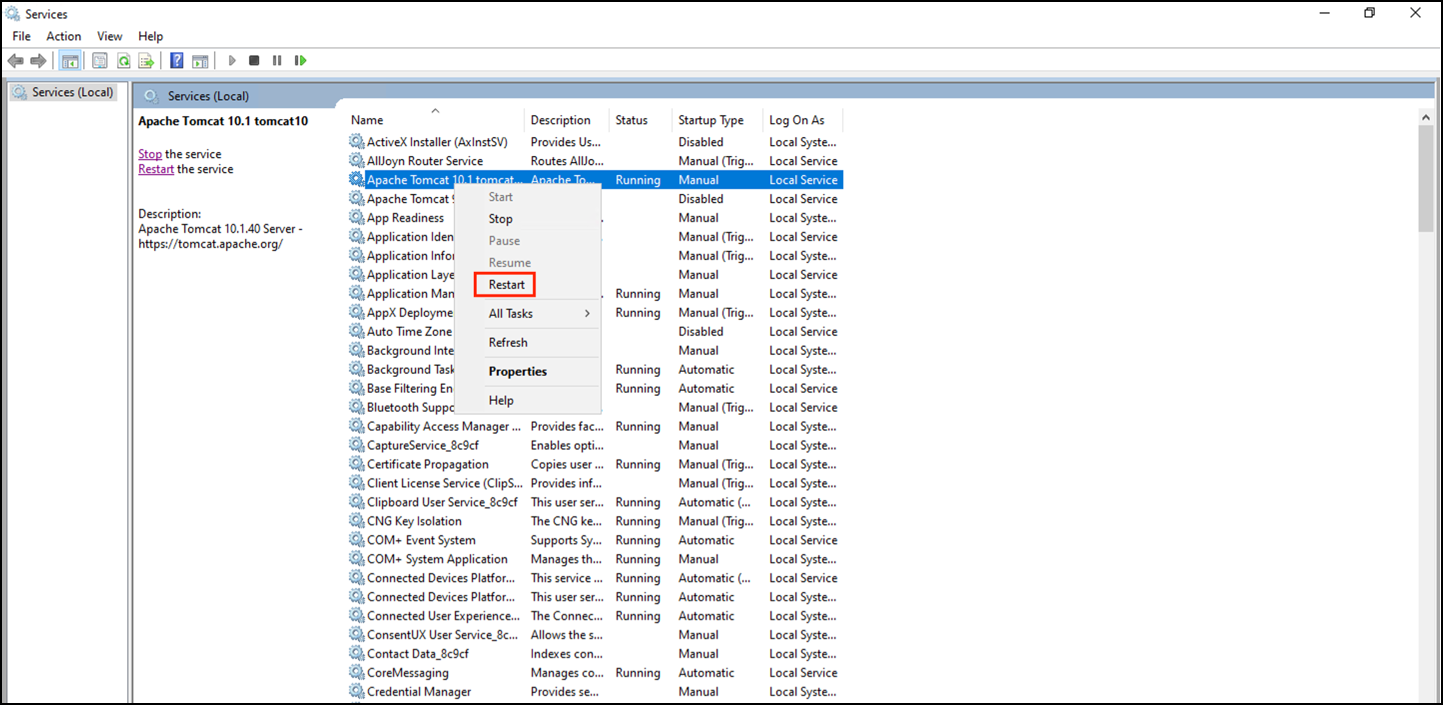
* After importing the certificate, restart Tomcat to ensure it is reflected in the OvalEdge application.\
  \
  Sample reference screenshot

  <figure><img src="https://1813356899-files.gitbook.io/~/files/v0/b/gitbook-x-prod.appspot.com/o/spaces%2FhTnkoJQml0pok9awFDhx%2Fuploads%2FADEGo1xLCmXnDKyJ83qE%2Fimage.png?alt=media&#x26;token=538eb7b6-2614-4bf5-b6bf-499d72955162" alt=""><figcaption></figcaption></figure>

### Container Environment

SSL certificates can be made available to a container using one of the following approaches:

* Mount a certificate directory at runtime
* Embed the certificate in the Docker image during the build process&#x20;

In both approaches, import the certificate into the Java truststore (cacerts) using the keytool command.

**Runtime Approach: Mount Certificate Directory**

Mount a certificate directory from the host system (for example, /home/ovaledge/certs) as a volume. This approach allows adding or updating certificates without rebuilding the container image.

**Steps Involved:**

1. Mount the certificate directory to the container.
2. Configure a startup script to scan the directory.
3. Import all available certificates into the Java truststore using keytool.

**Build-Time Approach: Embed Certificate in Docker Image**

Include the SSL certificate in the Docker image during the build process.

**Steps Involved:**

1. Place the certificate in the image using the COPY instruction in the Dockerfile.\
   Example path: /home/ovaledge/certs/service.crt
2. Ensure the certificate is available in the container at runtime.

**Execute the keytool import command**

Import the SSL certificate into the Java truststore using the keytool command, whether the certificate is mounted at runtime or embedded in the image during the build.

**Steps Involved:**

1. Import the certificate into the Java default truststore (cacerts) using the keytool command.

   ```
   keytool -importcert -trustcacerts \
   -file /home/<username>/certs/<certificate_name>.cer \
   -keystore $JAVA_HOME/lib/security/cacerts \
   -alias connector-cert -storepass changeit -noprompt
   ```

   \
   **Parameters**:

   * **/home/\<username>/certs/\<certificate\_name>.cer** – Path to the certificate file inside the container
   * **$JAVA\_HOME/lib/security/cacerts** – Path to the Java truststore
   * **connector-cert** - Alias used to identify the certificate
   * **changeit** – Default password for the Java cacerts keystore
2. Include the keytool command in the container startup script (for example, run.sh) to ensure the certificate is imported each time the container starts.
3. After the certificate is imported:
   1. The Java runtime trusts the certificate.
   2. The application establishes secure SSL/TLS connections to external services.
   3. SSL handshake errors are avoided during communication.

## Validate the Connector

* Navigate to **Administration** and select **Connectors**.\
  ![](https://1813356899-files.gitbook.io/~/files/v0/b/gitbook-x-prod.appspot.com/o/spaces%2FhTnkoJQml0pok9awFDhx%2Fuploads%2FUC9OjZ4ZEqR7Yz5gHXR3%2Funknown.png?alt=media\&token=3a00917e-c005-4379-a18c-aabb6c822724)
* Click the + **(New Connector)** icon.

  <figure><img src="https://1813356899-files.gitbook.io/~/files/v0/b/gitbook-x-prod.appspot.com/o/spaces%2FhTnkoJQml0pok9awFDhx%2Fuploads%2FULCyfVRRL3cJNuzdQm2u%2Funknown.png?alt=media&#x26;token=d3e94882-bbb8-462e-909c-3c20be72b9e3" alt=""><figcaption></figcaption></figure>
* For example, select **Kafka**.\
  ![](https://1813356899-files.gitbook.io/~/files/v0/b/gitbook-x-prod.appspot.com/o/spaces%2FhTnkoJQml0pok9awFDhx%2Fuploads%2FAB6baoGewY7fJjq5nmP3%2Funknown.png?alt=media\&token=2b912b42-8c38-4780-b04d-6d7f7fc5b98f)
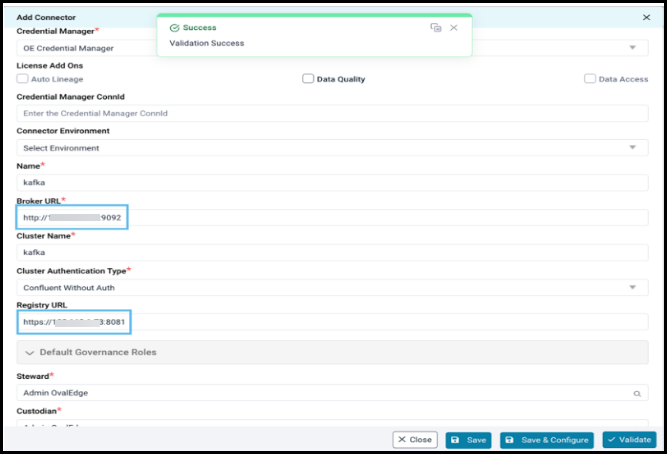
* An **Add Connector** page is displayed. Update the required details and click Validate.<br>

  <div align="left"><figure><img src="https://1813356899-files.gitbook.io/~/files/v0/b/gitbook-x-prod.appspot.com/o/spaces%2FhTnkoJQml0pok9awFDhx%2Fuploads%2FY58DIIkadlEMMOs9NDae%2Funknown.png?alt=media&#x26;token=7fa3ec52-2f28-4663-b846-12aabdcedbf5" alt=""><figcaption></figcaption></figure></div>
* The connector validation should now complete successfully since the SSL certificate has been imported into the Java truststore.

  <div data-gb-custom-block data-tag="hint" data-style="info" class="hint hint-info"><p>Connector validation must be performed only after restarting the Application Server.</p></div>

***

Copyright © 2026, OvalEdge LLC, Peachtree Corners, GA, USA.