> For the complete documentation index, see [llms.txt](https://docs.ovaledge.com/llms.txt). Markdown versions of documentation pages are available by appending `.md` to page URLs; this page is available as [Markdown](https://docs.ovaledge.com/askedgi/askedgi/chat-management.md). Agents can also search and read this documentation through its [MCP server](https://docs.ovaledge.com/~gitbook/mcp).
# Chat Management
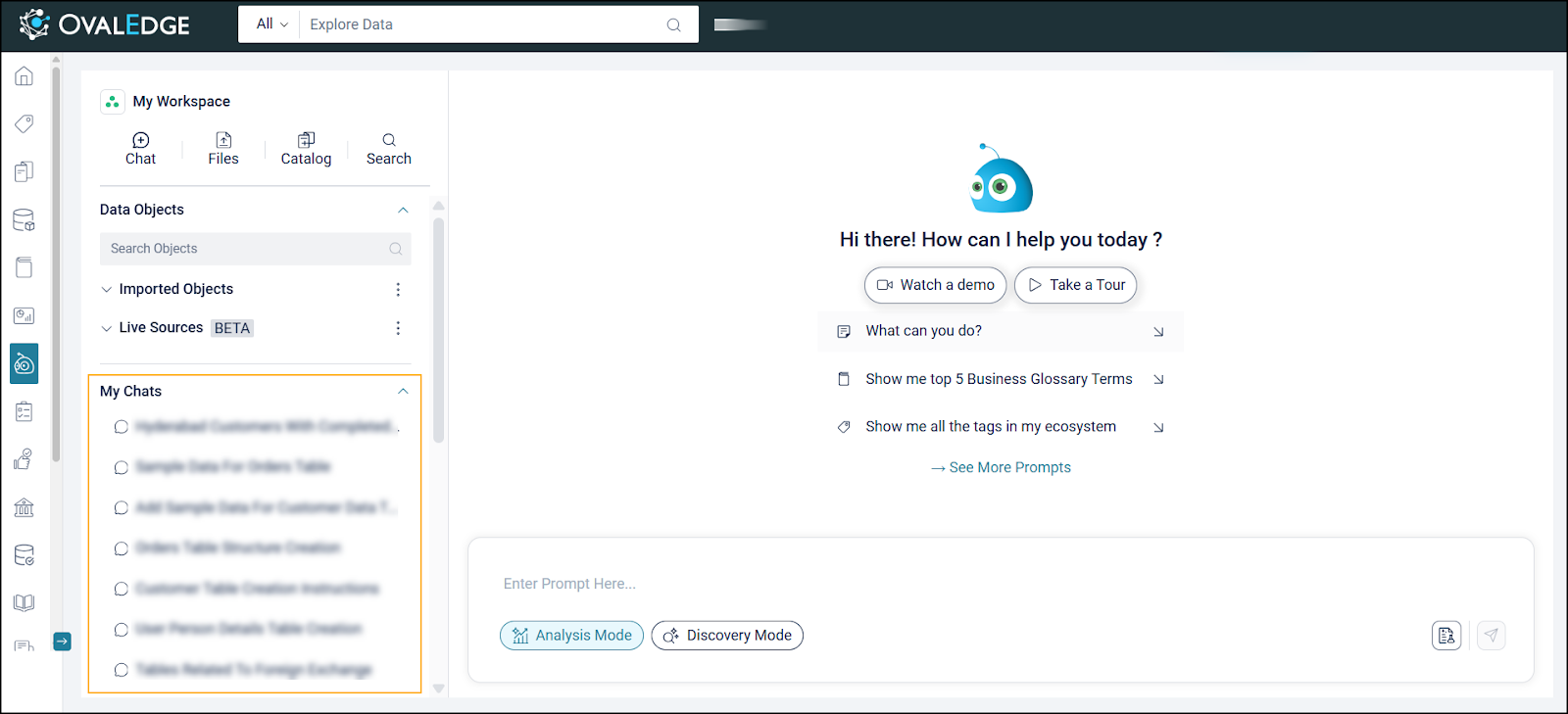
The AI chat interface maintains a **Chat View** that records all historical interactions within the workspace. Each chat represents a complete analytical conversation containing queries, insights, and outputs.
### Chat History Access
The interface displays a chronological list of all previous user interactions with the AI assistant.
* Access the conversation history panel to view past chats.
* Chats are organized with the most recent interaction at the top.
### Chat Reactivation
Users can reopen any prior conversation Chat to continue their analysis from a previous point.
* Select a specific chat from the history list.
* The chat interface reloads the complete conversation context, allowing for new follow-up questions.
### Sharing Data to AI & Data Privacy
The Recipe Builder uses AI to automatically generate recipe names, recipe descriptions, and step execution summaries. This reduces manual effort and helps users create well-documented recipes more efficiently.
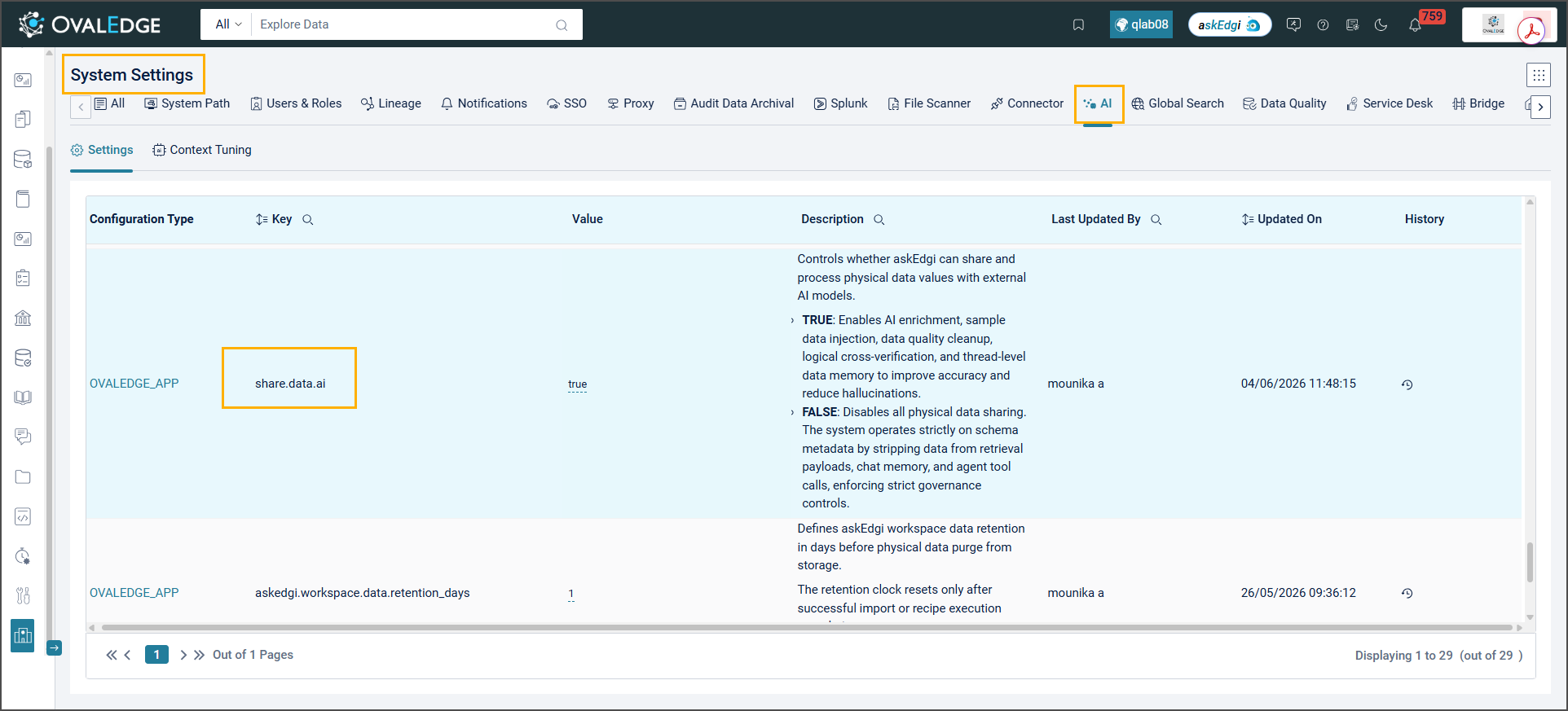
To support organizations with **strict data privacy** requirements, a new system setting, **share.data.ai**, has been introduced. This setting allows administrators to control whether data can be shared with AI services for AI-powered features and enrichments.
**Administrator Configures AI Data Sharing**
The administrator configures the share.data.ai system setting.
| Key Value | Description |
| -------------- | ----------------------------------------------------------- |
| True (Default) | AI-powered features are enabled. |
| False | AI-powered features that require data sharing are disabled. |
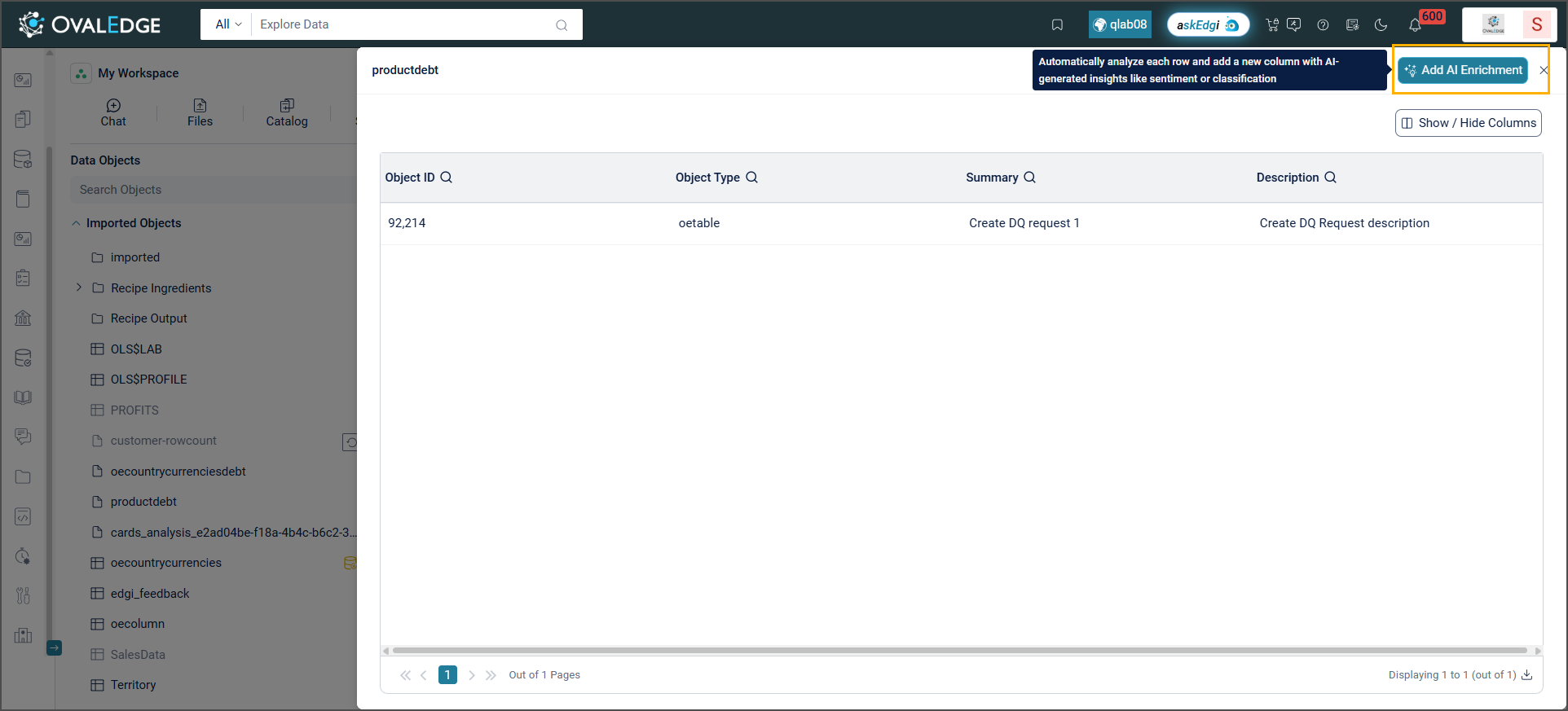
When **share.data.ai** is enabled (Default = True)
* AI-powered features remain fully available.
* The system can send metadata and sample data values to AI services when required.
* AI enrichments, recipe metadata generation, and RAG-based contextual analysis function normally.
When **share.data.ai** is disabled (False):
* Data is not shared with AI services.
* AI-powered capabilities are disabled across the platform.
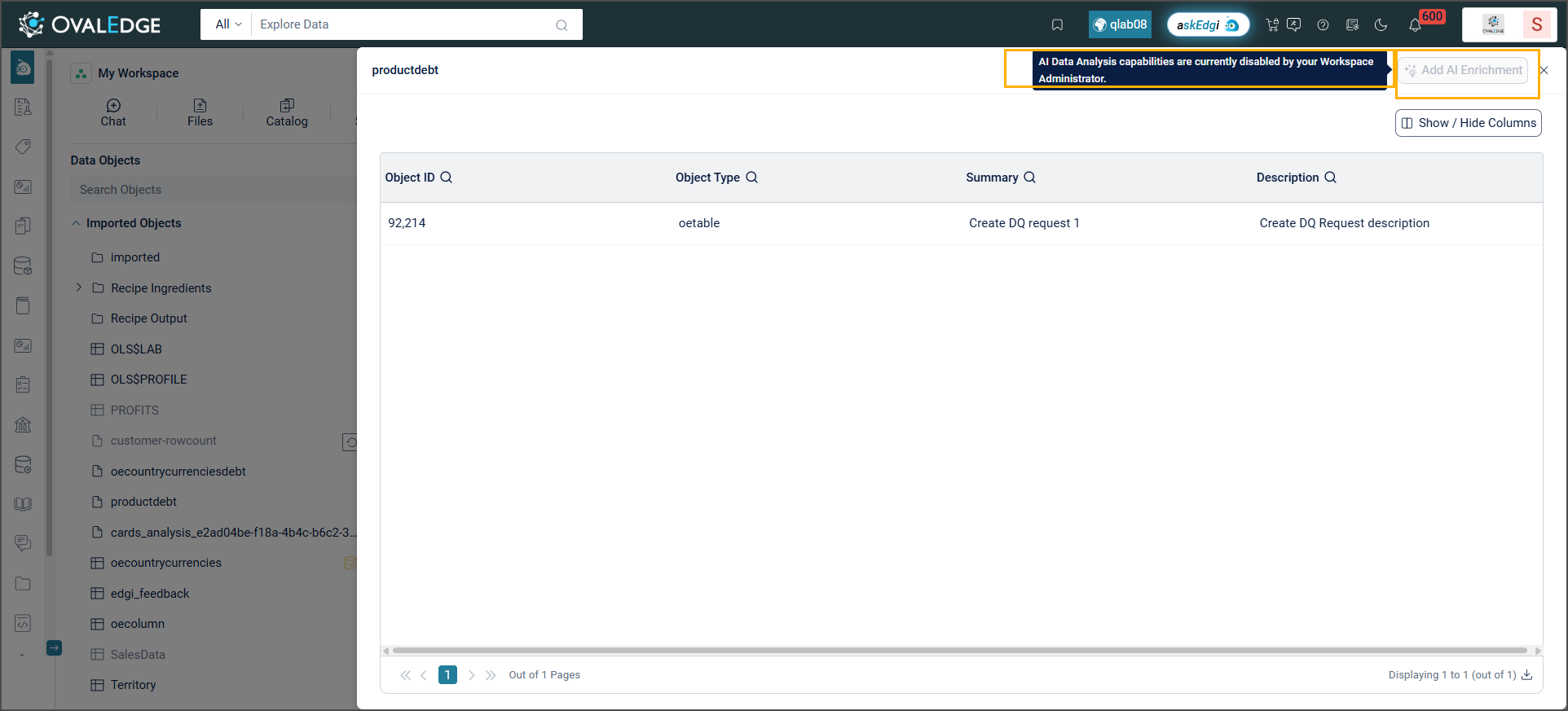
* Users cannot perform AI enrichment actions on datasets, the AI Enrichment button is disabled and shown with a message indicating that AI capabilities have been disable by the administrator and the step can not proceed.
* RAG-based contextual search and analysis may have reduced functionality because AI cannot access metadata or sample values required for processing.
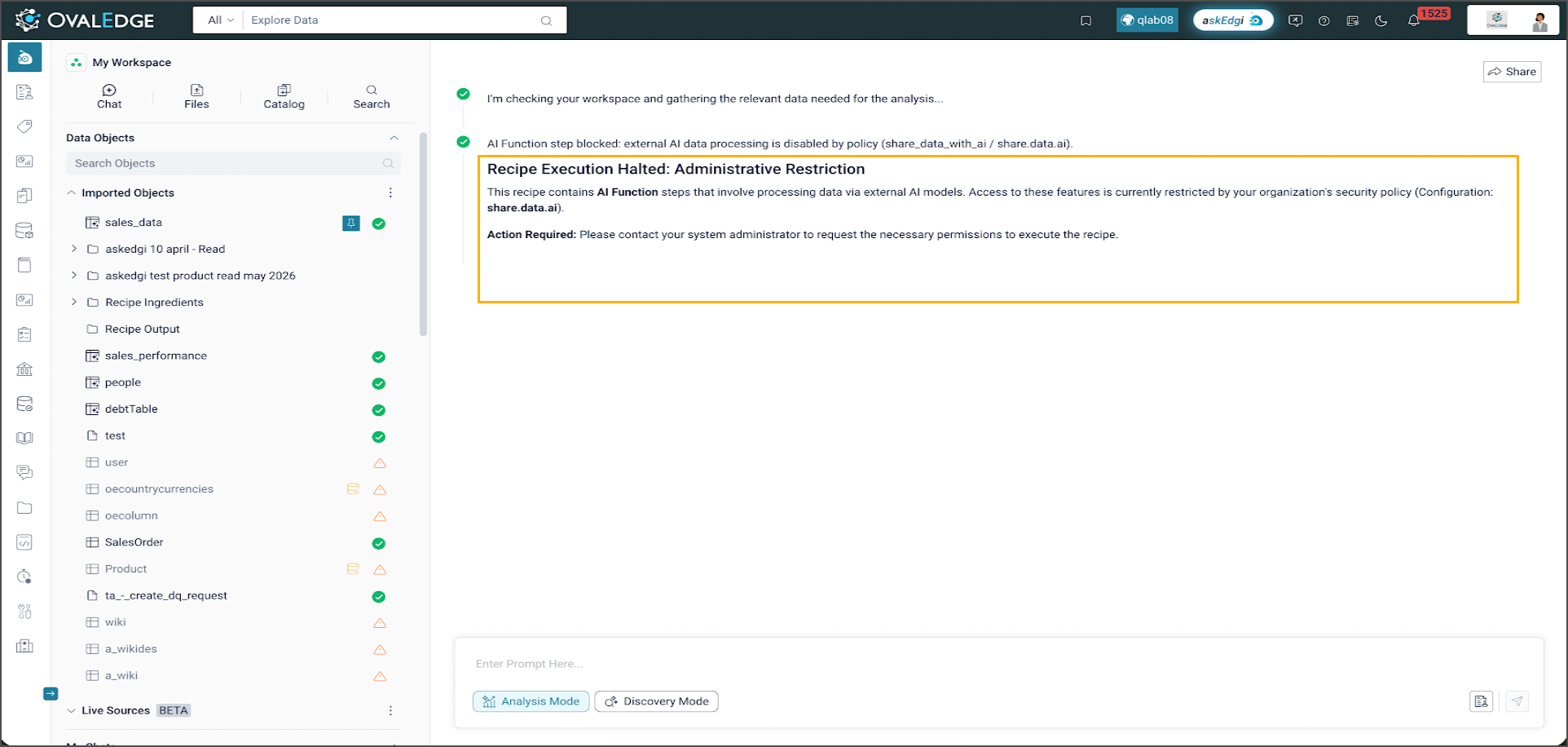
**Impact on Recipe Execution**
When **share.data.ai** is disabled:
* Any recipe step that depends on AI functionality cannot be executed.
* During execution, the recipe stops at the AI-dependent step.
* Users receive a message indicating that AI capabilities have been disabled by the administrator and the step cannot proceed.
This ensures that organizational data privacy policies are enforced consistently while preventing partial or unexpected execution of AI-dependent workflows.
### **Share askEdgi Chat**
The Share askEdgi Chat feature allows sharing entire conversation chats, including prompts, responses, and visual elements such as charts and tables, via a secure, accessible link. This functionality enhances collaboration, facilitates knowledge exchange, and supports the sharing of external feedback. The shared chat maintains its original structure, ensuring that recipients can view the complete analytical context in a well-formatted, read-only view.
{% hint style="info" %}
The sharing functionality currently supports Public Sharing, which allows users to distribute analytical insights externally via a view-only link.
{% endhint %}
**Objectives**
* Allow seamless sharing of askEdgi chats containing questions, responses, and AI-generated visuals.
* Support Public Sharing (accessible to anyone with the link).
* Preserve complete conversation context, including visualizations and formatting, for clear understanding by recipients.
{% hint style="warning" %}
All shared Chats are read-only, ensuring that recipients cannot edit the original content.
{% endhint %}
#### Generate Shareable Link
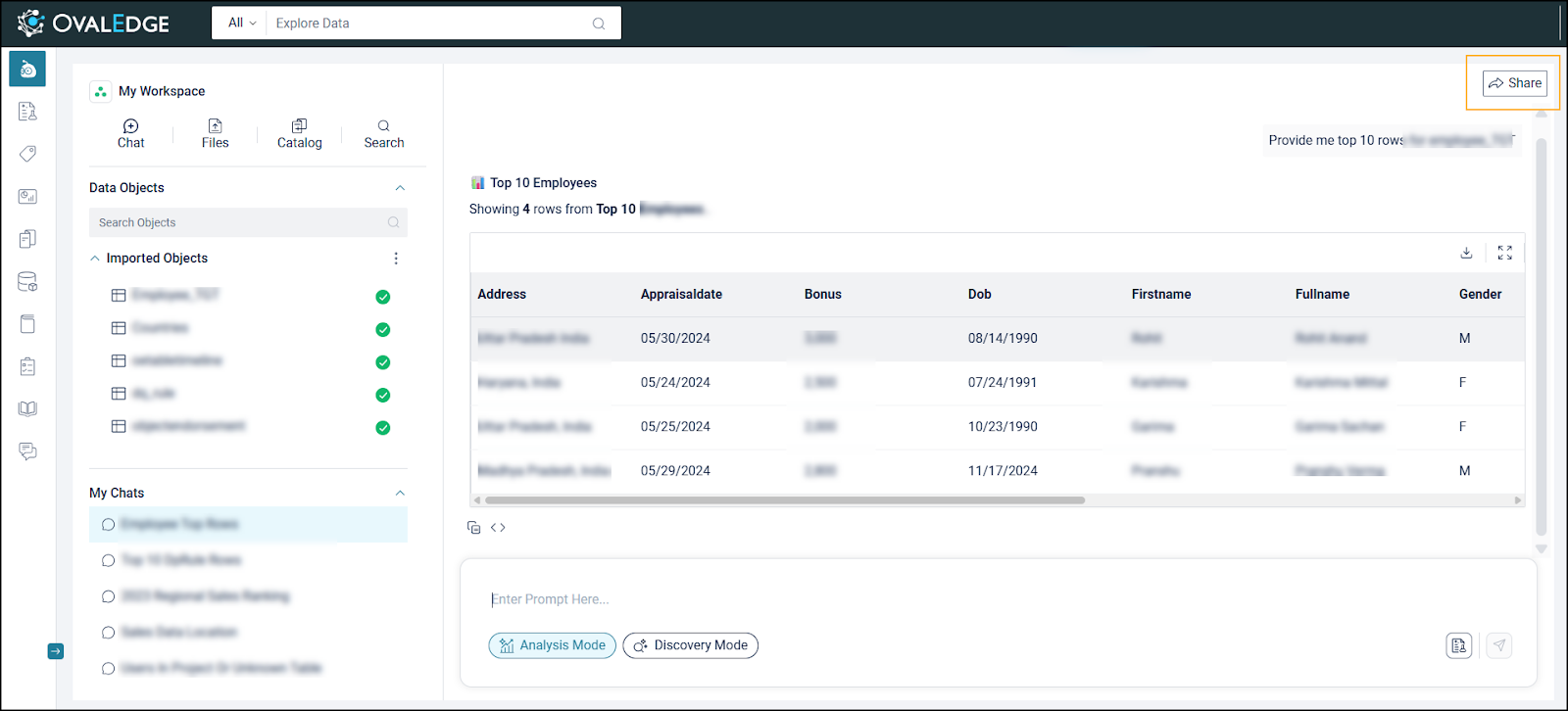
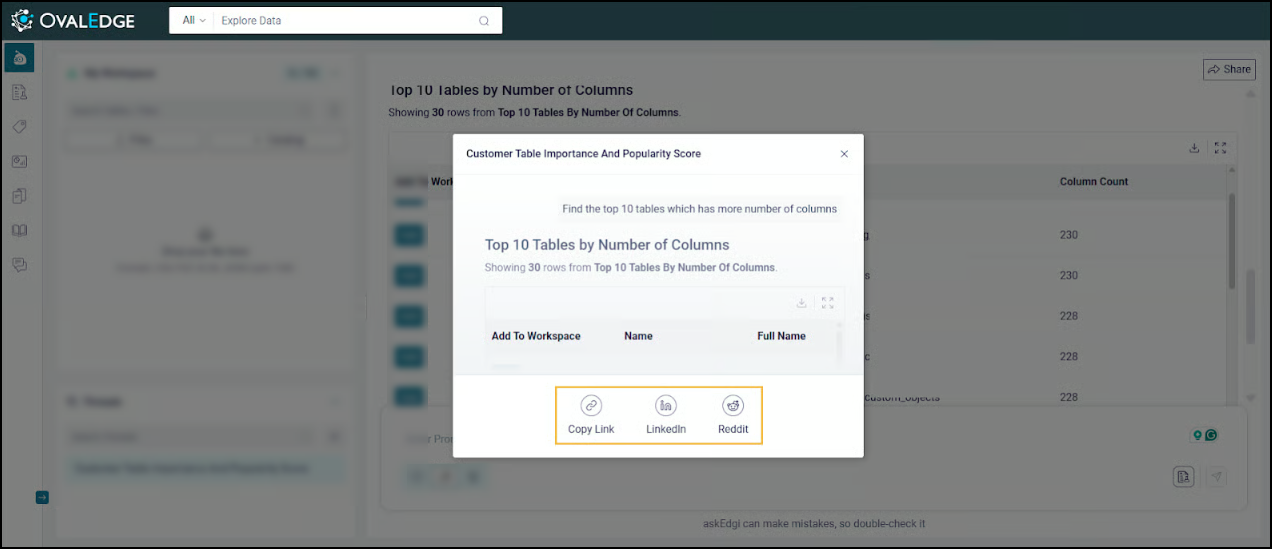
A Share Chat option is available in each askEdgi conversation. When clicked, it opens a pop-up modal with three options: Copy Link, Post on LinkedIn, and Post on Reddit.
* **Public Share**: Generates a link that anyone can view without a login.
Each shared chat opens in a dedicated preview page that preserves formatting, the chat title, and shared view details.
{% hint style="info" %}
Shared chats are versioned. If a user modifies a chat, the existing link continues to show the same version unless a new link is created manually.
{% endhint %}
#### Metadata and Display
The shared chat page displays:
* Chat title and sharing mode (Public).
* Complete Q & A flow, including prompts, responses, and visuals.
Visuals such as charts and tables are displayed in a static, non-interactive format for consistent viewing.
{% hint style="warning" %}
Recipe executions or data workflows cannot be shared as part of a chat.
{% endhint %}
#### Steps to Share a Chat
**Creator (User A)**
1. Open an AskEdgi conversation chat.
2. Click the **Share Chat** button located in the Chat header.
3. A pop-up modal will appear.
4. Select one of the following options:
1. **Copy Link**: Copies the shareable URL to the clipboard.
2. **Post on LinkedIn**: Opens a pre-filled LinkedIn post with the link.
3. **Post on Reddit**: Opens a pre-filled Reddit draft with the link.
5. Upon generating the link, a confirmation toast appears: “Link copied successfully.”
**Generated URL Format**:
Each URL corresponds to a static snapshot of the current chat.
**Viewer (User B)**
1. Open the shared link in a browser.
2. The chat loads as a read-only HTML/Markdown page displaying:
1. Chat title.
2. Complete conversation (questions, responses, and visual outputs).
3. Non-interactive charts and tables.
{% hint style="info" %}
Public links do not require a login and can be accessed directly.
{% endhint %}
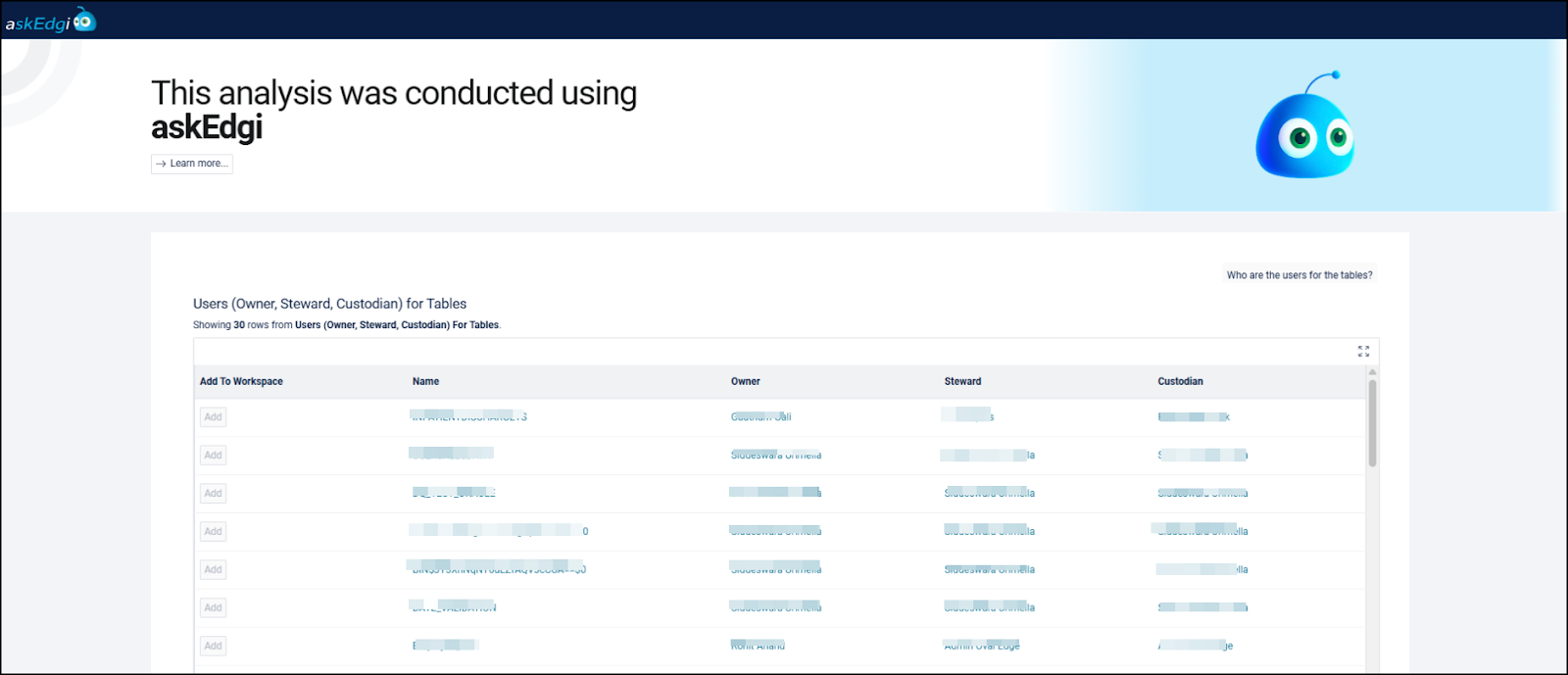
**Preview of Shared Chat**
* A read-only page that shows the Chat title, Public mode, and full conversation.
* Static display of prompts, responses, charts, and tables.
### **Chat-Level Prompt History**
askEdgi provides a chat-level prompt history capability that allows users to view, search, and navigate across all prompts within a chat. This helps users efficiently work with long conversations by enabling quick access to previously executed prompts and their results.
This capability is available within the askEdgi Chat Space and applies only to the currently active chat.
#### Prompt History Access
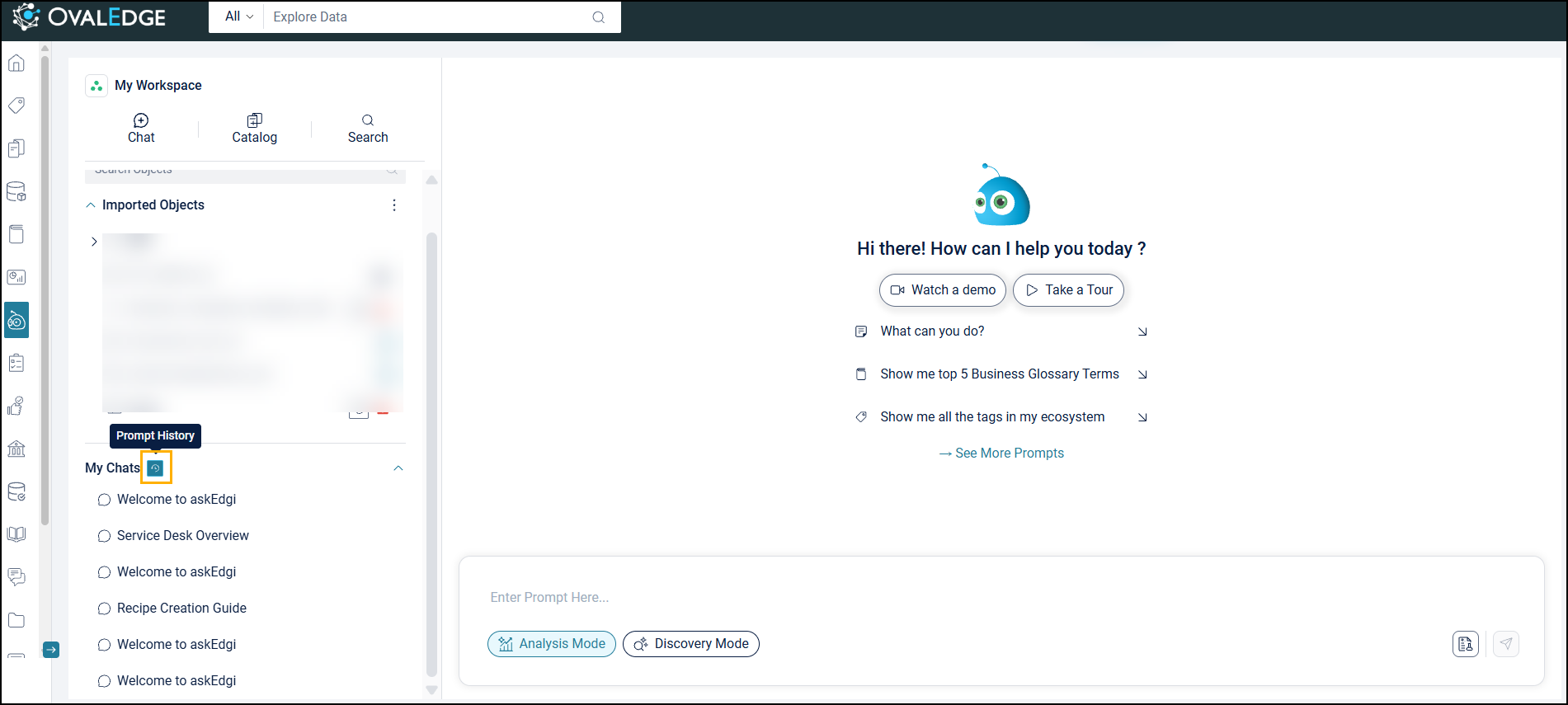
Each active chat includes a Prompt History icon, which acts as the entry point to view all prompts executed within that chat.
* The icon is visible only when a chat is active
* Tooltip displayed on hover: “Prompt History”
* The icon is not shown for inactive chats
#### Prompt History View
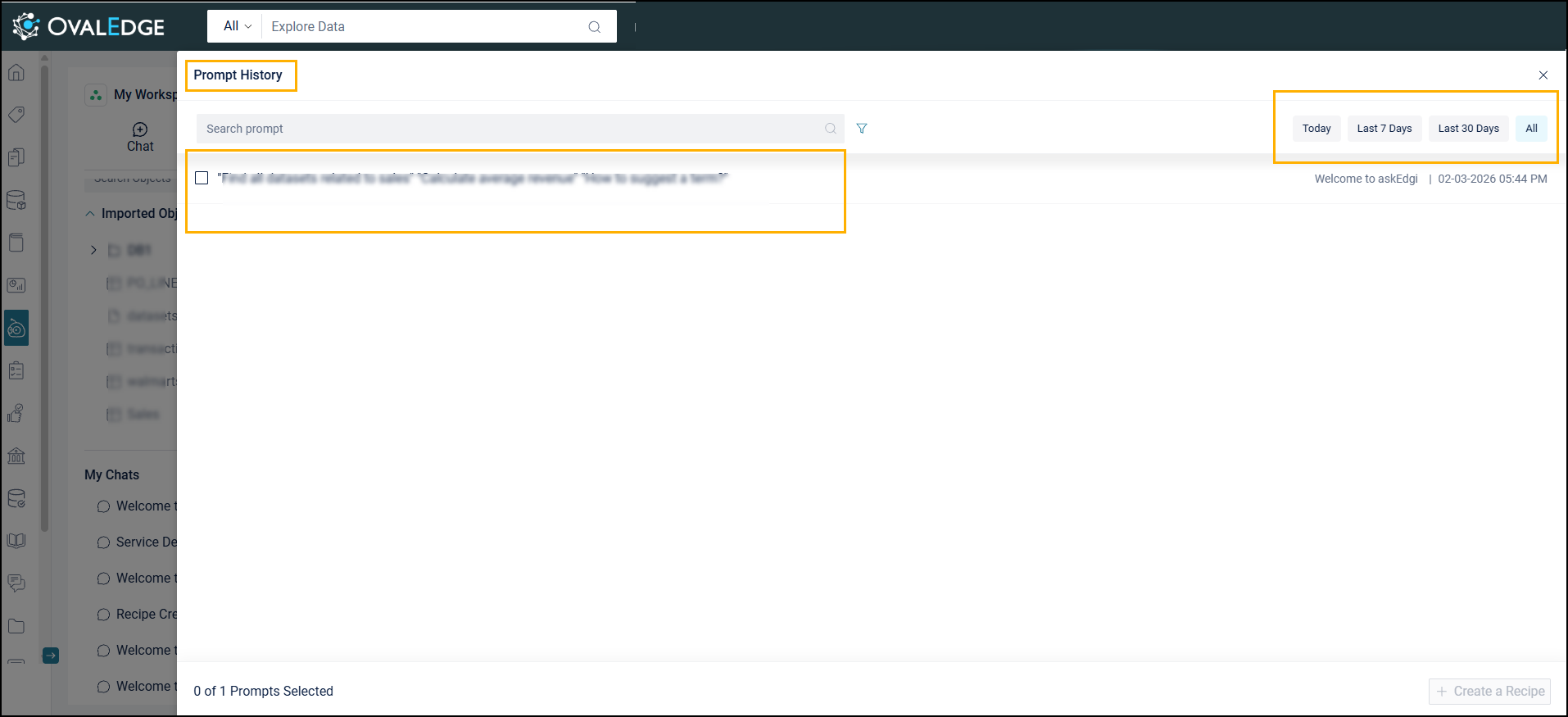
Selecting the Prompt History icon opens a slider panel that displays all prompts executed within the current chat.
* The slider opens from the side of the screen
* It displays only prompts from the selected chat
* Prompts are listed in chronological order
* The panel can be closed at any time and does not interrupt ongoing activity
#### Prompt Representation
Each prompt in the slider is displayed as a structured entry for easy understanding and reuse.
* Displays the full prompt text
* Shows the date and time of execution
* Supports hover actions such as:
* Copy prompt text
This allows users to quickly review and reuse previous queries.
#### Prompt Navigation
Users can directly navigate to any prompt within the chat.
* Clicking a prompt in the slider:
* Scrolls to the original prompt location
* Brings the corresponding result into view
* Highlights the selected prompt for clear visibility
This removes the need to manually scroll through long chats.
#### Search Within Prompt History
The slider includes a search capability to locate prompts quickly.
* Search input is available at the top of the slider
* Search is limited to the current chat only
* Matches are performed against prompt text
* Results are filtered dynamically as the user types
#### Scope
* This feature is limited to chat-level navigation
* No cross-chat prompt search is supported
* This does not impact:
* Prompt execution
* Result generation
* Recipe execution
It is designed only to improve navigation, usability, and prompt discoverability.
### **Download Table**
The download capability in askEdgi allows exporting search results displayed in a Tabular format. This functionality enables quick access to data for analysis, sharing, or archival in a structured CSV format. The download process is straightforward and aligned with the existing system settings to ensure controlled and efficient data handling.
{% hint style="info" %}
Performance may vary depending on the length of the chat or the volume of visual data included.
{% endhint %}
The generated download link remains active for 24 hours from the time it is created. Once expired, a new download must be initiated to regenerate the link and access the data again.
#### Steps to Download Search Results
1. Navigate to **askEdgi > Search**.
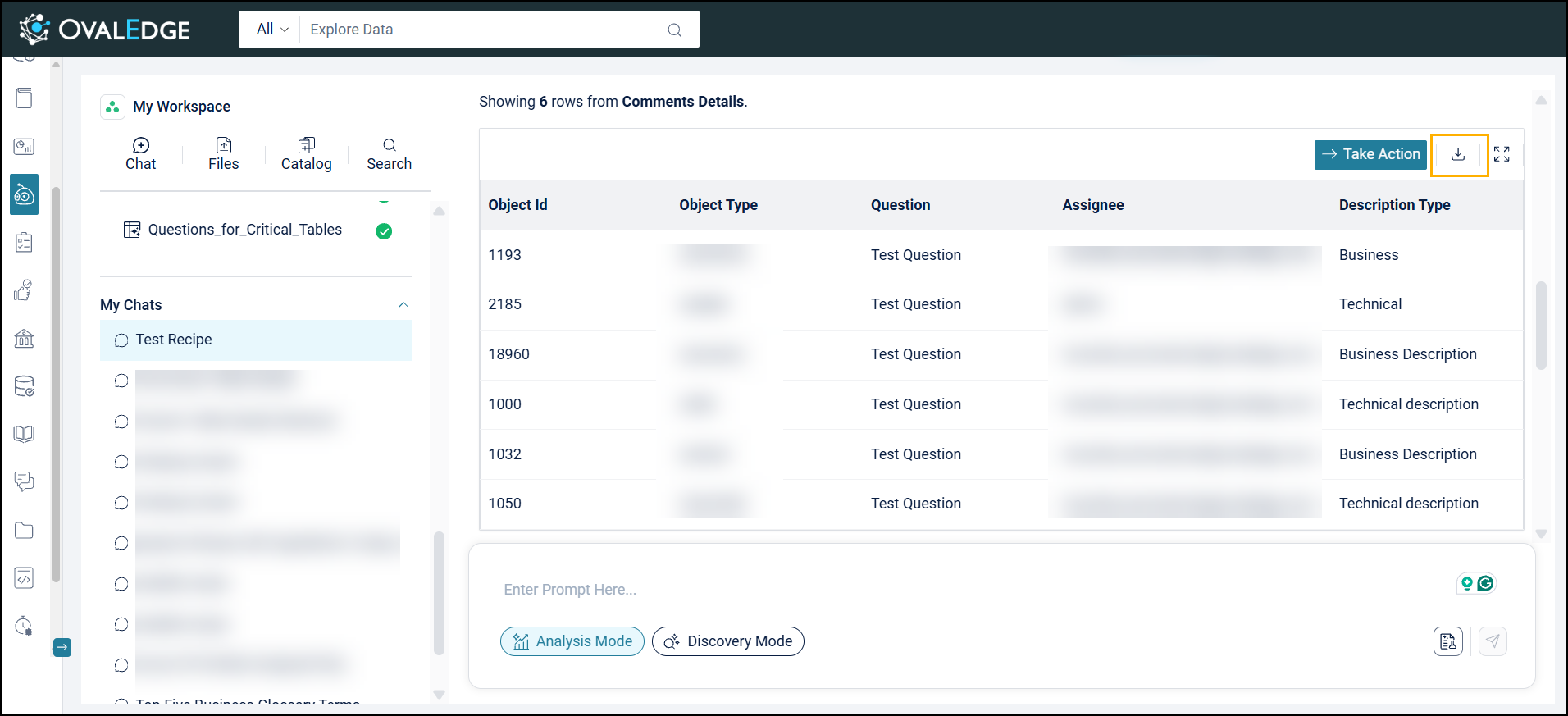
2. Run a search query to display the results in a **Tabular format.**
3. Locate the **Download** icon at the **top-right corner** of the table.
4. Click the **Download** icon.
5. The table data will be automatically downloaded in **CSV format.**